

Struggling to share or back up your Apple Notes because everything feels stuck solid inside the app? Exporting your notes to PDF preserves their content and formatting in a stable, widely used format that’s ready to share or archive. Find out here how to export a note from Apple Notes to a PDF file on Mac, iPhone and iPad — quickly and easily.
First, Liquid Air
Fish fill their swim bladder with oxygen to rise like a buoy from the depths.
Where does that oxygen come from, though? Obviously, fish cannot just pump it from one reservoir to another — or they’d be bobbing up like corks all day. The gas must come from somewhere outside the fish — and, as it happens, it does!
A fish’s gills extract oxygen from the surrounding water and bind it to hemoglobin in the bloodstream. To rise, the gas gland releases oxygen from the hemoglobin — not to fuel heart, muscle and brain, but to fill the swim bladder like a balloon.
So, fish are in the import/export business of oxygen. Speaking of which… if you’d like to get into the export business with Apple Notes, you need neither gills nor swim bladder — though a lungful of oxygen never hurts:
How to Export a Note from Apple Notes to PDF
Apple Notes for Mac
Time needed: 2 minutes
To save a note as a PDF file in Apple Notes for Mac:
- Open the note you want to save as a PDF file.
Whichever window: you can open the note in its own window or in the main Notes window.
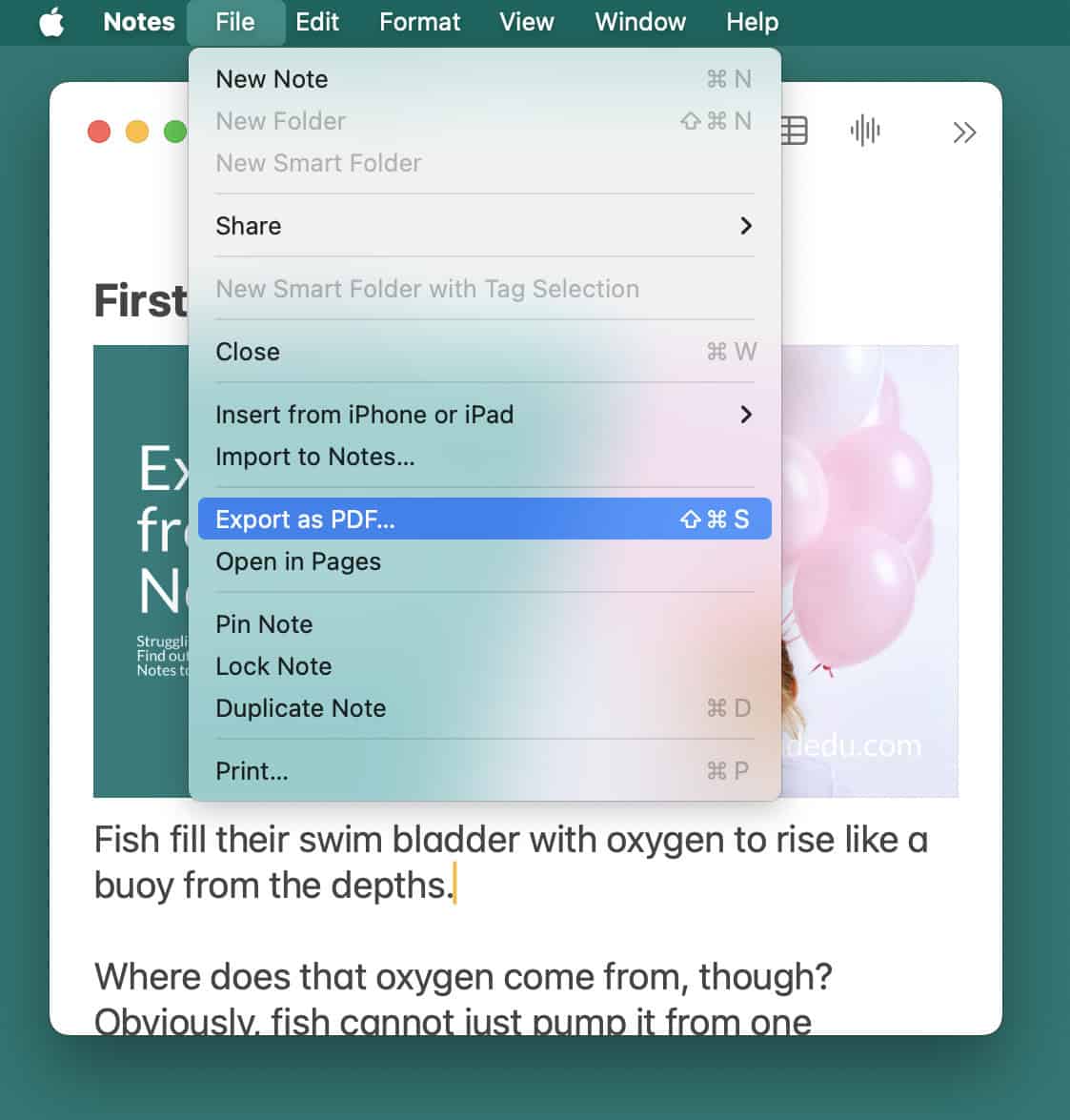
- Select File | Export as PDF… from the menu.
- Go to the folder where you want the PDF file to appear.
- Optional: Change the name for the PDF file under Save As:.
Default: Notes will have entered the note’s first line as the title (truncated to around 70 characters if necessary).
More options: If you want to control pagination to some degree, you can also print the note to PDF; see below. - Click Save.
Editable: The note will export as printed to a PDF file; to get an easily editable document that preserves more of the note’s content for editing, you can also export from Apple Notes to Pages.
Export a Note to PDF in Apple Notes for iPhone and iPad
To save a note as a PDF file using Notes for iPhone and iPad:
- Open the note you want to export.
- Tap the sharing button.
- Select Print on the sheet that has appeared..
Why not “Save”: For a text-only note, you can also select Save to Files directly; if the note contains an image or other attachment, this option will save all files individually, though, and the note itself as a plain text file without formatting. - Tap the sharing button again on the printing sheet.
- Now select Save to Files.

- Go to the folder were you want to save
- Optional: Change the name for the resulting PDF file.
- Tap Save.
How to Export a Note from Apple Notes to PDF: FAQ
Can I export more than one note at once?
No.
Apple Notes always only exports the note that is displayed (or displayed in the topmost window).
Can I set up a keyboard shortcut for exporting to PDF in Notes for Mac?
Yes.
To add a Mac keyboard shortcut to exporting a note to PDF in Apple Notes for macOS:
- Open System Settings.
- Go to the Keyboard category.
- Click Keyboard Shortcuts….
- Select the App Shortcuts category.
- Click +.
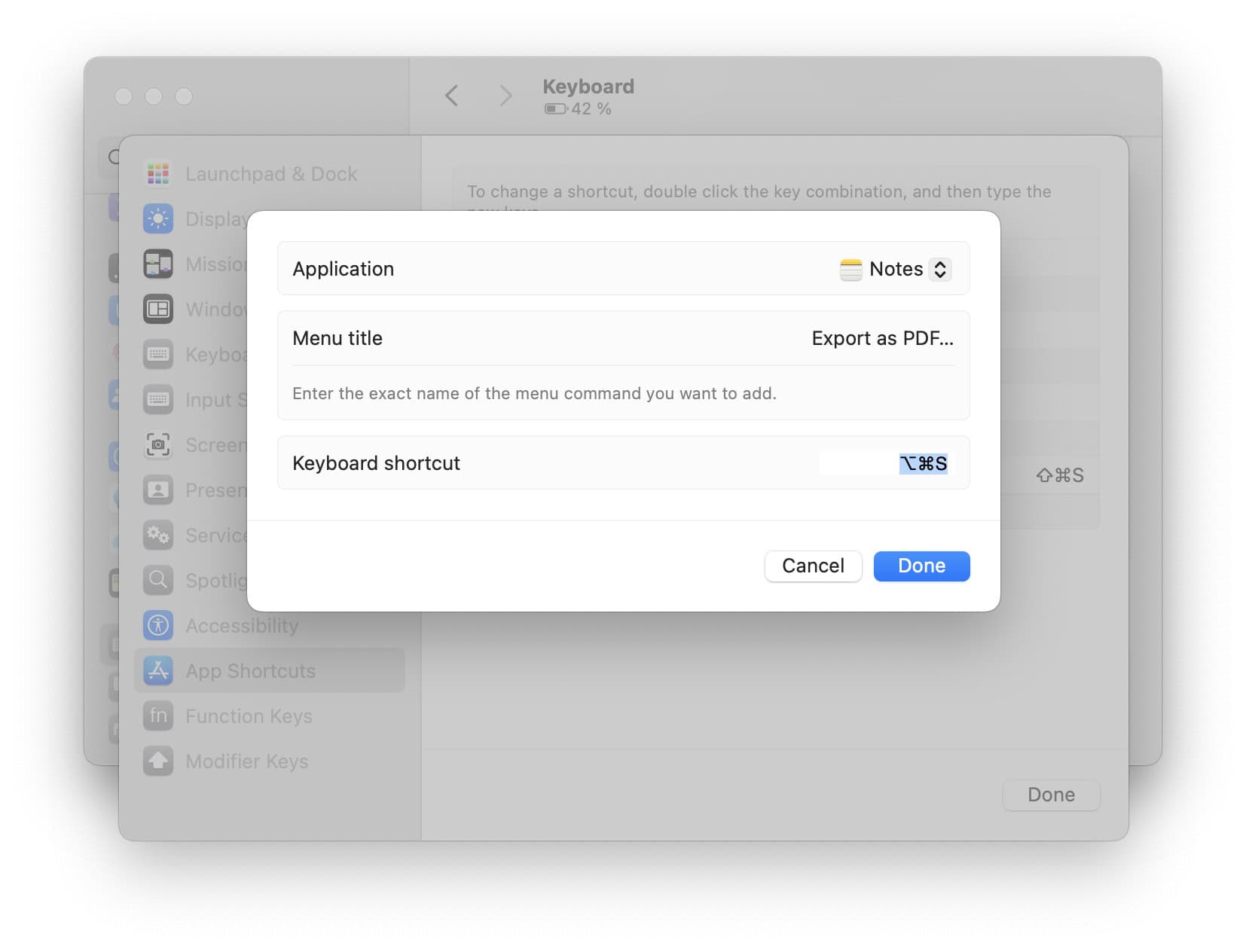
- Select Notes under Application.
- Type Export as PDF… for Menu title.
- Click in the Keyboard shortcut field.
- Press the key combination you want to use for exporting to PDF from Notes.
Example: You can use Command Option S, for example. - Click Done.
What will happen to audio records, links, images, attachments etc.?
For the most part, Notes will export the note to PDF as displayed.
The following will be preserved:
- Text and text formatting (including colors and highlighting)
- Images as shown in Notes itself
- Links to websites
Most other extra features are not included in the resulting PDF, including:
- Attached files
- Audio recordings
- Links to other notes
Will the resulting PDF be paginated?
Yes.
Notes for Mac and Notes for iPhone and iPad both export to PDF as if they were sending the note to a printer.
Can I control pagination and layout?
No, not when exporting from Notes for Mac.
Yes, you can exert some control when printing to PDF.
To control the layout of the exported PDF document in Apple Notes for Mac:
- Open the note you want to save as a PDF file.
- Select File | Print… from the menu.
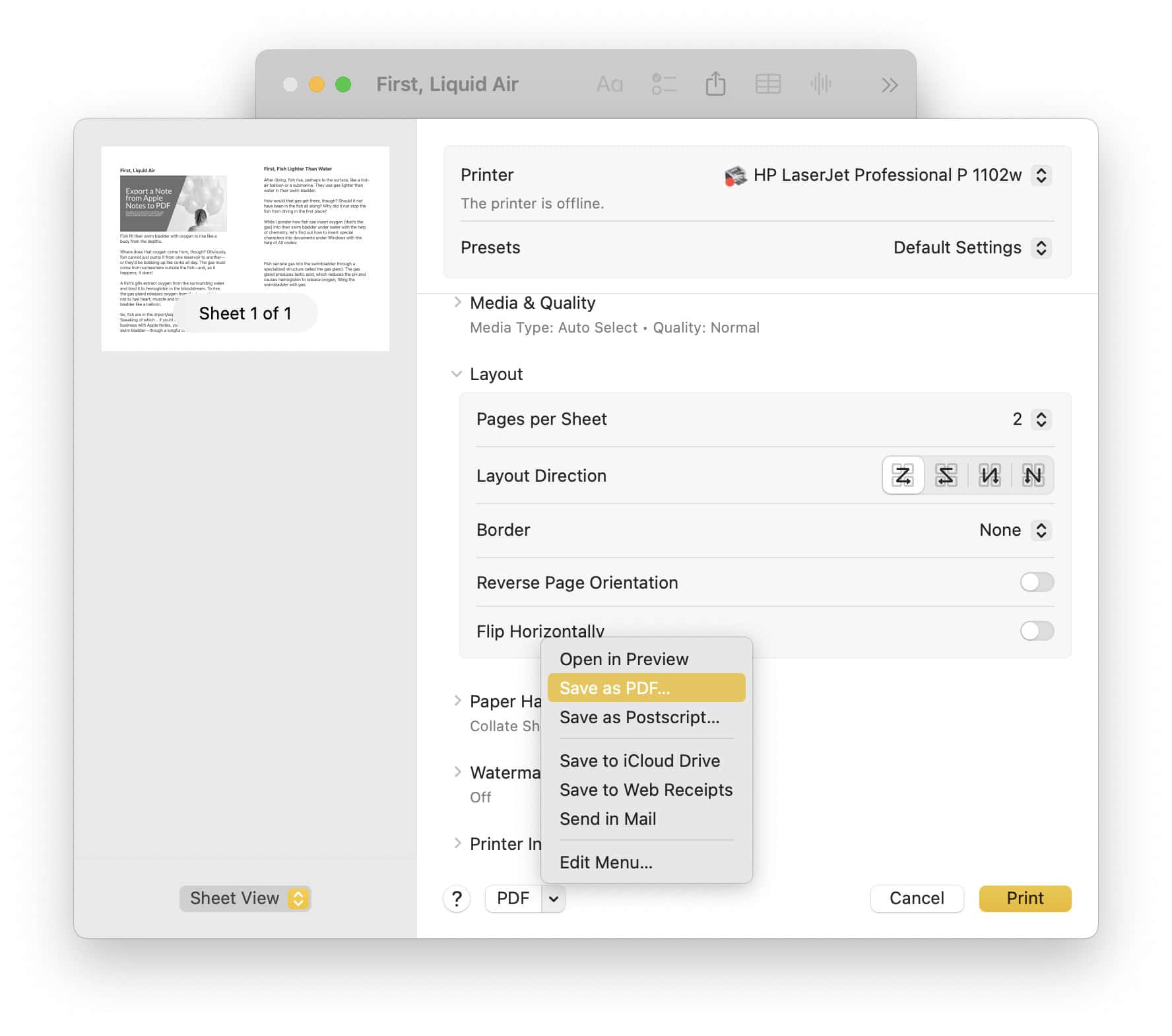
- Choose layout options for the export.
Layout: Look in the Layout section in particular. - Click the downward-headed arrowhead next to PDF.
- Select Save as PDF… from the menu that has appeared.
- Save the PDF file as desired (see above).
Can I export a note from Apple Notes at iCloud.com?
Yes, though not perfectly.
You can export a note as a PDF file using your browser’s print command in Apple Notes at iCloud.com:
- Open the note you want to save as PDF file.
- Press Ctrl P (Windows, Linux) or Command P (Mac) to open the printing dialog.
- Use the browser or the operating system’s option to print to PDF or save the print preview as a PDF file.
(Tested with Notes 4.12 for Mac and Notes for iOS 18; first published July 2025, last updated December 2025)