

Struggling to spot the important parts at a glance — even in your own notes? With just a few taps or clicks, you can make key information stand out in Apple Notes using matching background and font colors that really pop. Find out here how to highlight text with color in Apple Notes ⤓ and bring your notes to life.
On This Page
How to Highlight Text with Color in Apple Notes
Time needed: 1 minute
To highlight text in a note with colored font on colored background in Apple Notes for Mac, iPhone and iPad:
- Highlight the text you want to highlight in the note.
Here’s how: You can use the moue on a Mac to highlight text and double-tap, then drag the handles to select on iPhone and iPad.
- Click or tap the Aa (Choose a style to apply to text) button on the toolbar.
- Now click or tap the Highlight selected text button.
Notes keyboard shortcut: In Apple Notes on a Mac, you can also press Command Shift E to highlight with the currently set color.
Using the menu: You can also select Format | Font | Highlight from the menu on macOS.
Their word: Apple include information on formatting notes text in the Notes User Guide.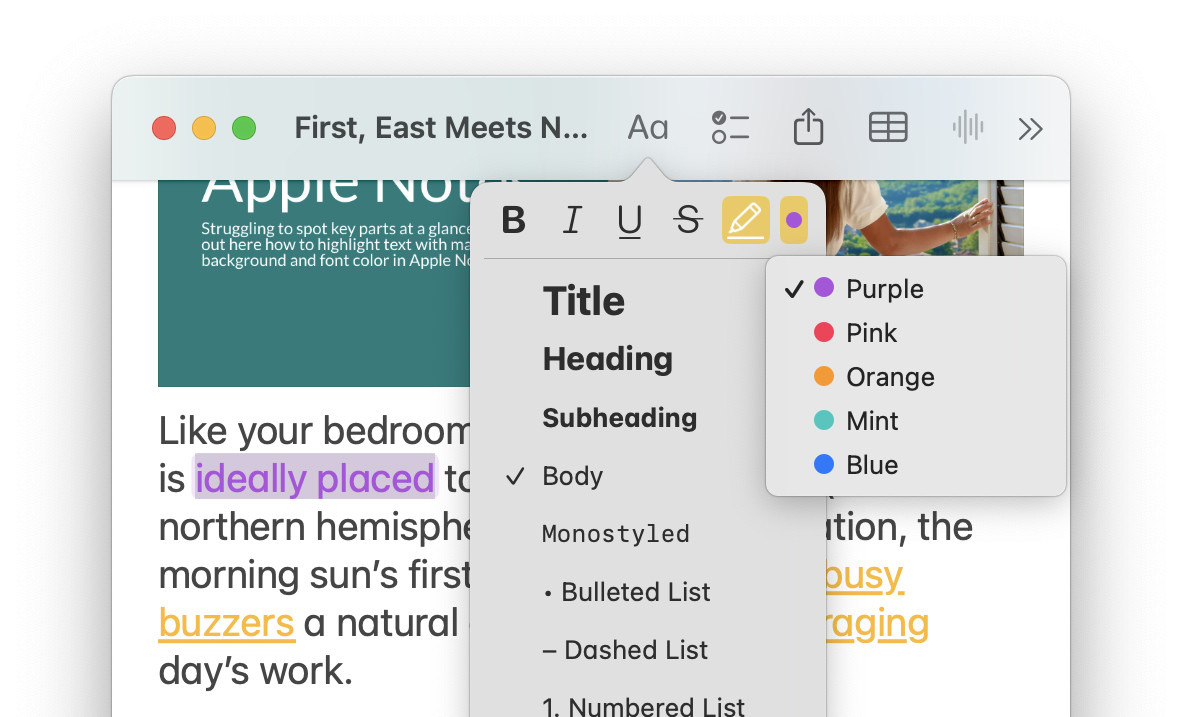
Got the highlights?
Tips help fuel these email and tech how-tos.
Change the Color for Highlighted Text
To change the color for an existing highlight (or for new highlighting) in Apple Notes:
- Select the text to be highlighted.
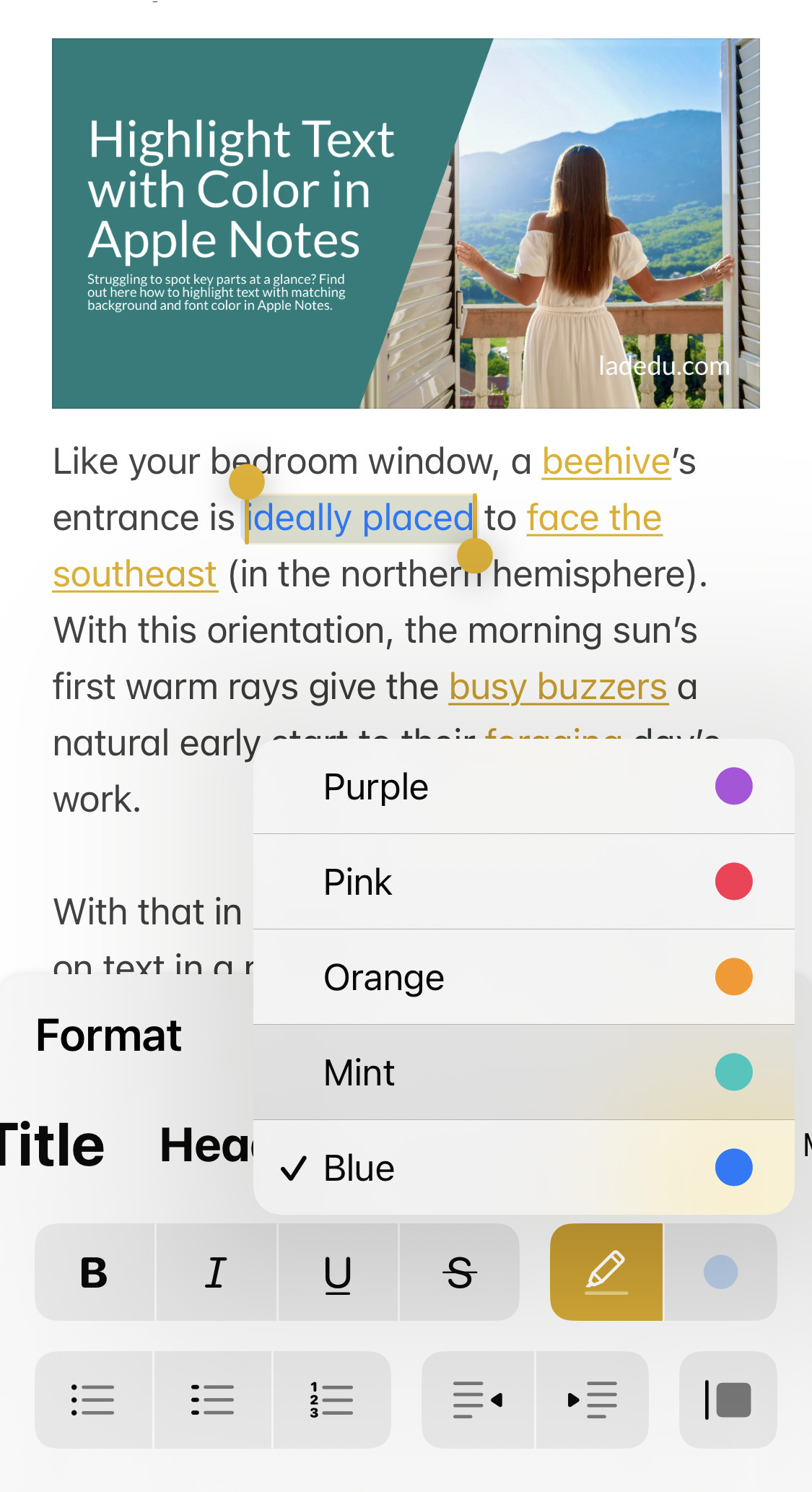
More than a tap: For existing highlights, do select the full text again. - Click or tap Aa.
- Now click or tap the color next to the highlighting button.
- Select the desired color from the menu that has appeared.
Focus, then highlight: How to Focus in Apple Notes for Mac
How to Remove a Color Highlight in Apple Notes
To remove highlighting from select text in a note using Apple Notes on Mac, iPhone and iPad:
- Select the highlighted text from which you want to remove the highlight formatting.
Part or all: Only the selected portion will lose the color highlighting; if you select text that is not currently highlighted together with colored text, highlighting will be removed from the currently highlighted section while the other parts will not change. - Take the steps to add highlighting (see above).
Removing All Text Highlighting in a Note
To remove all text highlight with a background color in a note using Apple Notes:
- Highlight all text in the note.
Here’s how: You can press Command A on a Mac, for example, or choose Select All from the context menu on iPhone and iPad. - Apply any color highlighting using the steps above.
- Remove the same highlighting.
This will not interfere with any other formatting you have applied to text.
How to Highlight Text with Color in Apple Notes: FAQ
Can I also highlight images, attachments, recordings or other Notes content?
No.
Highlighting with a background color only works with text; you can use it with all text formatting, though, including headings.
Can I add new colors for highlighting to Notes?
No.
You can choose from the existing colors available for highlighting: purple, pink, orange, turquoise and blue. Independently, you can change the foreground color of text in Notes to any hue you fancy.
Does iCloud Notes at iCloud.com allow highlighting?
No.
Apple Notes on the web at iCloud.com neither lets you highlight text with a background color — nor will it show text highlighting from Notes for macOS, iOS and iPadOS.
Will text highlighting be preserved when I export a note?
Yes.
You can export both from Notes to PDF and from Notes to Pages keeping custom text colors.
(Tested with Apple Notes 4.12–4.13 on macOS Tahoe 26 and Sequoia 15 as well as Notes for iOS 18 and 26; first published June 2025, last updated June 2026)