
Tired of black text among more black text in Apple Notes turning your ideas into a monotonous blur? Looking to make important points really pop? Find out here how to change the text color in Apple Notes for Mac ⤓ — and make your notes stand out with color.
On This Page
How to Change the Text Color in Apple Notes for Mac
Time needed: 2 minutes
To apply any color to select text in a note with Apple Notes for macOS on a Mac:
- Highlight the text for which you want to change the typeface’s (foreground) color.
Here’s how: Use the mouse, most conveniently, to select.
- Select Format | Font | Show Colors from the menu..
Notes keyboard shortcut: You can also press Command Shift C to bring up the color selection window.
- Use the Colors window to select the desired color.
Here’s how: Use the Color Wheel or Image Palettes to choose colors intuitively, Pencils or Color Palettes to pick from preset (crayon) colors or Color Sliders to compose colors using various models.
Picking colors: You can use the eyedropper to pick a color from the screen.
Their word: Apple include information on formatting notes in the Mac User Guide.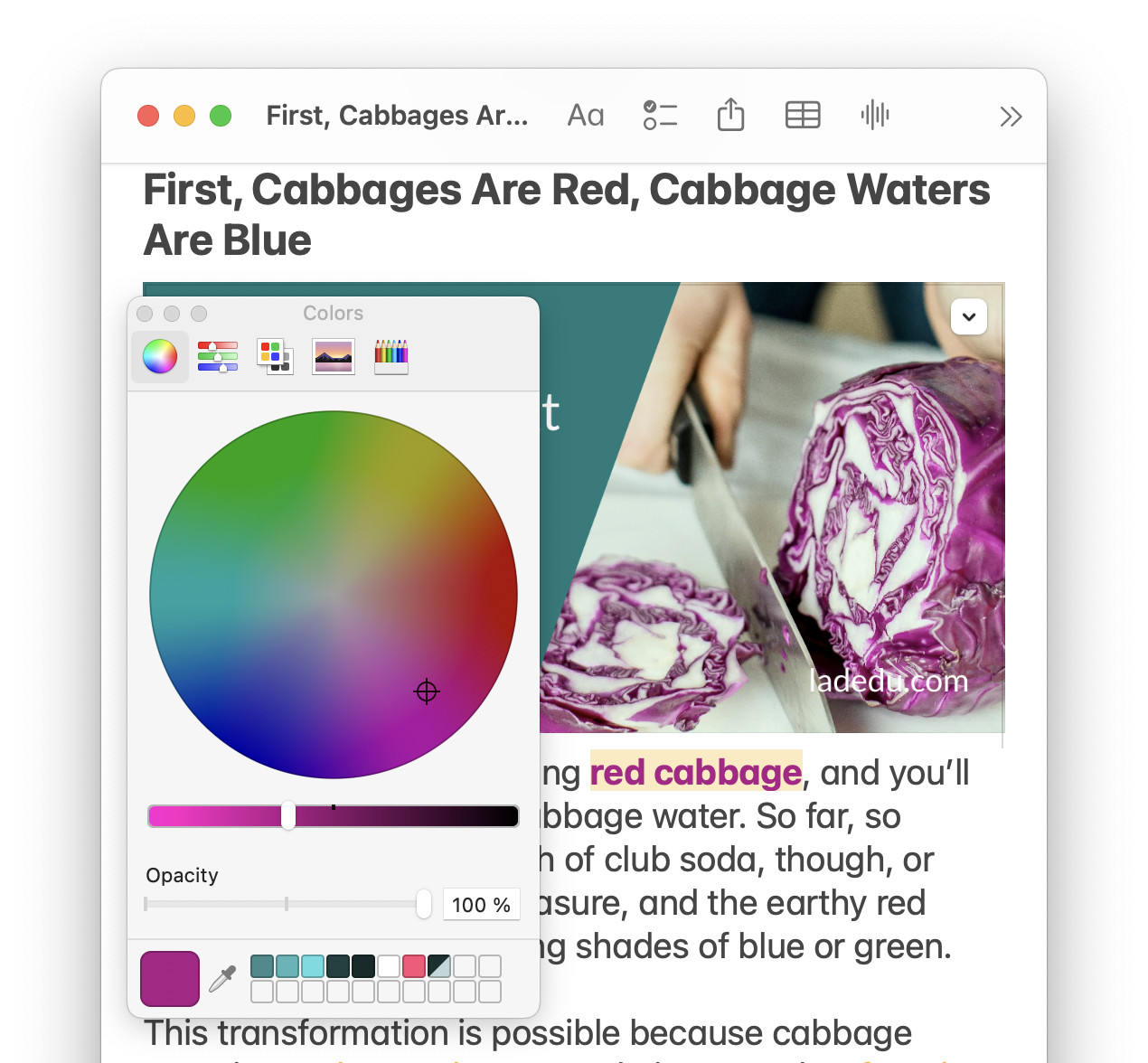
Text now tangerine and teal?
Tips help fuel these email and tech how-tos.
Remove Custom Text Color in Apple Notes
To reset the text color for text in a note:
- Highlight the text that has a custom font color applied.
- Select Format | Font | Remove Style from the menu.
Caution: This will reset the text to the paragraph default and remove all styling — Including text styling from links and the links themselves.
Just the color: To avoid interfering with styling apart from the color, you can set the color to the standard values using the steps above (to hex #353535 (a dark gray) for regular text, for instance).
How to Change the Text Color in Apple Notes for Mac: FAQ
Can I change the background color?
No.
You can only change the “front” color for the typeface. Using color highlighting, you can choose from a few background highlighting colors in Apple Notes, though.
Will the custom color stick when I change text styles?
No.
If you apply a text style (such as a heading or a list style) to a paragraph in Apple Notes, the formatting will apply to all text in the paragraph, and custom text colors will be removed.
Will custom text color show in Apple Notes on other devices?
Yes.
You will see the custom colors in Apple Notes on iPhone and iPad as well as iCloud Notes at iCloud.com.
Can I change text colors in Apple Notes for iPhone, iPad and iCloud.com?
No.
While custom typeface colors will display in Notes for iOS, iPadOS and on iCloud.com, you cannot change the colors on these platforms.
Will custom text colors export?
Yes.
Whether you export a note to PDF or from Notes to Pages, custom text colors will be preserved.
(Tested with Apple Notes 4.12–4.13 on macOS Tahoe 26.0 and Sequoia 15.5; first published June 2025, last updated December 2025)