

Ever had a brilliant thought, idea or insight, thinking “I’ll jot it down later” — and then never remembered to do so? Tired of scrambling for yet another app just to record a quick voice note? Find out here how to add a voice recording to a note in Apple Notes ⤓ — and have it transcribed for you automatically to boot.
On This Page
How to Record Audio and Get Its Transcript in Apple Notes on iPhone, iPad and Mac
⚡ Quick Fix
Tap the paperclip (iPhone) or select Edit | Record Audio (Mac), press the red recording button and record your audio.
To get the text, tap the Show transcript and summary button, then open the three dots menu and choose Add transcript to note.
Apple Notes for Mac, iPhone and iPad
Time needed: 2 minutes
To add a voice recording (with optional text transcription) to a note using Apple Notes for Mac, iPhone and iPad:
- Position the text cursor where in the note you want to insert the text recording.
Just an attachment: The recording is essentially a file attached to the note; you can move it to a different place in the note — or another note — by cutting and pasting easily at any time.
- Press Record audio in the note’s toolbar to start a new recording.
Not starting from scratch: You can also add to an existing recording; see below.
iPhone: On an iPhone, tap the attachment paperclip icon, then select Record Audio from the menu.
Mac menu: On a Mac, you can also select Edit | Record Audio… from the menu. - Tap or click the red recording button to start recording.
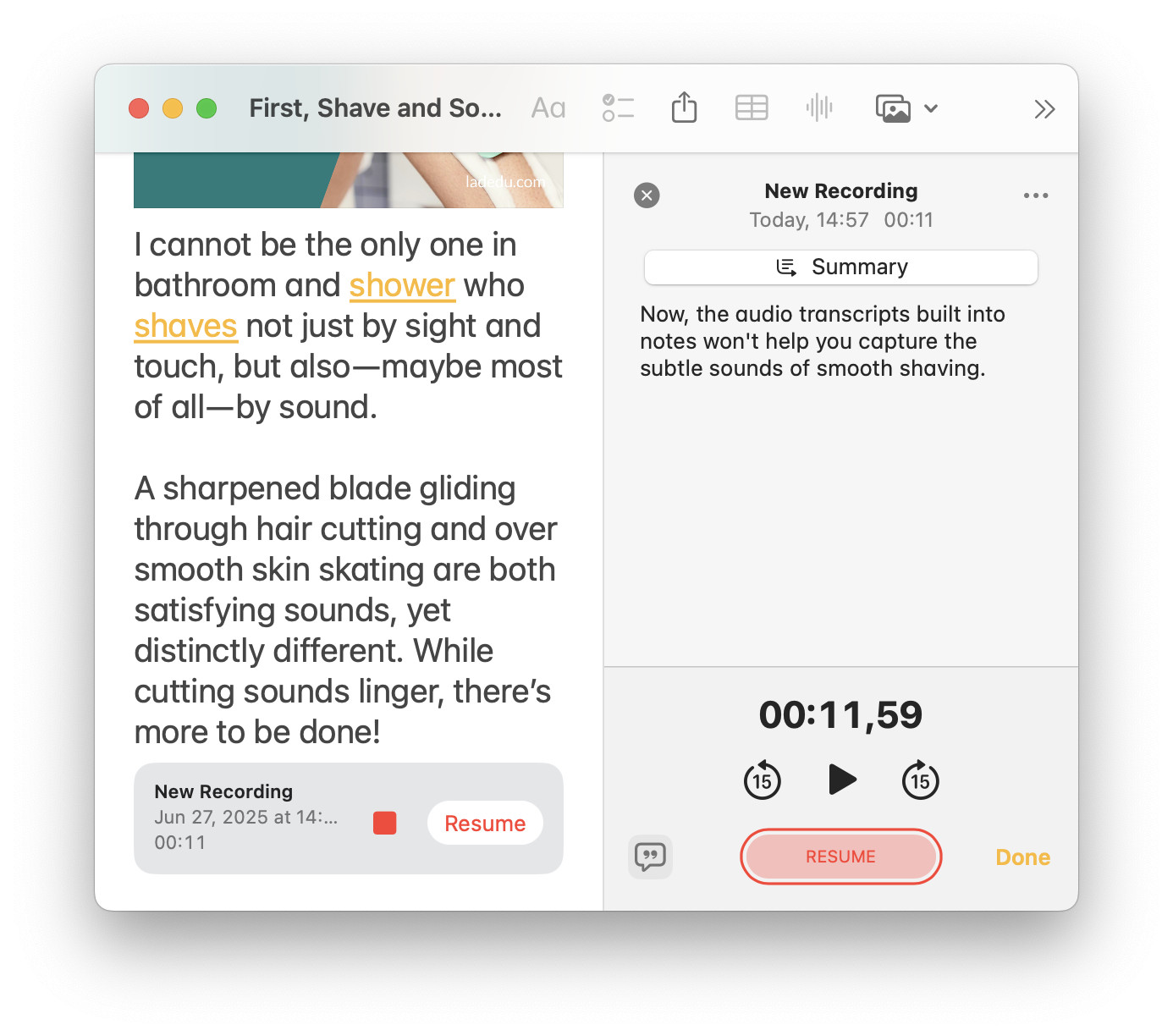
Pause: Tap the pause button (which replaces the recording button while you are recording) to stop recording.
Continue: Tap Resume to continue recording. - Tap the Show transcript and summary button to get a live transcript as well as an AI summary for longer recordings.
- Click or tap Done.
Their word: Apple include information on recording audio notes in the iPhone User Guide.
Talking to the hand?
Tips help fuel these email and tech how-tos.
Append to a Voice Recording in Apple Notes
To add additional content to a voice recording in a note with Apple Notes:
- Bring up the context menu for the recording.
On a Mac: On macOS, click on the recording with the right mouse button.
On iPhone and iPad: Tap and hold the recording until the context menu appears - Select Add to Recording… from the menu.
- Start speaking.
- Press Pause to pause and Pause followed by Stop to finish adding to the recording.
As an alternative, you can also open the recording, hide the transcript if it is visible, scroll to the very end of the current recording and press Record.
Add the a Voice Recording Transcript to the Note as Text
To turn your recording into editable text in Apple Notes for Mac, iPhone and iPad:
- Open the recording whose text you want to add to your note.
Here’s how: Tap the recording (iOS and iPadOS) or double-click it (Mac). - Display the transcript.
Here’s how: Click or tap the Show transcript and summary button if the waveform for the recording is on display. - Click or tap the three dots menu button.
- Select Add transcript to note to append the transcript as text to the note.
At the end: The transcript will be added at the end of the note, not at the point of the audio recording.
Right here: To insert the transcript at the current point (or anywhere), select Copy Transcript from the menu instead and paste the copied text at the desired location.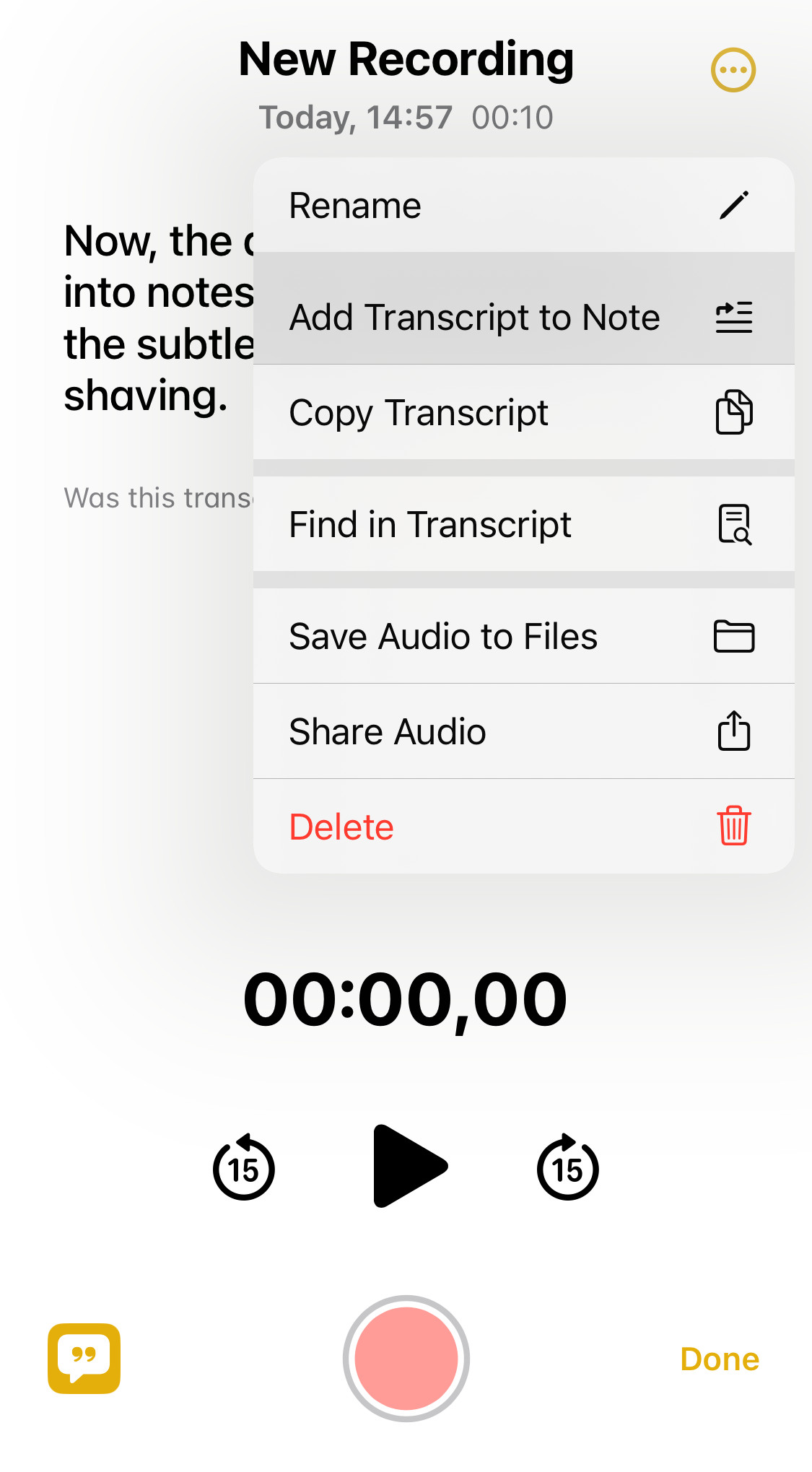
Now on with highlights, color and structure.
How to Add a Voice Recording (+ Transcript) to a Note in Apple Notes: FAQ
Can I search the text in voice recording (without adding the transcript to the note)?
Yes.
To search within the transcript of an audio recording
- Open the recording.
- Tap or click the three dots menu button.
- Select Find in Transcript… from the menu.
- Type (or dictate, of course) what you are searching.
Can I edit the audio recording?
No.
In Apple Notes, you can only append to a recording or remove it entirely. You cannot cut or edit a recording.
You can always add the transcription as text to the note, of course, and edit that to your heart’s content.
(Tested with Apple Notes 4 on macOS Golden Gate 27, Tahoe 26 and Sequoia 15 as well as Notes for iOS 18 and 26–27; first published June 2025, last updated October 2026)