

Want to sign a PDF without the hassle of printing, singing and scanning? With your signature set up in Preview, you can insert it into any document easily. Find out here how to add a signature to a PDF file on a Mac using Preview ⤓ (and change its color, size and angle as well).
On This Page
How to Add a Signature to a PDF File on a Mac Using Preview
Time needed: 2 minutes
To insert a handwritten and scanned signature to a PDF document on a Mac using Preview:
- Create a signature for use in Preview.
- Show the markup or the form filling toolbar.
Here’s how: Click Show markup toolbar or Show form filling toolbar in the normal Preview toolbar; if you see Hide markup toolbar instead, for instance, the toolbar is already visible.
Preview keyboard shortcut: Press Command Shift A to show and hide the markup toolbar. - Click Sign in the markup or form filling toolbar.
Menu alternative: You can also always select Tools | Annotate | Signature from the menu.
- Select the desired signature to insert it into the document.
Pick the page: Go to the page on which the signature should appear before inserting so you do not have to move it too much around.
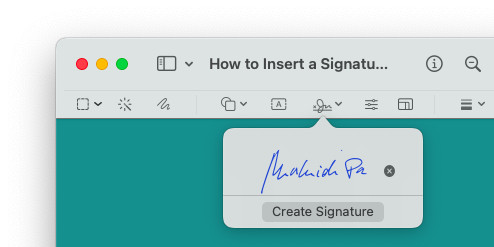
- Position the signature in the desired location.
Here’s how: Use three finger drag to move the signature into position and the handles to change its size; hold Option while you resize to keep the signature centered in its original spot.
Rotate: To rotate the signature, twist two fingers on a trackpad with the signature selected. - Optional: Change the signature’s color.
Here’s how: In the markup toolbar, click Border color, then pick the color you’d like to use for the signing ink.
Local color: Select Show Colors… to pick a color from the document (or elsewhere on the screen) using the pipette.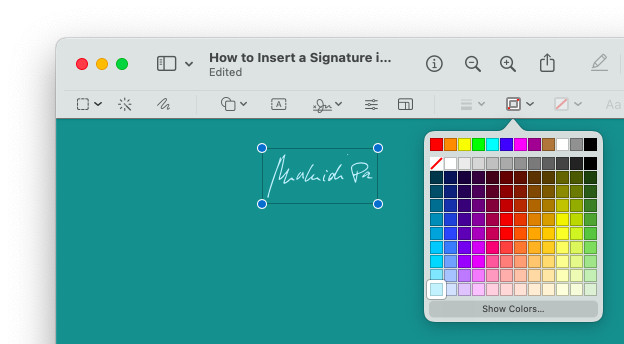
No more print-sign-scan drudgery?
Tips help fuel these email and tech how-tos.
How to Add a Signature to a PDF File on a Mac Using Preview: FAQ
Can I add an electronic signature, too?
No.
Preview will not sign PDF files electronically with a cryptographic signature, and you cannot verify digital signatures directly with it either. You can always add a cryptographic signature after adding the graphical one in Preview, of course.
On an iPhone? Add a Handwritten Signature to a PDF on an iPhone
Using Chrome? How to Sign PDF Files Right in Google Chrome
(Tested with macOS Tahoe 26.0–26.5, Sequoia 15.1–15.4, Sonoma 14.2 and Ventura 13.3; first published June 2023, last updated June 2026)