

Yet another PDF to, sigh, print, sign and scan — and not a printer in sight? If you’re viewing the file in Chrome, take a peek at this well-hidden talent: adding your signature right in the browser. Find out here how to sign and save PDF files in Google Chrome ⤓ — no printing, no extra software.
On This Page
How to Sign PDF Files Right in Google Chrome
⚡ Quick Fix
Click the Draw button, select Pen and use mouse, trackpad or finger to write your signature directly on a PDF document in Chrome.
Time needed: 3 minutes
To add your handwritten signature to a PDF document using Google Chrome:
- Open the PDF document you want to sign in Chrome.
Here’s how: You can drag-and-drop PDF files onto Chrome to open them, press Ctrl O (Windows and Linux) or Command O (Mac) to bring up a file opening dialog or visit the document’s URI, of course.
See more: If you need to reference another PDF file or website, you can open two tabs side by side in Chrome. - Click the Draw button in the toolbar.
- Select Pen.
- Optional: Pick a color and pen thickness.
Here’s how: Use the Size and Color buttons to reveal the corresponding selectors if they are not initially visible.
- Use your mouse, trackpad or graphics tablet to write your signature on the PDF document.
Here’s how: Click or tap and move the pointer to write.
Zooming in: Typically, zoom in first on the location so writing with a clunky device gets easier. - Click the Download button in the toolbar to save a copy of the file.
- Select With your changes from the menu that has appeared.
Here’s why: This will include the signature in the saved PDF document.
- Choose a location and file. name, then click Save.
Their word: Google include information about managing PDF files in Chrome help.
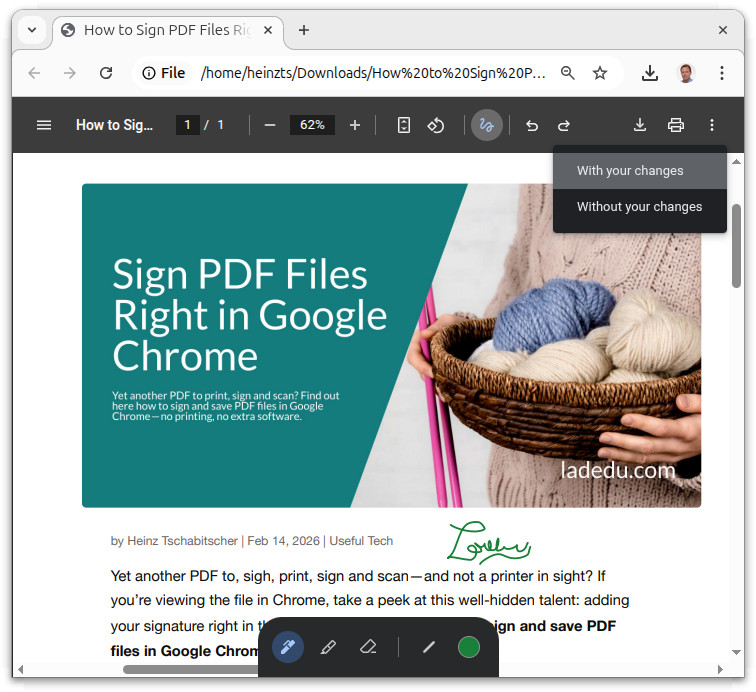
Signed, not scanned?
Tips help fuel these email and tech how-tos.
How to Sign PDF Files Right in Google Chrome: FAQ
Can I save and re-use signatures in Chrome?
No.
Chrome lets you write your signature as you use the PDF drawing tools.
Can I import a signature from a scan or photo?
No.
Chrome cannot import or extract signatures from image files.
Can I use a custom color for my signature?
No.
You can choose from the colors pre-defined in Chrome drawing tools.
How can I undo or delete a signature?
To undo inserting a signature immediately, you can
- click the undo button in the toolbar or
- press Ctrl Z (Windows, Linux) or Command Z (Mac).
To delete a signature, select the Eraser tool from the drawing toolbar and click the signature.
(Tested with Google Chrome 145–151; first published February 2026, last updated August 2026)