
If you can doodle and draw on your iPhone, surely you should be able to sign your name, too — right? You should also be able to drop that signature exactly where it belongs: on a document. Find out here how to add your handwritten signature to a PDF document with Preview for iPhone ⤓ without fuss.
On This Page
How to Add a Handwritten Signature to a PDF Document in Preview for iPhone
⚡ Quick Fix
Open the markup toolbar in Preview and tap +. Select Add Signature and choose an existing signature or create a new one, then resize and position it to suit the document.
Time needed: 1 minute
To insert your handwritten signature into a PDF document on an iPhone using Preview for iOS:
- Set up a signature to insert into PDF documents in Preview on the iPhone.
Here’s when: You can add the signature just as you insert it into a document.
Ready-made: if you have set up a handwritten signature in Preview for Mac before, you can use this signature in Preview for iPhone as well. - Open the document to be “signed” in Preview.
Here’s how: You can use the Recents and Browse tabs to locate PDF files or use the magnifying glass icon to search.
- Open the markup toolbar.
Here’s how: Tap the encircled tip of a pen in the bottom toolbar.
- Tap + in the markup toolbar.
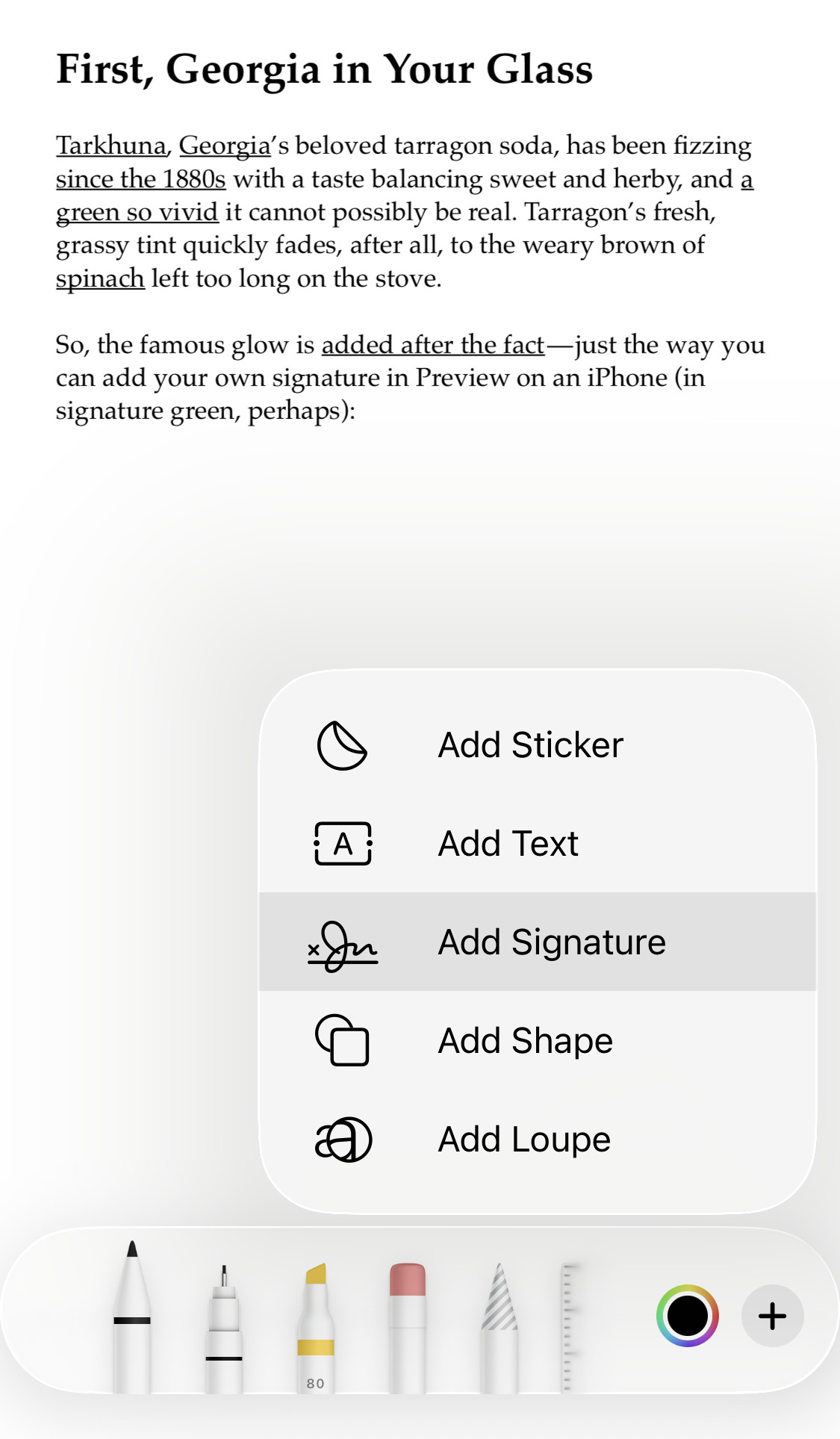
- Select Add Signature from the menu.
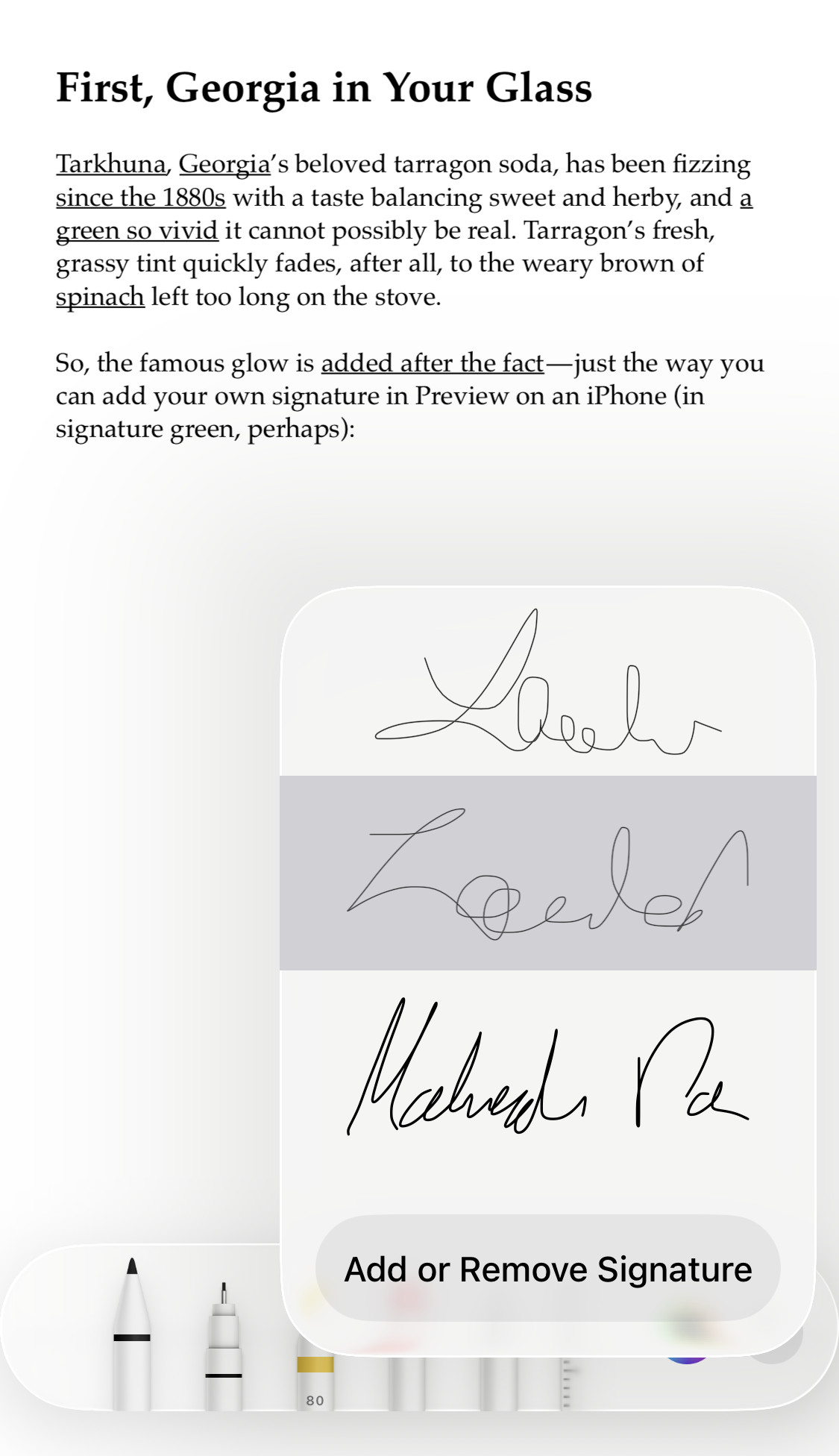
- Choose the signature you want to insert.
New: Select Add or Remove Signature to add and insert a new signature in one step.
- Adjust the size and location of the handwritten signature.
Here’s how: Use the handles in the corners to scale the signature to the desired size.
Color: You can also change the color of your signature; see below.
Their word: Apple include information on signing documents using Preview in the iPhone User Guide.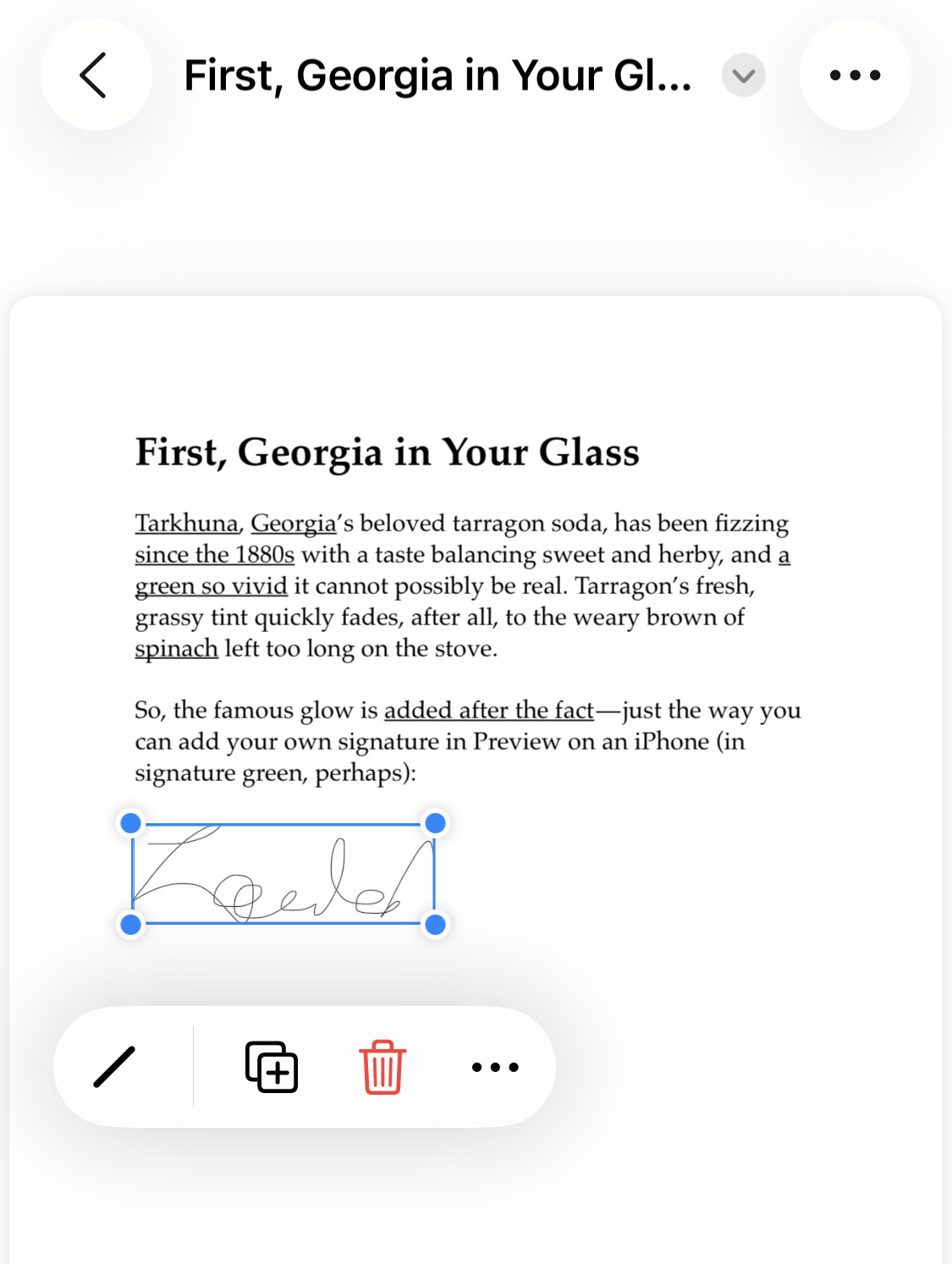
Signature scribbled and saved?
Tips help fuel these email and tech how-tos.
Change the Color of a Handwritten Signature in iPhone Preview
To adjust the color for a signature you have inserted in a PDF document with Preview for iPhone:
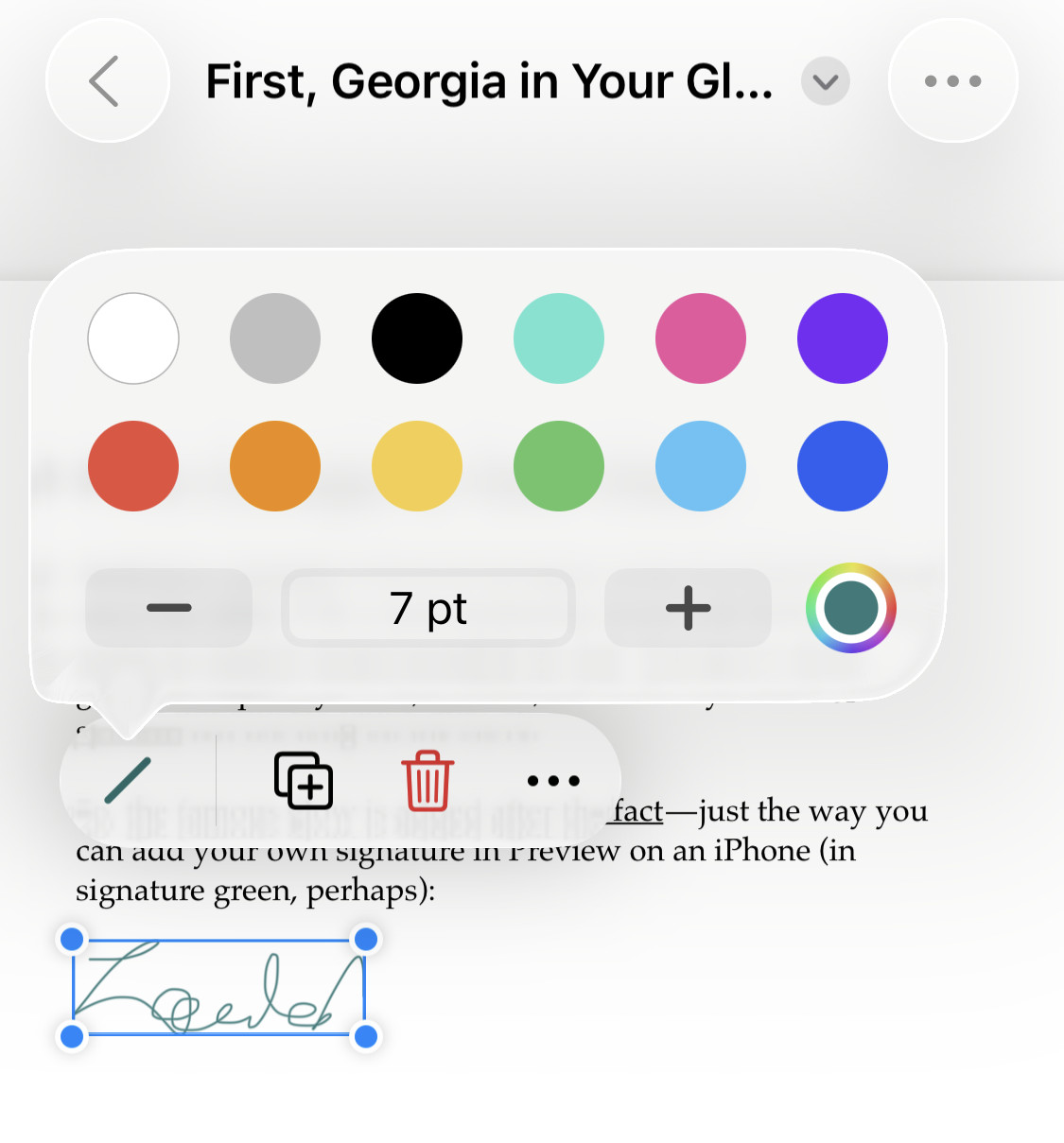
- Tap the signature so it is selected and its context menu is visible.
- Now tap the editing button (a stylized pen).
- Choose a color from those displayed or define one for the signature.
Your own: To pick from the whole gamut of colors, tap the color spectrum, then use the Grid, Spectrum and Sliders tabs to define a color.
Hex input: You can enter a hexadecimal color code on the Sliders tab.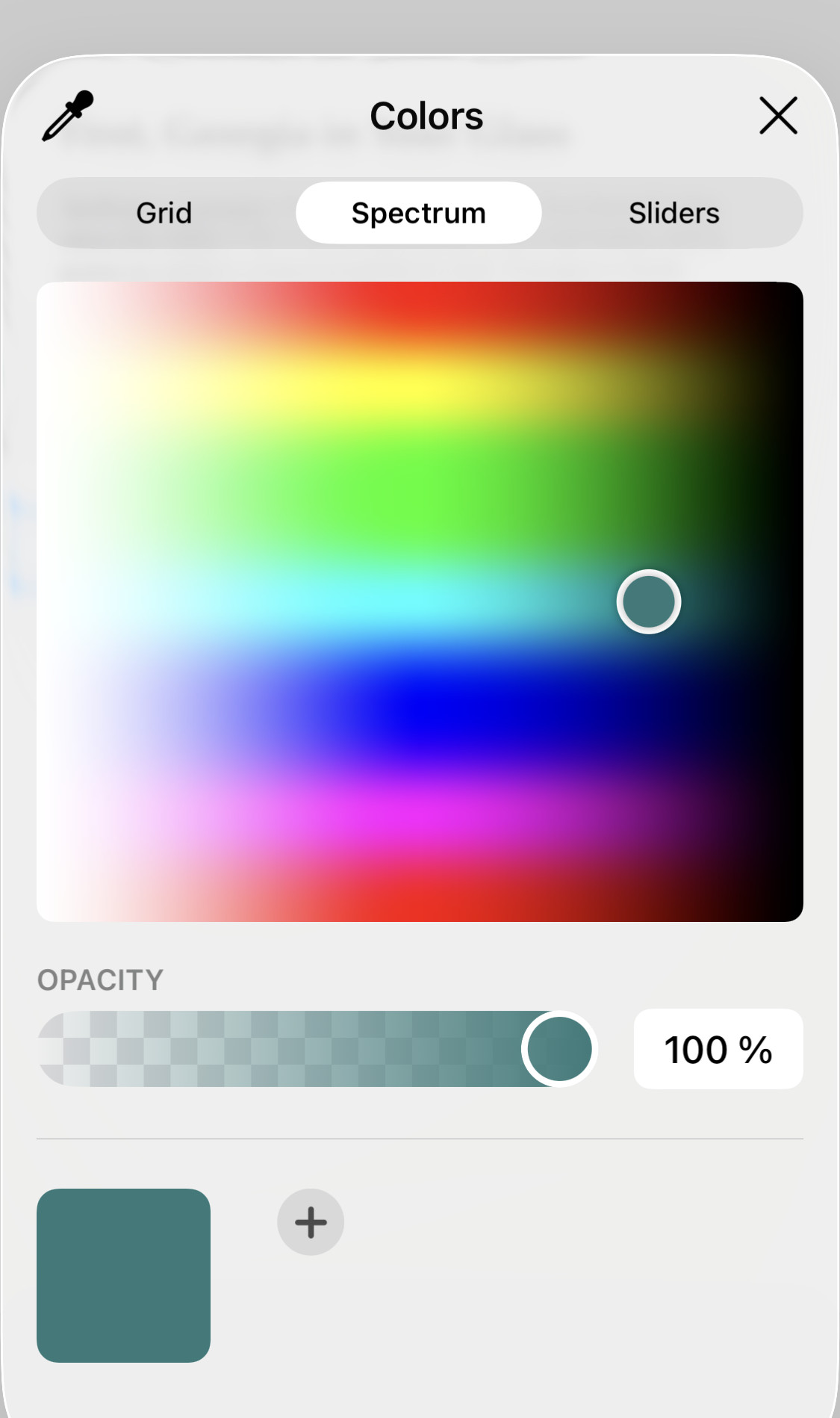
How to Add a Handwritten Signature to a PDF Document in Preview for iPhone: FAQ
Can I change the “pen” used for the handwritten signature (to make it thicker or thinner, for example)?
Yes.
To pick a different stroke size for a handwritten signature in Preview for iPhone:
- Open a signature’s context menu.
- Tap the editing button.
- Now choose the desired thickness in points (pt).
Do signatures sync between iPhone, iPad and Mac?
Yes.
Signatures automatically synchronize between Preview on Apple devices where
- you are signed into the same iCloud account and
- iCloud Drive is enabled.
(Tested with Preview for iOS 26; first published October 2025, last updated September 2026(