

Looking to archive, move, delete or mark multiple emails — and not waste time opening them one by one? Managing your iPhone inbox need not be a headache even when emails have piled up. Find out here how to select multiple emails fast in iPhone Mail ⤓ so you can take control of your emails with ease and efficiency.
On This Page
How to Select Multiple Emails Fast on an iPhone
Time needed: 1 minute
To quickly select multiple emails on an iPhone in iOS Mail:
- Open the iPhone Mail folder in which you want to select emails in bulk.
- Tap with two fingers on one message you want to select.
One-finger alternative: As an alternative, tap the Edit button.
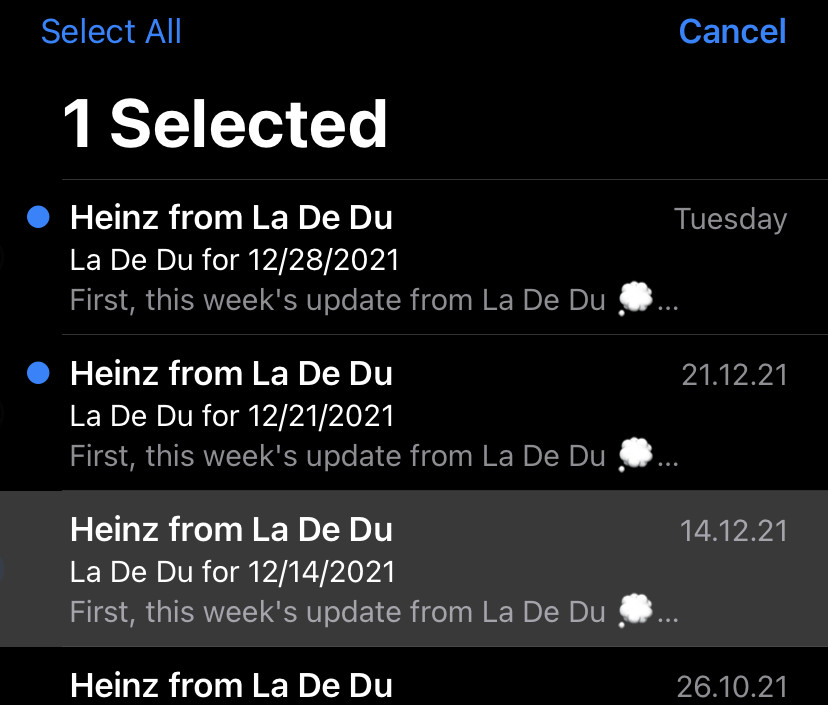
- Add individual emails to selection: tap any message to add it to or remove it from the selection
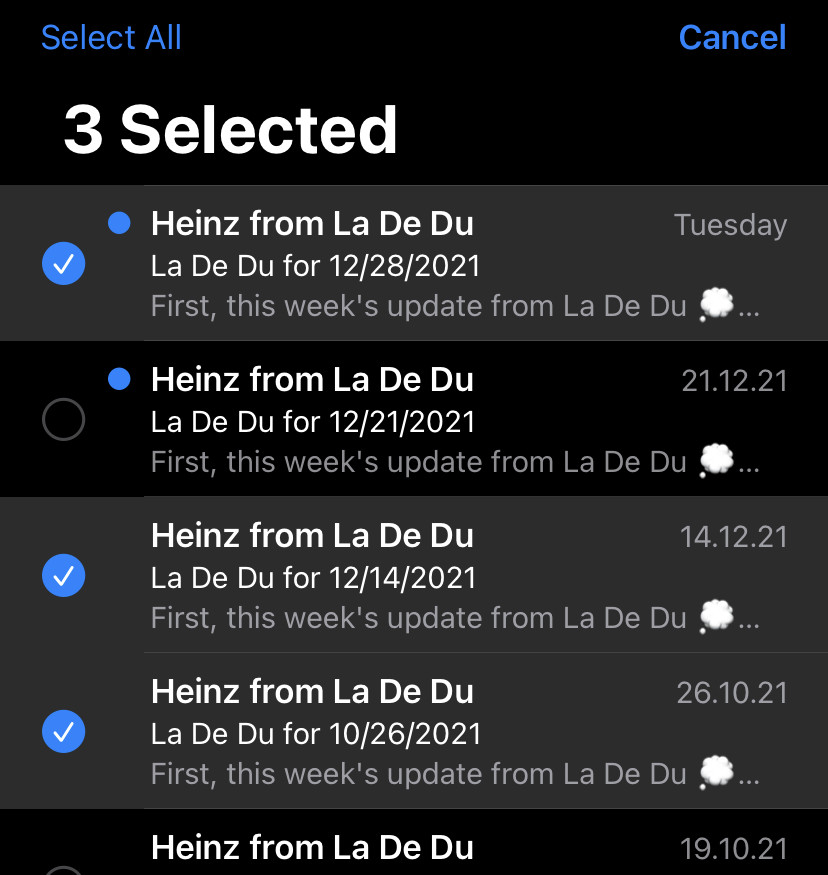
- Add a range of messages: swipe with two fingers over a range to toggle its selection status quickly.
Scroll: As you reach the top or bottom of the display, iPhone Mail will scroll the message list and keep selecting; you can also scroll with the iPhone scroll bar.
I want to lift just one finger: You can also swipe over the selection circles in front of messages with one finger to change their selection status.
Super-fast range selection: See below for an even faster way to select a range of emails.
Undo: You can always tap a message’s checkmark to remove it from the selection. - Act on the selected messages in bulk.
Here’s what: You can delete them in bulk or mass-archive, for example.
Their word: Apple include information on organizing emails in the Mail User Guide.
Inbox under control?
Tips help fuel these email and tech how-tos.
Select a Range of Messages in One Go
To select a range of (multiple9 emails in one swipe with iPhone mail:
- Go to the folder where you want to select multiple emails.
- Tap with two fingers on the first message you want to check for further action leaving the fingers on the screen.
Up and down: You can start with the topmost message or the one at the bottom, selecting multiple emails works either way. - Swipe in the direction of your desired selection with the two fingers.
- Let go to finish the selection.
Remove individual emails: See above for removing individual emails (or a range) from the selection.
Add to the selection: You can also use all techniques outlined above to select further emails. - Act on your selection.
Want all? How to Select All Emails
See fewer emails, but better: How to Change the Font Size in iPhone Email
How to Select Multiple Emails Fast on an iPhone: FAQ
Can I select multiple emails with a filter active in iPhone Mail?
Yes.
Selecting multiple messages works just the same with a filter active in the current folder. You will only select from the emails allowed by the filter, of course.
Can I select multiple messages in iPhone Mail search results?
Yes.
Swiping to select ranges and using the Edit button or tapping with two fingers works with search results — even across all email folders. Note that you cannot select all messages using a button in search results, though.
How can I quickly deselect all messages?
To remove all messages from your selection in one go:
- Tap Cancel while selection circles are visible in front of messages.
- Tap Edit to start selecting anew or use the quick selection steps above.
(Tested with iPhone Mail on iOS 15–18 and 26; first published January 2022, last updated July 2026)