
Want to make sure you can find an important page again in a PDF document? Whether you’re organizing research, collecting recipes or saving your place a gripping novel, there’s a way to mark the spot just like in a well-thumbed paper book. Find out here how to bookmark pages in PDF files with Preview on a Mac ⤓.
On This Page
How to Bookmark Pages in PDF Files with Preview on a Mac
Time needed: 1 minute
To place a bookmark on a page in a PDF document using macOS Preview on a Mac:
- Scroll to the page you want to bookmark in Preview.
Here’s which you’ll bookmark: Preview will place the bookmark (roughly) on the page that takes up the largest part of the Preview window.
Bookmarks, not notes: Bookmarks in Preview let you return to a specific page in a PDF file easily, they are not notes or highlights (Preview also lets you browse notes and highlights easily, of course). - Select Tools | Add Bookmark from the menu.
Preview keyboard shortcut: You can press Command D to add a bookmark.
Here’s what happens: You will see a red bookmark appear in the page’s top right corner.
Caution : In password-protected documents, bookmarks you add will not be saved.
Their word: Apple include information on bookmarks in the Preview User Guide.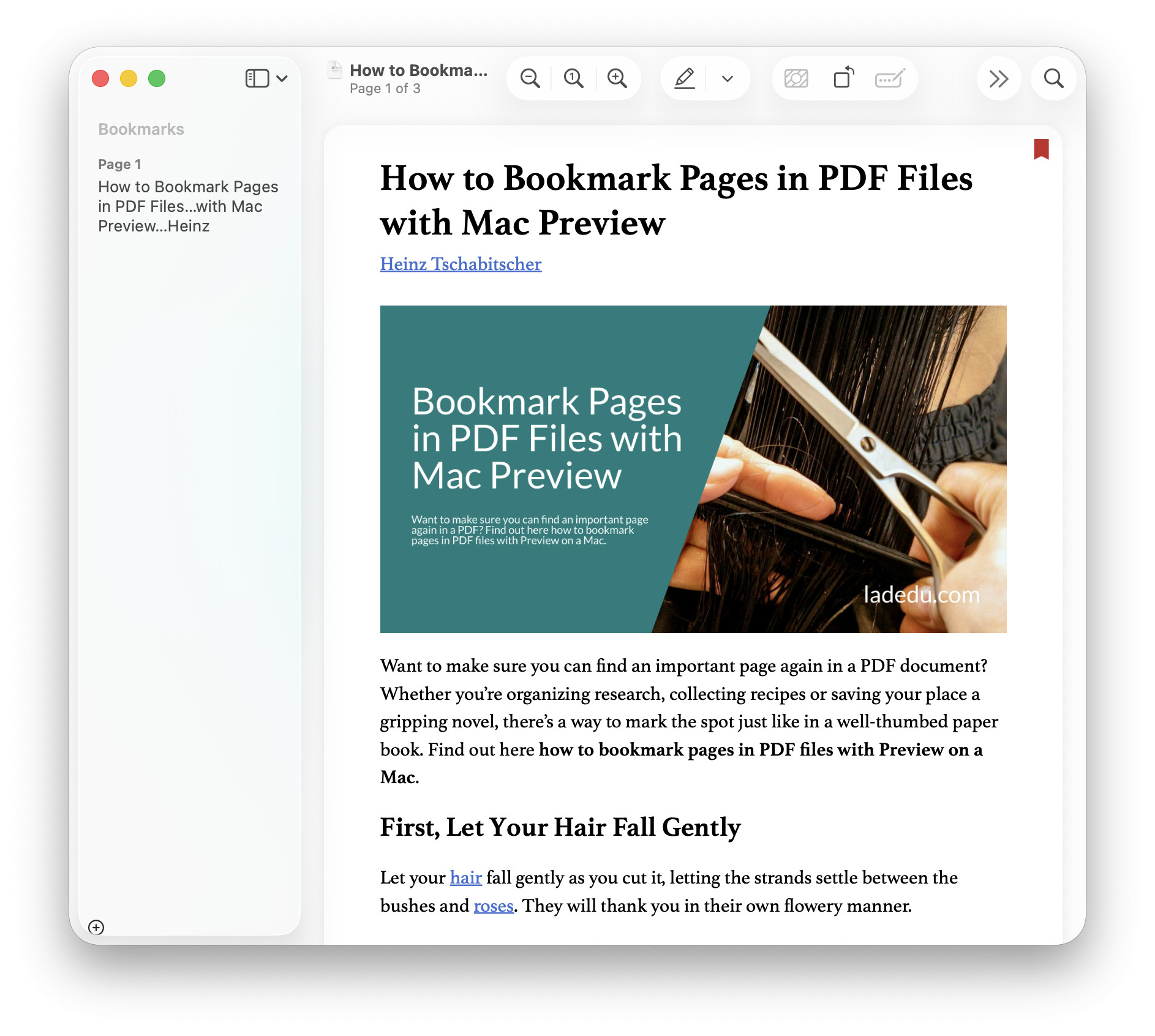
📍 Marked the spot?
Tips help fuel these email and tech how-tos.
Browse and Jump to Bookmarks in Preview on a Mac
To go to a bookmark in a PDF document:
- Open the PDF file in Preview.
- Show bookmarks in the sidebar.
Here’s how: Select View | Bookmarks from the menu or press Command Option 5. - Click a bookmark to jump to the corresponding page in the document.
Remove a Bookmark in Mac Preview
To remove a bookmark from Preview.
- Open the PDF document with the bookmark in Preview.
- Make bookmarks visible in the sidebar; see above.
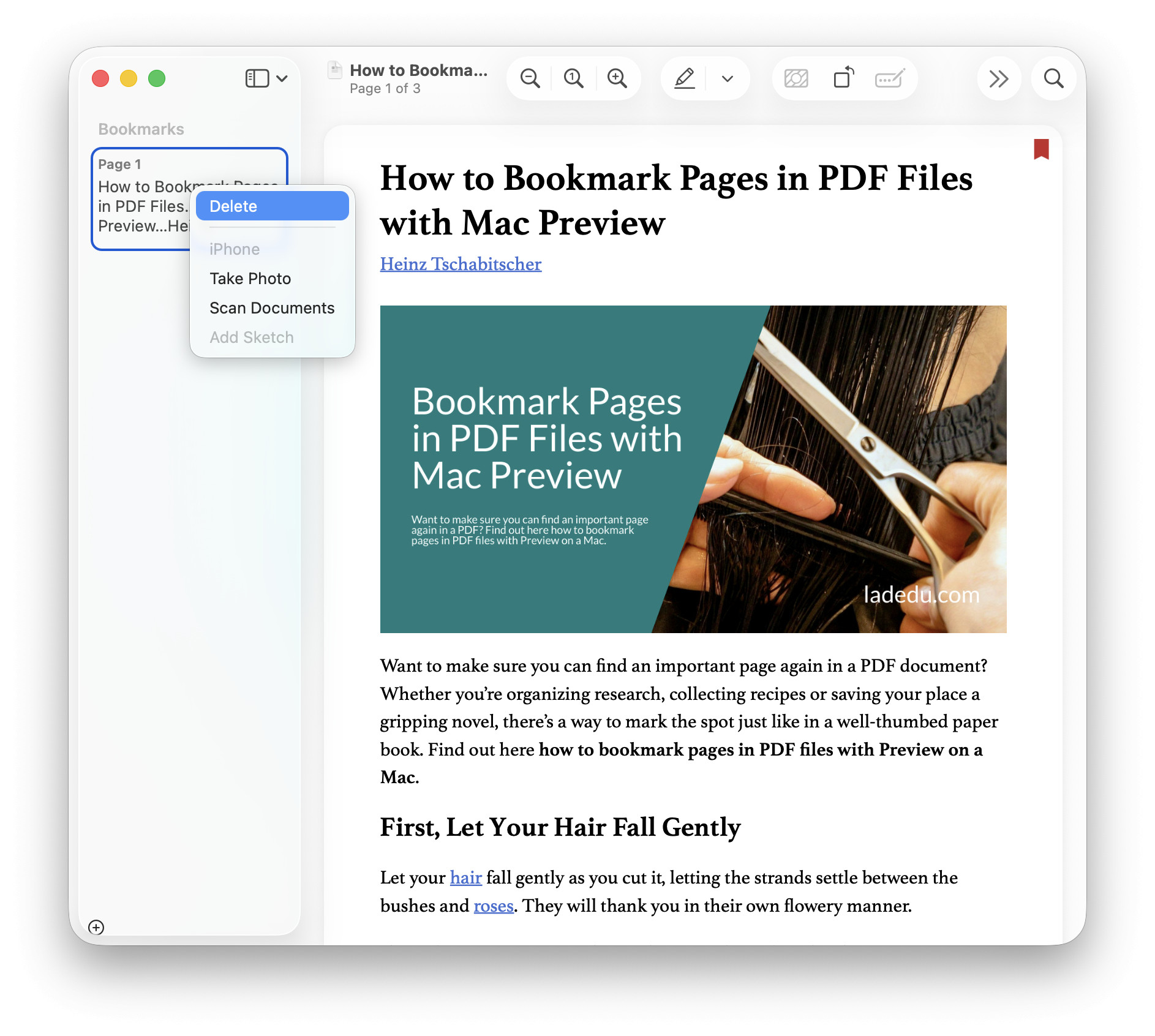
- Click on the bookmark you want to delete with the right moue button.
- Select Delete from the context menu that has appeared.
How to Bookmark Pages in PDF Files with Preview on a Mac: FAQ
Can I bookmark specific text or just entire pages?
You can bookmark entire pages.
To jump to specific text, highlight the passage in Preview or add a note.
If I share the PDF, will others see my bookmarks?
No.
Preview bookmarks are stored on the Mac separately from the PDF document. If you share a PDF file with bookmarks, the recipient will not see your bookmarks.
Will bookmarks synchronize with other Macs, Apple devices or other PDF applications?
No.
Preview bookmarks do not synchronize via iCloud either.
Can I see all bookmarks (across PDF files) I have created in Preview?
No.
Preview always (only) shows bookmarks for the current document.
Can I delete all bookmarks for a document in one go?
No.
You can delete bookmarks individually; see above.
When I rearrange pages, what happens to bookmarks?
If you rearrange pages in PDF file with Preview on a Mac, any bookmarks on these pages will move with them. A bookmark will still point to the same page after rearranging.
(Tested with Preview 11 on macOS Tahoe 26.0–26.5; first published October 2025, last updated May 2026)