
Always using the same five folders on your iPhone? Tired of scrolling through every mailbox in every account to reach them? Want to hide the spam folder but keep your This Next folder pinned to the top? Find out here how to set up and use favorite folders in Apple Mail on iPhone and iPad ⤓ so you can streamline your email and get to what matters most fast with just a tap.
On This Page
How to Use Favorite Folders in Apple Mail on iPhone and iPad
⚡ Quick Fix
Go to Mailboxes and tap Edit. Select Add Mailbox… if the folder is not listed. Check all folders you want as favorites and drag them into the desired order, then tap Done.
Time needed: 5 minutes
To set up a shortlist of favorite folders for fast access in Apple Mail on iPhone and iPad:
- Navigate to the Mailboxes list in Apple Mail.
Here’s how: Swipe in from the left edge until you are at the top level with the Mailboxes heading in Mail.
- Select Edit.
- Add custom folders you want included in your list of favorite mailboxes.
Here’s how: Select Add Mailbox…, and check all folders you want included, then tap Done.
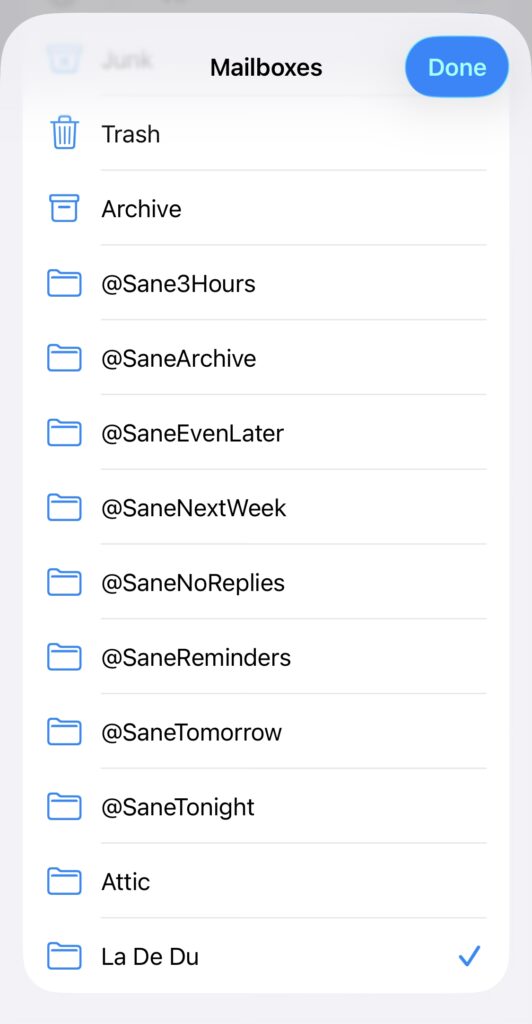
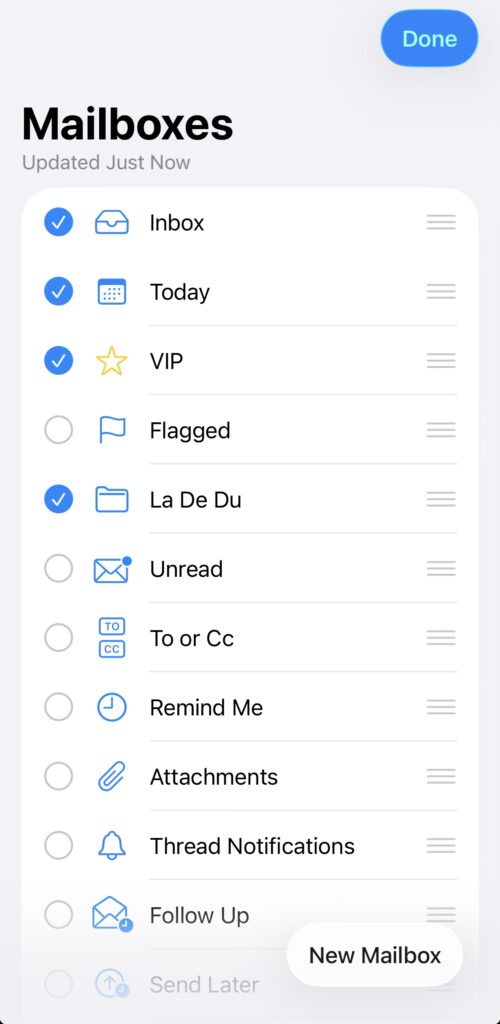
- Now check all folders you want to include in your favorites.
Remove from favorites: You can uncheck any folder, of course, to remove it from favorites.
- Pick the order in which you want your favorite email folders displayed.
Here’s how: Grab a folder at the three bars drag handle and move it into place.
- Select Done.
- Optional: Collapse accounts on the Mailboxes screen.
Here’s how: Click the downward arrowhead next to an account name to collapse its folders; only the folders in your list of favorites will remain visible.
Their word: Apple include information on using folders in the iPhone User Guide.
My mailboxes or favorite folders? Pick your alliteration alternative.
Tips help fuel these email and tech how-tos.
Remove a Folder from Favorites in Apple Mail on iPhone and iPad
To delete a mailbox from the fast-access favorites list in Mail for iPhone and iPad:
- Go to the Mailboxes list; see above.
- Select Edit.
- Tap to remove the checkmark for all folders you do not want to keep as favorites.
- Now tap Done.
Custom folders: Custom folders you have added to the list available to be checked as favorite folders will be deleted from the list; you can add them again using Add Mailbox…; see above.
Want to remove a folder altogether?
How to Delete Email Folders in iPhone Mail
How to Use Favorite Folders in Apple Mail on iPhone and iPad: FAQ
Can I remove system folders (such as the inbox) from favorites in Apple Mail?
Yes.
If you uncheck any folder in the mailboxes editing screen, it will be removed from the list of folders quickly accessed on the top. You can select precisely the folders you want to see there in the exact order you prefer.
Now that you’ve opened a folder: How to Select All Email in iPhone Mail — Or All Unread Ones
More favorites: How to Use Favorite Lists in Apple Reminders
(Tested with Apple Mail on iOS 26; first published July 2026)