
Set up folders to organize your emails, and now you’re using only a few of them? Want to clean up your account and enjoy a streamlined email experience? Find out here how to delete email folders in Apple Mail for iPhone ⤓.
On This Page
How to Delete Email Folders in iPhone Mail
Time needed: 5 minutes
To delete custom email folder in Apple Mail on an iPhone:
- Go to the Mailboxes screen in Mail for iPhone.
Here’s how: Swipe in from the left edge of the screen anywhere in Mail until you are at the Mailboxes list; you can also tap < repeatedly in the top left corner.
- Move all emails you want to keep to a different folder.
Here’s why: Deleting a folder will delete all emails in it.
- Tap Edit.
- Now tap the folder you want to delete in the list of folders.
Here’s where: Tap the folder under its email account, not in the list of favorites on top (where tapping will only toggle inclusion in those favorites.
Here’s which: You can delete all custom folders, i.e. folders other than the system folders Inbox, Drafts, Sent, etc. - Select Delete Mailbox.
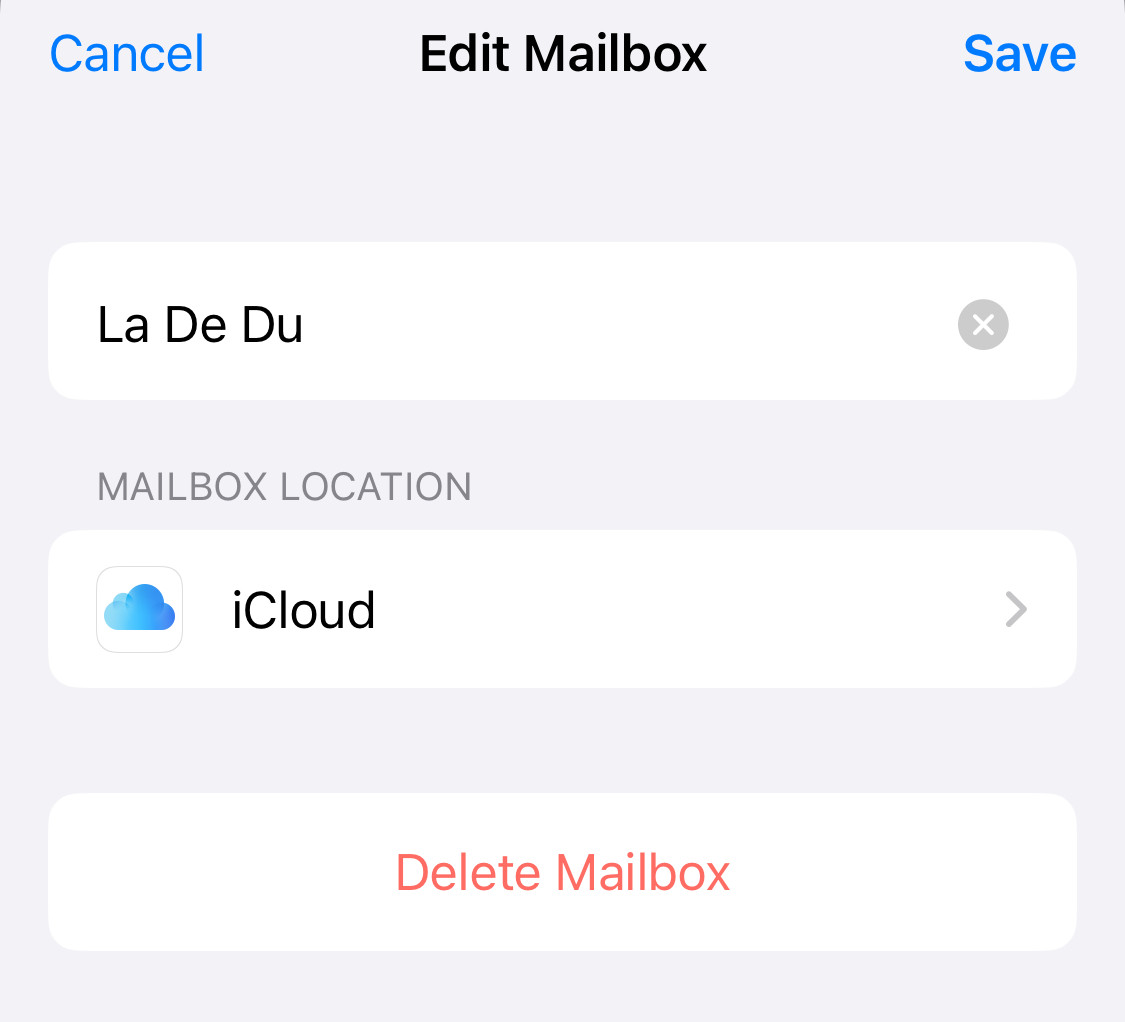
- Now tap Delete to confirm.
Caution : Tapping Delete will remove the folder and all messages in it immediately and with no way back.
Folder folded?
Tips help fuel these email and tech how-tos.
How to Delete Email Folders in iPhone Mail: FAQ
Can I restore deleted folders or their messages?
No.
If you delete a folder, it will be removed from the account immediately and including all messages in the folder.
Are the messages moved to the “Trash” folder?
No.
You cannot recover emails from a deleted folder using the Trash either.
Speaking of moving mail and the trash:
How to Move Emails to Folders in iPhone Mail
How to Trash Multiple Emails Fast on iPhone
Can I delete the Inbox and other system folders?
No.
Apple Mail lets you remove custom folders. The system folders Inbox, Sent, Drafts, Archive, Trash and Junk are protected and cannot be deleted.
Can I just hide a folder instead of deleting it?
Yes.
If you set up your Apple Mail Mailboxes screen so that all the folders you regularly use and want to see prominently are shown as favorites, you can effectively hide all other folders under collapsed account labels.
(Tested with Apple Mail for iPhone using iOS 18 and 26; first published April 2025, last updated July 2026)