

Looking for fast access to your most-used to-do lists? Tired of digging through scattered lists of sprawling tasks? Want to prioritize not only tasks and to-dos but also projects and lists? Find out here how to set up and use favorite lists in Apple Reminders ⤓ on Mac, iPhone and iPad.
On This Page
How to Use Favorite Lists in Apple Reminders
⚡ Quick Fix
Mac: Right-click the list in the sidebar and select Pin List from the menu.
iPhone and iPad: Long-tap the list and select Pin.
Rearrange: Drag and drop pinned lists to rearrange them (on iPhone and iPad, select Edit Lists from the three dots menu first).
Add and Access Favorite Lists
Apple Reminders for macOS
Time needed: 3 minutes
To set up and use a list of favorite to-do lists in Apple Reminders for macOS on a Mac:
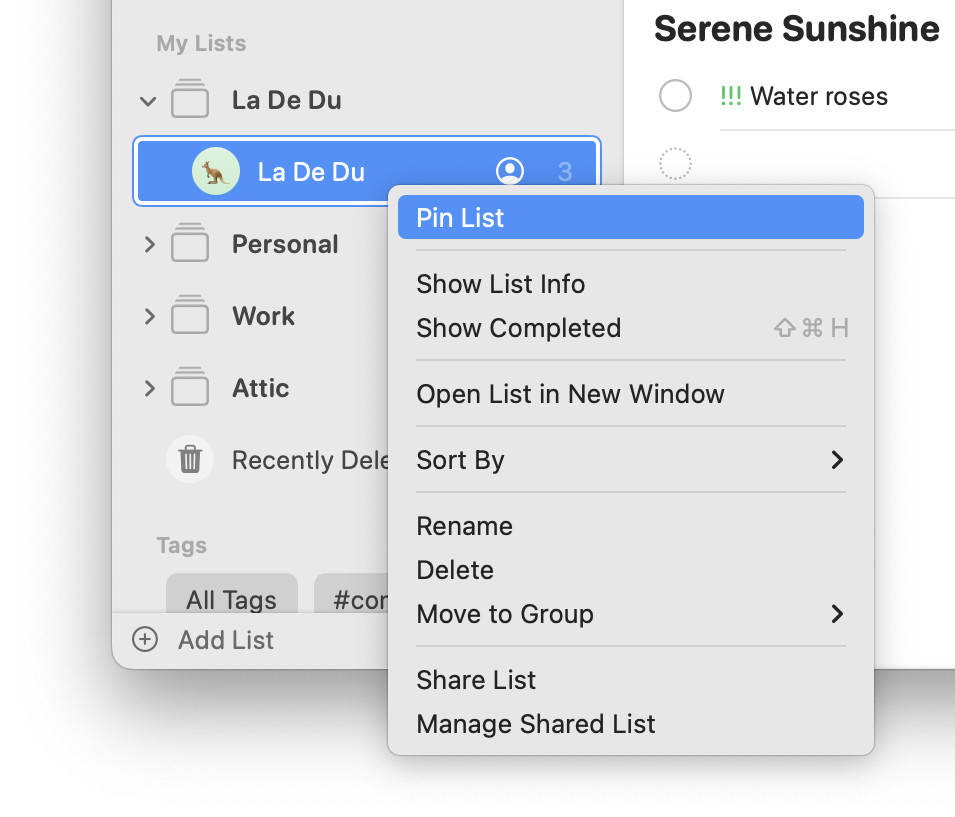
- Click on a to-do list you want to add to your favorites with the right mouse button in the Reminders sidebar.
No sidebar: If you do not see the sidebar in Reminders, select View | Show Sidebar from the menu.
- Select Pin List from the context menu.
Using the menu. You can also go to the list and select File | Pin List from the menu.
- Access the favored lists on top of the Reminders sidebar.
Reminders keyboard shortcuts: To go to a pinned list directly, press Command together with its ordinal number in the favorite pinned section (e.g., Command 1 opens the list on the top left, Command 2 goes to the list on the top right etc.)
Menu access: You can also select View | Go To in the menu followed by the list you want to open.
Their word: Apple include information on organizing lists in the Reminders User Guide.
Favorite lists pinned down?
Tips help fuel these email and tech how-tos.
Apple Reminders for iOS and iPadOS
To add to and access favorite (pinned) lists in Reminders on iPhone and iPad:
- Long-tap on a list and select Pin to add a list to favorites.
- Find pinned lists at the top of the list of lists and folders.
Getting to the list: Swipe right from the left edge to reveal the list of favorites when you do not see it.
Something to favorite: How to Add a New To-Do List to Apple Reminders
Remove a List from Favorites
To remove a list from your favorite to-do lists:
- Select the context menu for the list.
Mac: Click on it in with the right mouse button.
iPhone and iPad: Tap and hold the list. - Choose Unpin List from the context menu.
Change the Order of Lists in Favorites
To change the order in which lists appear pinned to the top:
- Drag and drop lists into the preferred order.
iPhone and iPad: Select the three dots menu and choose Edit Lists to access the list for dragging and dropping.
Smart Lists
Smart lists always and only appear as lists pinned to the top in Reminders. To add or remove smart lists in Reminders:
- Reminders for Mac: Select View | Show Smart List and select lists to check or uncheck them.
- Reminders for iPhone and iPad: Tap the three-dots menu icon on list view, choose Edit Lists and check the lists you want to make visible in pinned lists.
More favorites:
How to Use Favorite Folders in Apple Mail on iPhone
How to Use Favorite Lists in Apple Reminders: FAQ
What is the maximum number of pinned lists?
You can pin up to nine lists to your favorites.
Can I add a folder to favorites?
No.
Only lists can be pinned to favorite lists in Reminders.
Will my list of favorite folders synchronize?
Yes.
If you use iCloud for Reminders, the list of favorites stays in sync across devices.
Can I access favorite lists in Reminders on iCloud.com?
No.
Pinning lists does not work in Reminders accessed in a browser on iCloud.com.
(Tested with Reminders 7.0 on macOS Golden Gate 27, Tahoe 26, Sequoia 15 and Sedona 14; first published October 2024, last updated October 2026)