

“I wanted a photo, and all I got was this video.” If that is your situation, you can get just the frame you want from that movie as a screen grab or still — without resorting to a blurry screenshot. Find out here how to extract a still image from a movie on a Mac ⤓ (using just Photos or iMovie and without installing additional software).
On This Page
How to Extract a Still Image from a Movie on a Mac
⚡ Quick Fix
Scrub to the frame you’d like to export in Apple Photos for Mac, then select File | Export | Export Frame to Pictures.
Extract a Still with macOS Photos
Time needed: 5 minutes
To save a still image as a TIFF file from a movie using only apps that come with macOS on any Mac:
- Import the video into Mac Photos (if it is not already in your Photos library).
Here’s how: You can import videos by dragging and dropping them onto the Photos app icon in the Dock or select File | Import… in Photos.
Formats: Photos supports mostly MPEG-4 video; see below for details. - Open the video.
Here’s how: Double-click the video or press Space with the video highlighted.
Here’s where: Newly imported files are automatically gathered in the Utilities/Imports folder. - Use the scrubbing bar to go to the frame you want to save as a still image.
No stepping in: There is, alas, no way to use the keyboard or any gesture to advance the video frame by frame; you can use iMovie to scrub more precisely if needed.

- Select File | Export | Export Frame to Pictures from the menu.
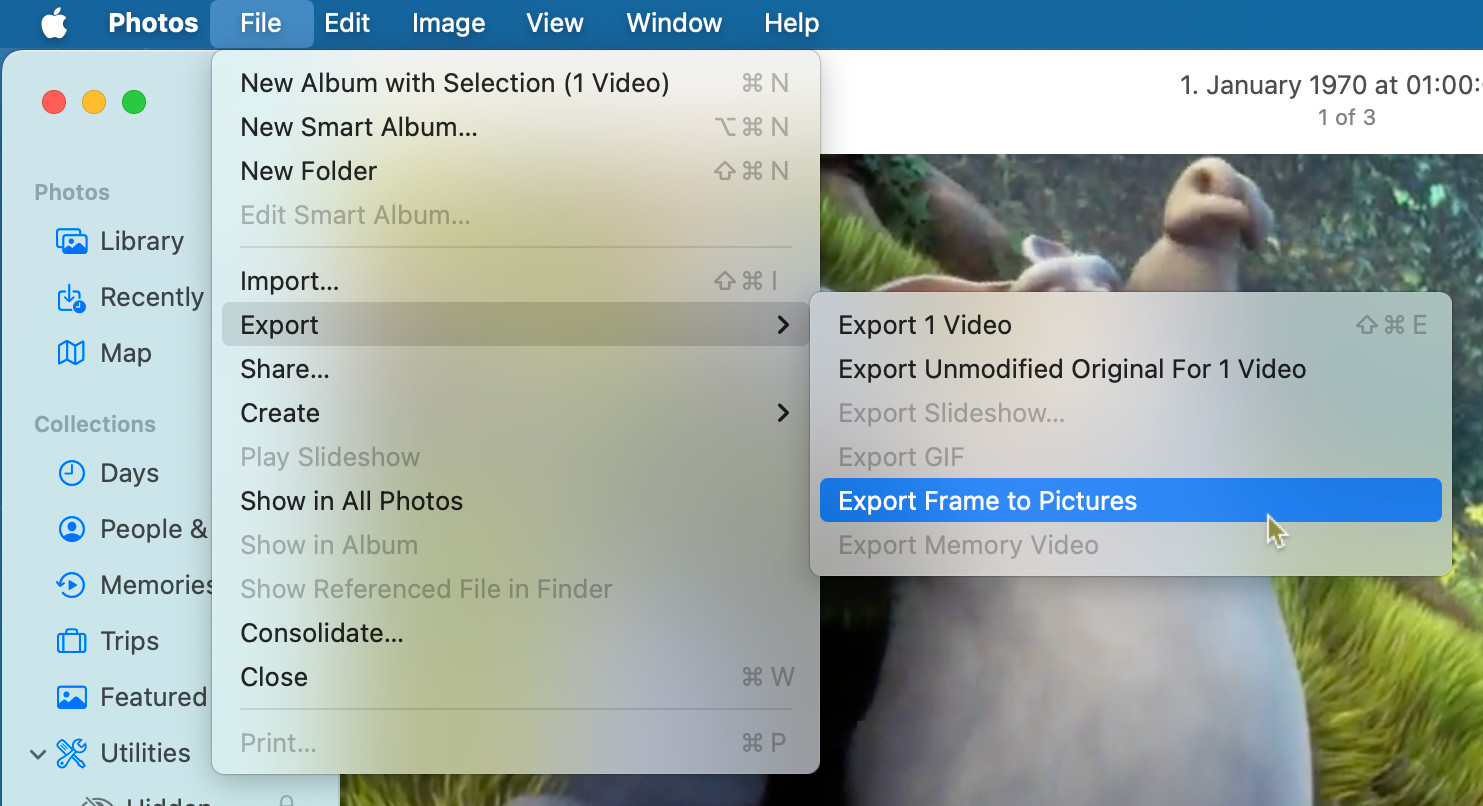
- Open the “Pictures” folder in Mac Finder.
Here’s how: You can press Command Shift H to open your home folder in Finder, for example, then open the Pictures folder in it.
- Find the frame saved as a TIFF file with the export timestamp in its filename.
TIFF: You can open the TIFF file in Preview, for example, to convert to the desired format, e.g., JPEG.
Optional: Delete the imported movie file from Photos.
Their word: Apple include information on extracting still images in the Photos User Guide.
Picturesque perfection paused?
Tips help fuel these email and tech how-tos.
On an iPhone?
How to Export a Frame as a Picture from a Video on Your iPhone
Save a Movie Frame from iMovie
To save a still image from a movie as a JPEG file using iMovie on a Mac:
- Import the movie file into iMovie.
Here’s how: Go to Media in iMovie, then drag and drop or use File | Import… to import. - Mouse over the clip to find the location you want to save as still image.
Precision: Use the left and right arrow keys to step through frames. - Select File | Share | Image… from the menu.

- Pick a file name and location using the Save dialog.
Format: iMovie will save the image as a JPEG file. - Click Save.
Speaking of timestamps: How to Insert the Current Timestamp Fast Anywhere on a Mac
How to Extract a Movie Frame as a Still Image on a Mac: FAQ
What video file formats are supported in Apple Photos for Mac?
You can import a number of video file formats (mostly using the MPEG-4 video format) into the Photos app. For unsupported formats, seek to convert the video to an MPEG-4 (MP4) file.
Video File Formats Supported in Apple Photos for Mac
| Video Format | File Extensions |
|---|---|
| ✅ MPEG-4 | .MP4 .M4V |
| ✅ QuickTime | .MOV .QT |
| ✅ 3GP MPEG-4 | .3GP .3G2 |
Video Formats Not Supported in Apple Photos for Mac
| Video Format | File Extensions |
|---|---|
| 🚫 AVI (Audio Video Interleave) | .AVI |
| 🚫 Flash Video | .FLV .F4V |
| 🚫 Matroska Video | .MKV |
| 🚫 RealVideo | .RV .RM |
| 🚫 WebM | .WEBM |
| 🚫 Windows Media Video | .WMV |
(Tested with macOS Golden Gate 27, Tahoe 26 and Sequoia 15; first published January 2025, last updated September 2026)