
Swiping is fast in iPhone Mail — but what if it only lets you do the wrong thing fast half the time? Prefer simpler swiping menus with fewer choices? Find out here how to customize the swipe actions for iPhone Mail ⤓.
On This Page
How to Customize iPhone Mail Swipe Actions
Time needed: 3 minutes
To change what swiping actions will accomplish and reveal in iOS Mail on an iPhone:
- Open the Settings app on iPhone.
- Go to the Mail app options.
Here’s how: Choose Apps, then open Mail.
- Select Swipe Options under Message List.
- Pick what you want to happen for a long swipe right.
Here’s how: Tap Swipe Right, then choose from the available actions.
Delete or archive: If you choose Archive, long swipes right will delete for accounts (notably Gmail) that have archiving set as the default action for left swipes.
Move: The Move Message action will open the moving sheet.
Disable: To turn off long swipes to the right altogether, choose None. - Choose what item should appear as the middle choice in the menu that appears for left swipes.
Here’s how: Select Swipe Left, then choose the desired action.
Flag or read: Both flagging and marking as read toggle the respective characteristic — Flag turns into Unflag for a flagged email, for example.
Turn off: You can remove the middle item from the left swipe menu by choosing None.
Their word: Apple include information on Mail options in the iPhone User Guide.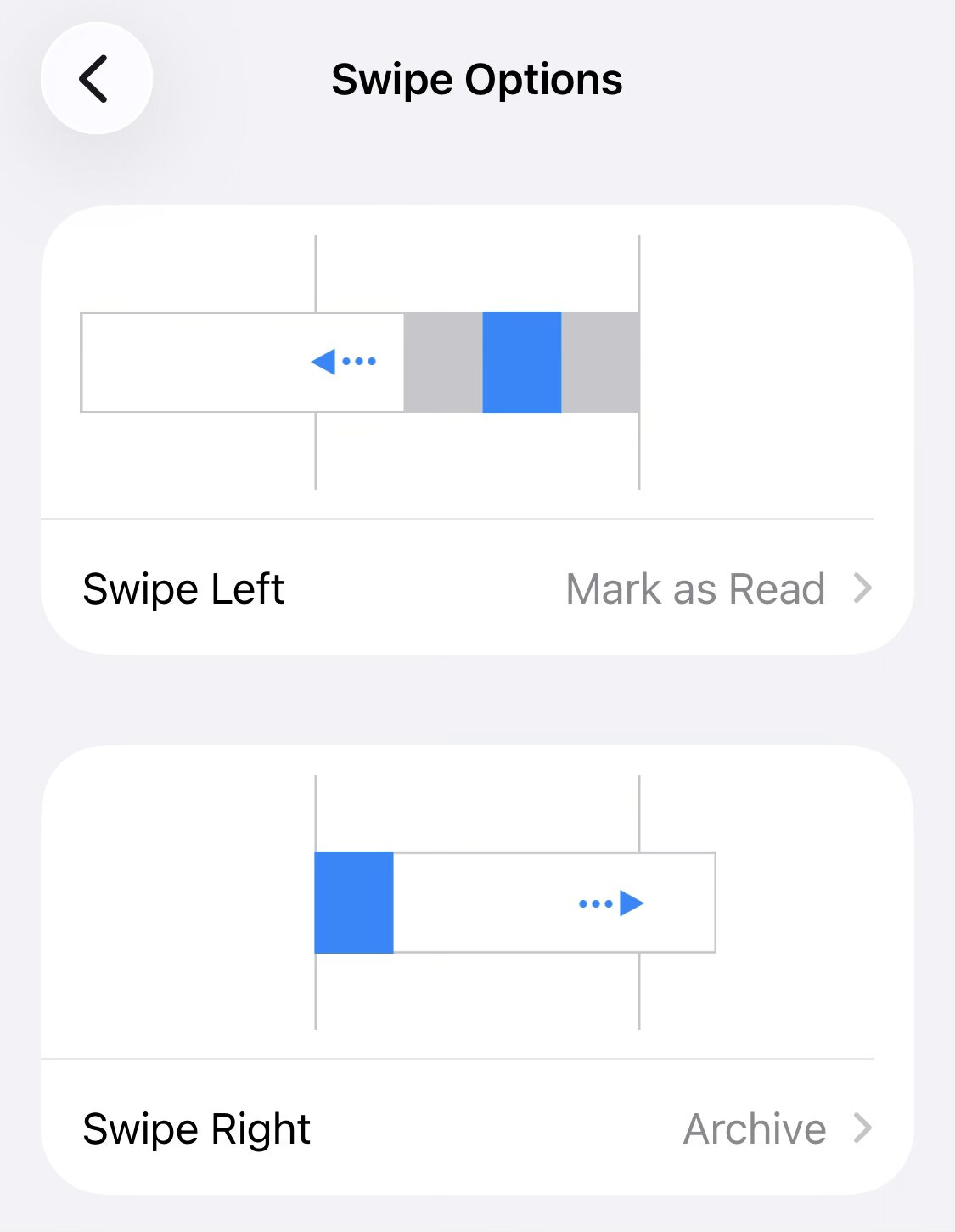
Left swipe now the right move?
Tips help fuel these email and tech how-tos.
How to Customize iPhone Mail Swipe Actions: FAQ
Can I change what happens for a long swipe left in iPhone Mail?
No.
A long swipe left always deletes or archives messages (depending on the account’s default action for removing an email).
Delete more than one at a time: How to Trash Multiple Emails Fast on iPhone
Where are the swiping actions used in iPhone Mail?
You can bring up swiping actions in two places with iPhone Mail:
- Swiping over an email in a message list (in a folder, for example, in priority inbox, or search results)
- Swiping over the message content while viewing an email
Both swipes bring up the same menus.
(Tested with iOS 26; first published December 2025, last updated August 2026)