

Feeling numb already to the default Windows notification sound? Missing the good days of the “You’ve got mail” chime? Find out here how to change the new mail sound in New Outlook for Windows ⤓.
On This Page
How to Change the New Mail Sound in New Outlook for Windows
Time needed: 4 minutes
To use a custom sound file for announcing new emails in New Outlook for Windows:
- Click the Settings gear icon in New Outlook for Windows.
- Go to the General category.
- Select Notifications.
- Turn on Mail under Notify me about.
Here’s why: You can change the new mail sound for Outlook only when new email notifications are enabled.
- Now expand the Mail section under Notify me about.
- Select Custom for Play sound.
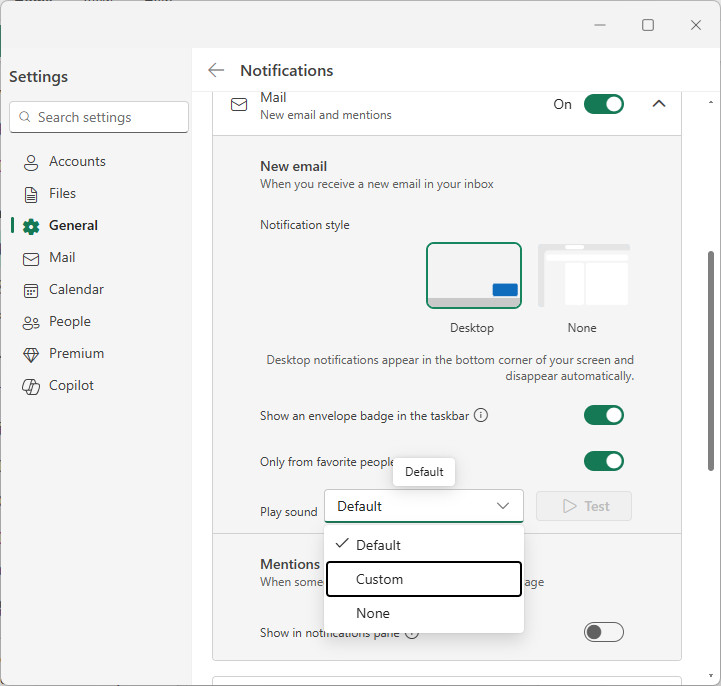
- Find and select the file you want to use as the new mail notification sound.
Formats: New Outlook for Windows supports MP3, WAV and M4A files.
- Click Save.
Their word: Microsoft include information on changing the new mail sound in Outlook help.
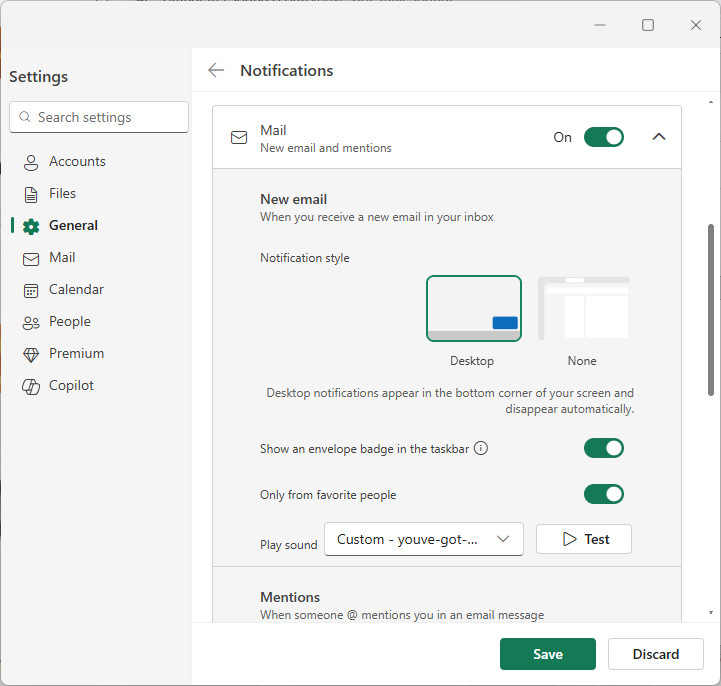
You’ve got new sound?
Tips help fuel these email and tech how-tos.
How to Change the New Mail Sound in New Outlook for Windows: FAQ
Can I also change the notification sound in Outlook on the web (Outlook.com)?
No.
Outlook on the web opened in a browser will always use the default new mail sound.
Can I change the calendar event notification from Outlook for Windows, too?
Yes.
In New Outlook’s notification settings, enable Calendar and choose a custom file to play under Play sound in a manner analogous to the new mail sound.
Also, in the physical world: How to Print Email in New Outlook
Also, in the visual virtual world: How to Use Dark Mode and Light Mode in New Outlook
Does New Outlook for Windows support OGG or WMA files?
No.
You can use WAV, MP3 and M4A files to play for the new mail sound.
Done reading? How to Tweak Outlook “Mark as Read” Settings
(Tested with New Outlook for Windows 1.2025.926–1.2026.225; first published October 2025, last updated April 2026)