

Looking to get a physical copy of an important email — one that’s made of paper and ink, not just states of electrons? Not sure where the “print” button has gone in Outlook? Find out here how to print email in New Outlook ⤓.
On This Page
How to Print Email in New Outlook
Time needed: 2 minutes
To print an email you have received in new Outlook for Windows:
- Open the message you want to print.
Anywhere: You can open the message in the Outlook reading pane or in its own window.
- Select Print this email or Print from the toolbar or ribbon’s Home tab in the main window.
No “Print this email”: If you do not see a printing icon in the toolbar, click the three dots menu to expand the toolbar.
Keyboard shortcut: Press Ctrl P to bring up the printing dialog.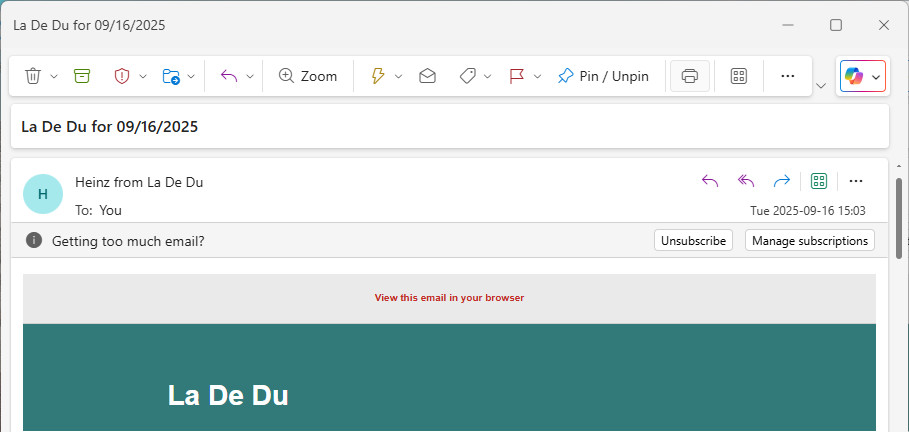
- Pick the printer you want to use under Printer.
Landscape: For emails that include wide graphics or images, pick Landscape for Orientation.
Waste no paper: Emails often include text or imagery at the bottom that is not essential; use the printing preview to check and choose a custom range to print under Pages to leave out the last page if it makes sense, for example.
Save more paper: Select More settings, then pick 2 or 4 under Pages per sheet to condense the email to fewer pages.
Printing date and URL: Typically, you’ll want to disable the standard headers and footers by clicking More settings and unchecking Headers and footers. - Click Print.
Things flowing smoothly now?
Tips help fuel these email and tech how-tos.
How to Print Email in New Outlook: FAQ
Can I print to PDF?
Yes.
You can save an email as a PDF file in Outlook using Microsoft Print to PDF.
Do I need to disable dark mode in New Outlook for printing?
No, not usually.
Emails will always print as they have been laid out. If an email does include formatting for dark mode that shows up in print when New Outlook is in dark mode, you can switch to light mode for the app temporarily.
Can I print only the message body or change the header for printing?
No.
New Outlook will always print subject, sender, date and recipients as the heading area for emails.
Can I print an email I am writing?
No.
New Outlook will not let you print an email as you are composing it (or an email saved as a draft).
You can do the following, though:
- Print the message from the Sent Items folder after you have sent it.
To print the draft before you have sent it to the final recipient:
- Insert yourself as the recipient in the To: line.
- Do send the message.
- Print it from your Inbox or the Sent Items folder.
- Delete the copies.
Can I print only part of an email in New Outlook?
No.
New Outlook will always print the full message.
To print only part of an email in New Outlook:
- Start composing a new message.
- Copy the part of the message you want to print.
- Insert it in the new email you are writing.
Subjective: Copy and paste the message’s Subject line, too. - Print the message you are writing as above.
Note: The sender and recipient will not be the original message’s but yours.
(Tested with new Outlook for Windows 1.2025.829–1.2026.504; first published October 2025, last updated June 2026)