
Dark mode tiring you out — especially when it makes some emails look wrong? Looking a calm escape from light mode’s blaring brightness instead? Find out here how to use dark mode and light mode in New Outlook (and Outlook.com) ⤓, how to force it and how to switch to a light background for individual messages.
On This Page
How to Use Dark Mode and Light Mode in New Outlook (and Outlook.com)
Switch Between Light and Dark Mode in New Outlook or Outlook.com
Time needed: 2 minutes
To set up New Outlook and Outlook.com in a browser:
- Click the Settings gear icon in New Outlook or Outlook.com
- Go to the General category.
- Open Appearance.
- Choose Light, Dark or Use system settings for Choose your mode.
Themes: New Outlook themes further down on the same settings page will change the appearance and colors seen in the user interface, but not switch message display; light and dark mode do.
System settings: Choosing Use system settings will have New Outlook respect the operating system’s dark mode setting — and adapt automatically to the time or ambient light with it, for example. - Click Save.
Override: You can override dark mode for individual emails, or for reading and writing messages in general; see below.
Their word: Microsoft include information on using dark mode in New Outlook help.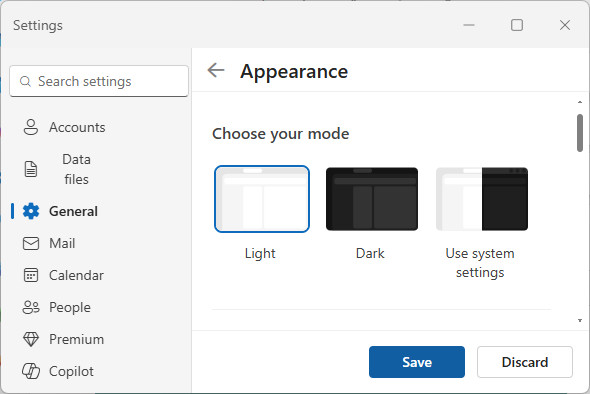
Turned off the dark?
Tips help fuel these email and tech how-tos.
Force Light or Dark Mode for New Outlook and Outlook.com
To force New Outlook to remain in either light or dark mode no matter time of day, ambient light or operating system settings:
- Go to Appearance settings in the New Outlook or Outlook.com; see above.
- Choose either Light or Dark for Choose your mode.
Here’s why: This overrides operating system settings, even those set per app for New Outlook.
Looking for a different audible tint, too?
How to Change the New Mail Sound in New Outlook for Windows
Switch to Light Mode for a Reading a Message
Designed for a light background, some messages are illegible or just ugly in dark mode.
To temporarily turn on light mode for the display of an individual email in New Outlook or Outlook.com:
- Open the message in the reading pane or in its own window.
- Click View with a light background (the sun/moon button) in the message’s toolbar.
Back again: To switch back to regular dark mode display, either click the button again or close and re-open the message.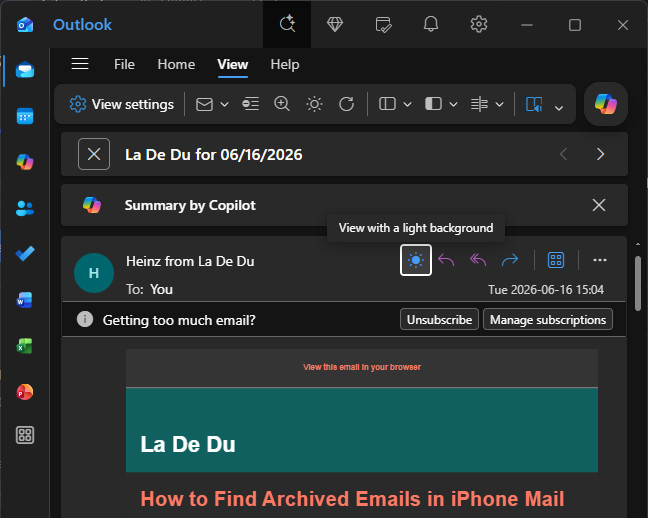
Compose an Email or Reply in Light Mode
To write an email with light background while New Outlook is set to dark:
- Click Toggle light background (or the View with a light background sun/moon button) on the Message tab of the composing window’s toolbar.
Choose to Read and Write with Light Background Even in New Outlook Dark Mode
To set up New Outlook and Outlook.com to display all emails (for reading and writing) in light mode — even when all else is set to use dark mode:
- Go to the View tab on the toolbar’s ribbon.
- Select Light Reading Pane to turn on light mode for reading and writing permanently.
Here’s what this does: This setting has the same effect as clicking the sun/moon button for each message individually in dark mode.
No “Light Reading Pane”: Light the toggle for individual emails, the universal light mode for the reading pane is only available in dark mode.
Back to black: Click Dark Reading Pane in the same toolbar to return to a dark background for emails.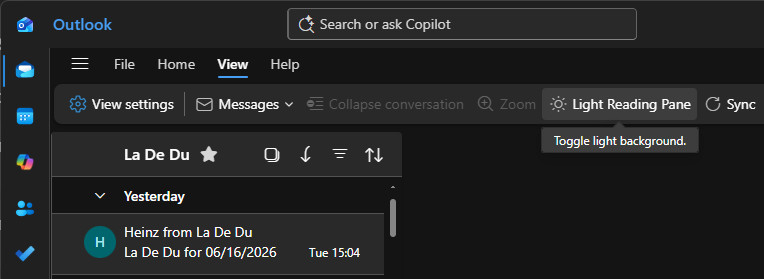
How to Use Dark Mode and Light Mode in New Outlook (and Outlook.com): FAQ
Why does an email still appear with a light background when dark mode is enabled?
Some rich-text and HTML emails are coded with a fixed background color or background image that New Outlook dark mode will not override. Some Outlook add-ons might also interfere with message display — and dark mode in turn.
To read stubborn messages’ text with a dark background, you can turn to New Outlook’s immersive reader using a dark theme.
Will emails print with a dark background if I use dark mode?
No.
In New Outlook, emails are always printed the way the appear (or would appear) with light mode enabled.
Is there a keyboard shortcut for switching modes?
No.
New Outlook and Outlook.com do not include keyboard shortcuts for changing the display mode either for the app or the reading pane. If you set New Outlook to use the system theme and that operating system includes a keyboard shortcut for toggling dark mode, you can use that shortcut, of course.
Why did the sun/moon button disappear?
New Outlook only allows switching to a light background temporarily when the app is in dark mode. The sun/moon button for making the background light for an individual message only appears in dark mode and disappears in light mode.
Will New Outlook use dark or light mode for immersive reader?
No.
Immersive reader display always uses its own color theme, which you can change right in reader. System-, app- or message-level dark mode settings have no effect on immersive reader in New Outlook.
(Tested with New Outlook Version 1.2026.602 and Outlook.com in a desktop browser; first published June 2026)