
Just hit “paste” — and the wrong thing landed because you must’ve copied something else by accident along the way? Wish you could easily retrieve something you copied minutes or even hours ago without the hassle of switching repeatedly between apps and documents? Find out here how to access the built-in clipboard history on your Mac ⤓, so you can copy, paste and re-paste without breaking a sweat.
On This Page
How to Access Your Mac’s Clipboard History Using Spotlight
Time needed: 2 minutes
To paste a select item from your clipboard history (rather than always the most recently copied) on a Mac:
- Optional: With the input focus on the window into which you want to paste from your Mac’s clipboard history, position the cursor where you want to paste.
Here’s why: With the cursor already in position, you can paste directly from clipboard search and eliminate an extra copying step.
- Bring up Spotlight.
Here’s how: You can click the Spotlight magnifying glass icon in the macOS menu bar, for example.
Mac keyboard shortcut: Press Command Space to open Spotlight. - Open the clipboard history in Spotlight.
Here’s how: Position the mouse cursor over the Spotlight search field until buttons appear to its right, then choose Clipboard.
Spotlight keyboard shortcut: Press Command 3 (three) in Spotlight to jump to the clipboard history.
- Highlight the item you want to paste.
Search: Do type to search the content of you clipboard history, of course.
Keyboard: Use Control N to go to the next item and Control P (like the Mac shortcuts for text navigation) for the previous one; you can also use the arrow keys.
Mouse: You can click the copying button to copy an item to the clipboard for pasting.
Enable: If clipboard history is not currently enabled, click Turn on under Clipboard Search to record the history of clipboard items starting now. - Press Enter to paste.
Using the moue: Double-click an item to paste it.
Context menu: You can also right-click an item and select Paste to paste.
Copying: Press Command C to copy to the keyboard for pasting.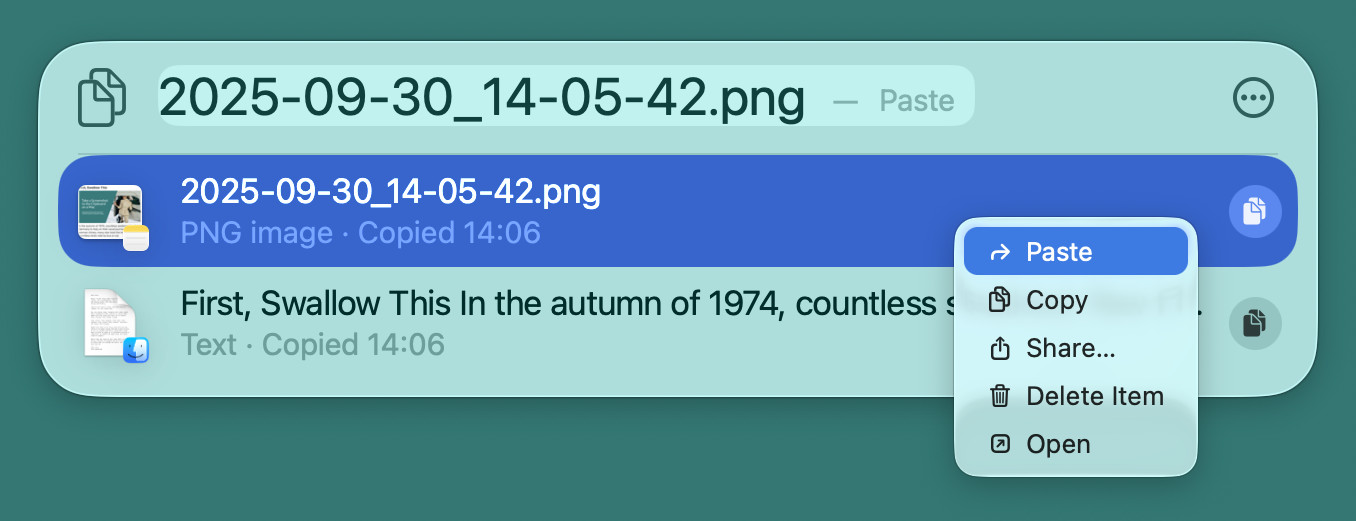
- Optional: Use Command V to paste if you did not paste from the clipboard history directly
Their word: Apple include information on the clipboard history in the Mac User Guide.
Pasted the past at long last?
Tips help fuel these email and tech how-tos.
Enable Clipboard History and Search for a Mac
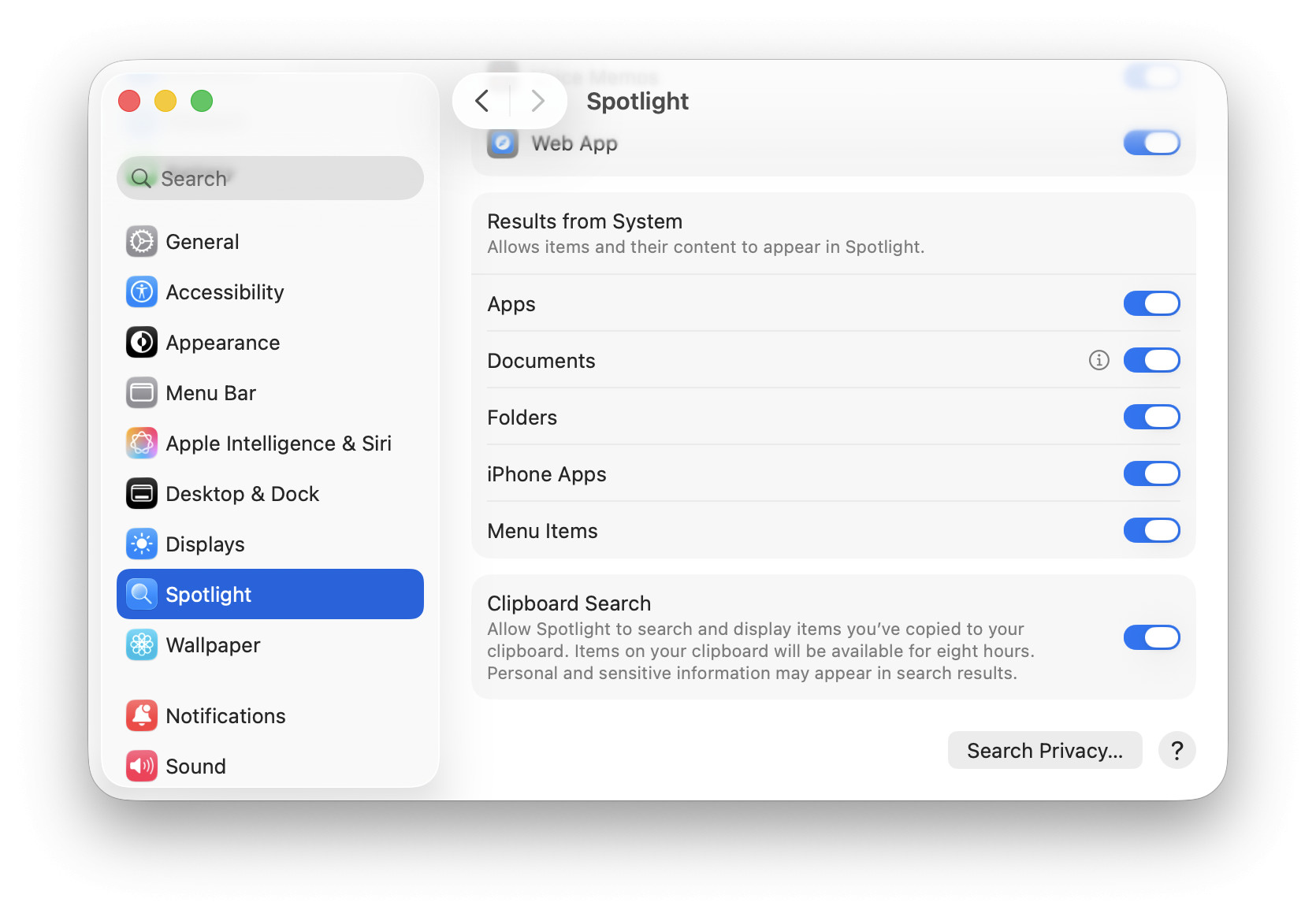
To turn on a searchable history of items copied to the system clipboard on a Mac:
- Open System Settings.
- Go to the Spotlight category.
- Enable Clipboard Search.
A history of screenshots: How to Take a Mac Screenshot to the Clipboard for Pasting
How to Use the Built-in Clipboard History on a Mac: FAQ
How many items are stored in the Mac clipboard history?
Clipboard search and history keeps all entries for eight hours.
Is the clipboard history available after rebooting the Mac?
Yes.
macOS preserves your clipboard history when you restart the computer.
Can I clear the Mac clipboard history?
Yes.
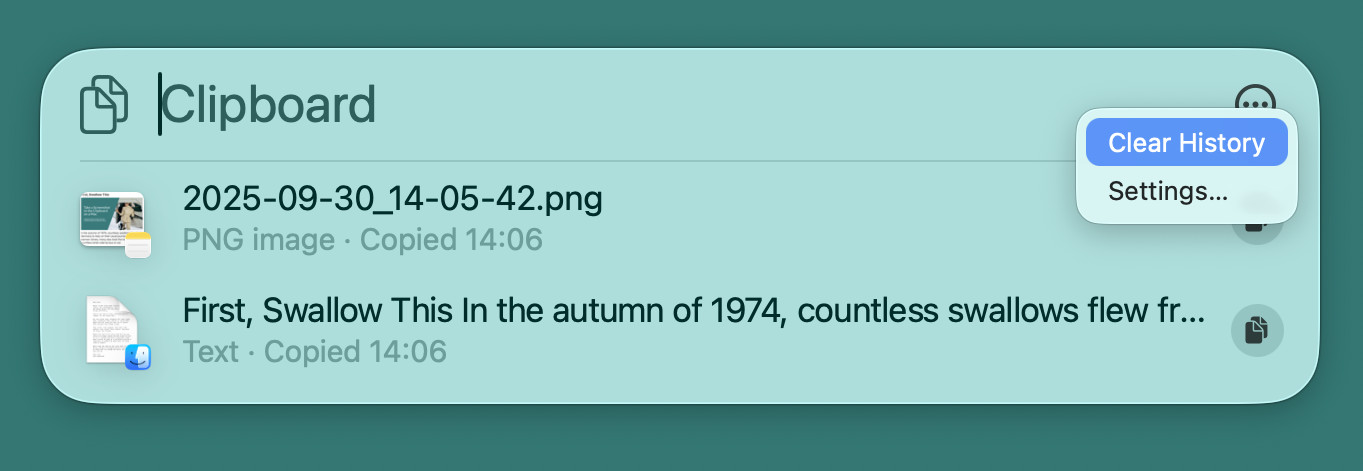
To purge all items from the clipboard history on a Mac:
- Bring up Clipboard in Spotlight; see above.
- Click the three-dots menu button.
- Select Clear History from the menu that has appeared.
Can I remove a single item from the history?
Yes.
To delete any item from your Mac’s clipboard history:
- Open Clipboard in Spotlight; see above.
- Click on the item you want to remove with the right mouse button.
- Select Delete item from the context menu that has appeared.
(Tested with macOS Tahoe 26; first published September 2025, last updated August 2026)