

Wish you could insert the shorthands for feet and inches on your Mac? Trying to mark minutes and seconds of arc or use the prime symbol for math and science? Find out here how to insert the minute symbol ( ′ ), second sign ( ″ ) and the prime symbols on a Mac ⤓ easily and without fuss.
On This Page
How to Insert Minute Symbol ( ′ ) and Second Sign ( ″ ) on a Mac
Using Mac Character Viewer for the Minute and Second Symbols
Time needed: 2 minutes
To input the minute symbol (also known as foot mark or prime mark) as well as the second symbol (also known as the inch mark or double prime mark) on a Mac using the emoji pane or macOS Character Viewer:
- Position the text insertion cursor where the minute symbol or second sign is to appear.
Here’s where: Used as foot or inch marks as well as for denoting minutes and seconds in angle measures, insert the minute and second symbols directly following the number.
- Bring up Character Viewer or the emoji panel on the Mac.
Here’s how: Select Edit | Emoji & Symbols from the menu.
Mac keyboard shortcut: Using the keyboard, press 🌐︎ or Fn E to open the emoji panel or Character Viewer. - Type
primeover Search in the search field. - Double-click the desired prime symbol to insert it.
Here’s which: Use prime (′) for arc minutes or feet and double prime (″) for arc seconds or inches; use the triple (‴) and quadruple prime (⁗) symbols for the third and fourth derivative in mathematics.
Example: Yesterday, I practiced for 4′ 33″.
Their word: Apple include information on Character Viewer in the Mac User Guide.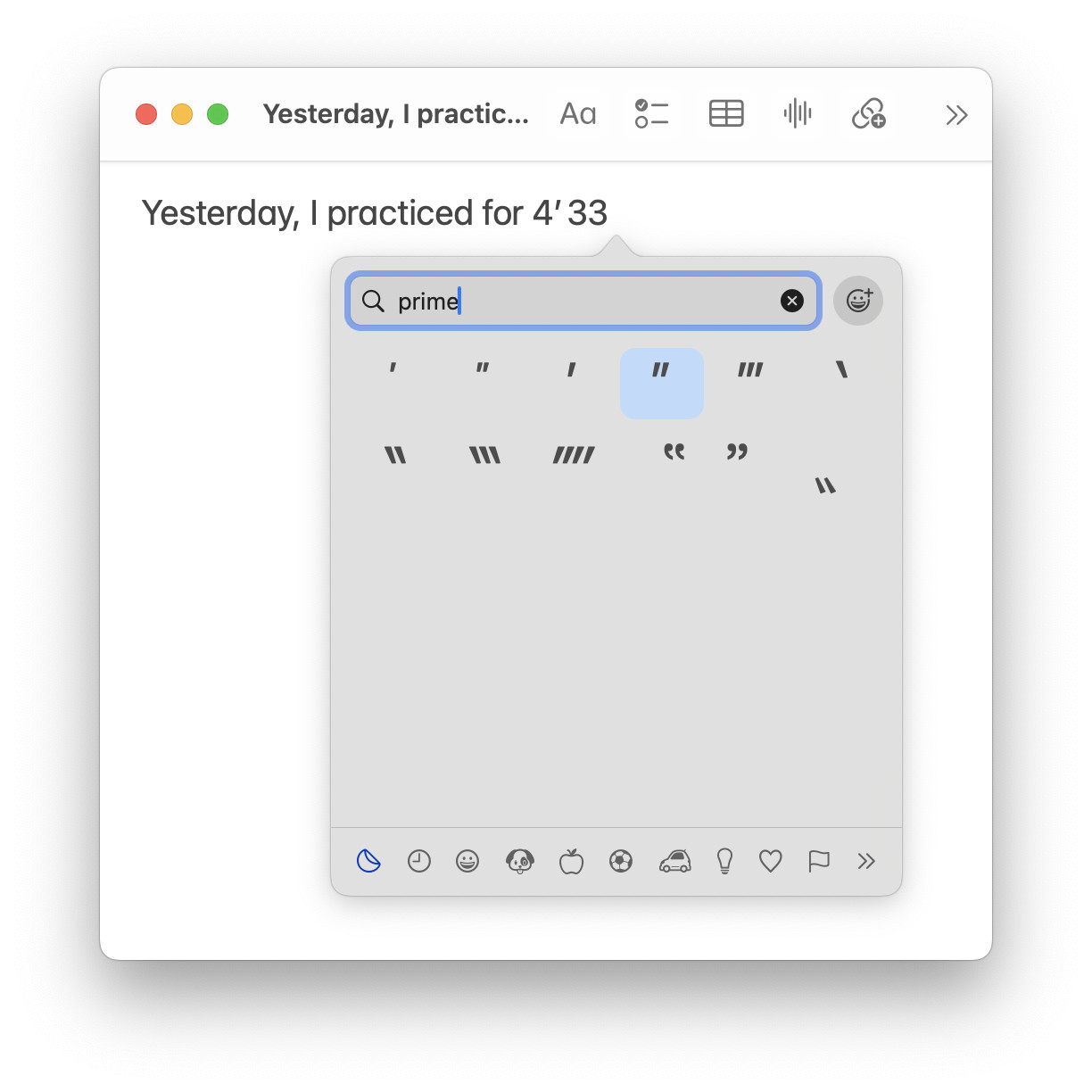
Crisp down to the last… minute detail?
Tips help fuel these email and tech how-tos.
Copying and Pasting the Minute and Second Symbols
To copy the minute (prime) and second (double prime) signs for pasting anywhere on a Mac, use the table below:
prime, arc minute or foot ′ | |
double prime, arc second or inch ″ | |
triple prime ‴ | |
quadruple prime ⁗ |
On Windows? How to Input Foot and Inch Symbols on Windows
Prime Modifying Letters
In particular for mathematics, you can also use the modifying prime signs, which modify (and attach more closely to) the character before.
Example:
modifying single prime ʹ | |
modifying double prime ʺ |
Set up Text Replacements for the Minute and Second Symbols
If you employ them frequently, you can, of course, also insert the prime symbols using text replacement.
To set up text replacement for minute symbol and second sign on a Mac:
- Open your Mac’s System Settings.
- Go to the Keyboard category.
- Select Text Replacements… under Text Input.
- Click +.
- Type the character sequence you want to use for inserting the minute or second sign.
Example: Usearcmfor the symbol ′. - Now enter the desired symbol under With.
Here’s how: You can use Character Viewer or copy and paste the symbol; see above. - Click Add.
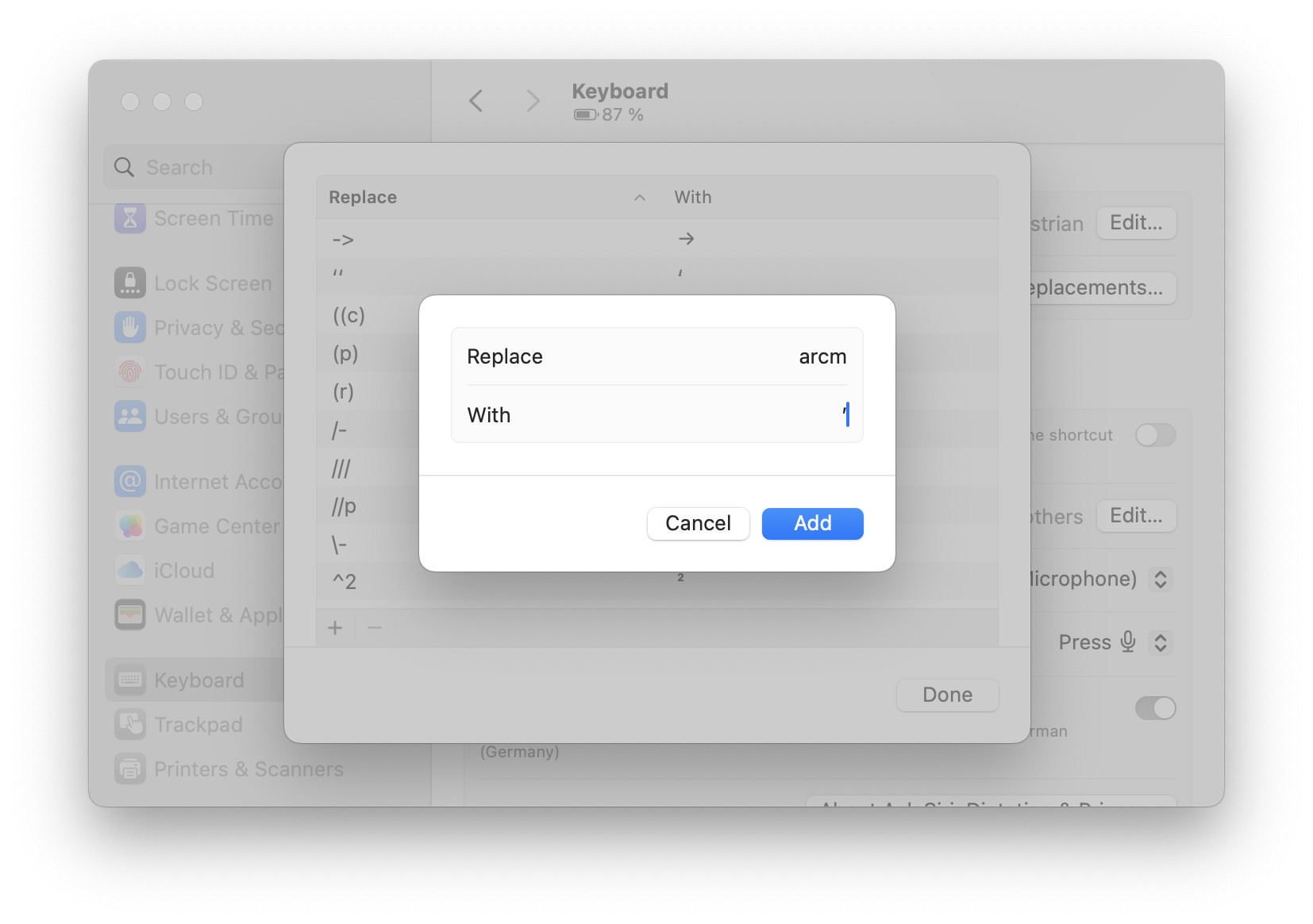
- Now click Done.

When you type the text replacement shortcut, macOS will now suggest the configured symbol as an auto-completion and insert it if you follow up with whitespace or punctuation. You can also use text replacement on an iPhone to insert the minute and second symbols.
Also in Word: How to Insert Foot and Inch Marks in Word
How to Insert Minute Symbol and Second Sign on a Mac: FAQ
Are the minute and seconds symbols somewhere on the keyboard?
No.
The standard keyboard layouts do not include keys or key combinations to insert the minute and second signs directly.
Can I use the single or double quotation marks to stand in for minute and second?
Yes.
You can use the single straight quote ( ' ) for minutes and the double straight quotation mark ( " ) for seconds.
Example: Yesterday, I practiced for 4' 33".
It is best not to use a curly apostrophe or typographic quotation marks to stand in for the minute and second signs as their curly nature differs significantly from what the prime and double prime symbols should look like.
| Best | OK | Avoid |
|---|---|---|
| 4′ 33″ | 4' 33" | 4’ 33” |
The font I’m using does not include the minute and second symbols; what can I do?
If the typeface you have chosen for your text does not include the prime or double prime symbols, do change the font just for the desired symbol.
Can I safely share documents using the characters? Will they display all right for recipients?
If you use a document format that includes the fonts and preserves formatting — such as PDF — , the minute and second marks will display fine on other systems.
When you share documents in a format in which typefaces are not embedded, it is possible recipients will not see the symbols as intended. In this case, it is safest to use straight quotes as substitutes.
Can I insert the prime symbols using Unicode directly?
Yes.
To input the symbols for foot and inch (or minute and second) directly using their Unicode code point:
- Enable and switch to Unicode Hex Input on the Mac.
- Press and hold Option.
- Type
2 0 3 2 for the minute symbol ′,
2 0 3 3 for the second symbol ″,
2 0 3 4 for the triple prime sign ‴ and
2 0 5 7 for the quadruple prime sign ⁗. - Let go of the Option key.
Also on Linux: How to Input a Prime Sign ( ′ ) on Linux
(Tested with macOS Tahoe 26 and Sequoia 15; first published March 2025, last updated August 2026)