

Feeling less than a writer and more like a pointer and clicker, tired of right-clicking or navigating menus — or that you have to reach for mouse and trackpad at all — to bring up smart writing tools on your Mac? Find out here how to set up and use a keyboard shortcut for bringing up Apple Intelligence writing tools on a Mac ⤓ (and how to use a tool like proofreading or rewriting directly with just a key combination).
On This Page
How to Set Up and Use Keyboard Shortcuts for Apple Intelligence Writing Tools on Mac
⚡ Quick Fix
Writing Tools: In System Settings | Keyboard | Keyboard Shortcuts… | App Shortcuts, add a new All Applications shortcut for the Show Writing Tools Menu title.
Siri AI: Highlight text, then press Command Space and request editorial help from Siri AI.
Time needed: 1 minute
To bring up Apple Intelligence writing tools with a keyboard shortcut on a Mac:
- Set up a keyboard shortcut for writing tools on your Mac.
Here’s how: Use System Settings to pick the key combination you want to use for writing tools; see below.
Siri AI: For Siri AI, you need not (and cannot easily) set up custom keyboard shortcuts, since Siri AI is not accessible through the macOS menu; you can use the general Siri AI shortcut to interact with it on highlighted text; see below. - Highlight the text you want to have proofread, summarized, rewritten, etc.
Using the mouse: Incidentally, hover the mouse over the selected text and wait for the Apple Intelligence icon to appear to the top left corner’s left to open writing tools without a keyboard shortcut or right-clicking.
- Press the keyboard shortcut you set up for bringing up writing tools.
Siri AI: Press Command Space.
- Select the writing tool you want to use for the text using the mouse.
Direct action: You can also set up shortcuts to use individual AI writing tools (e.g., the proofreader) immediately; see below.
Siri AI: Describe the writing or editorial help you’re looking to get from Siri AI.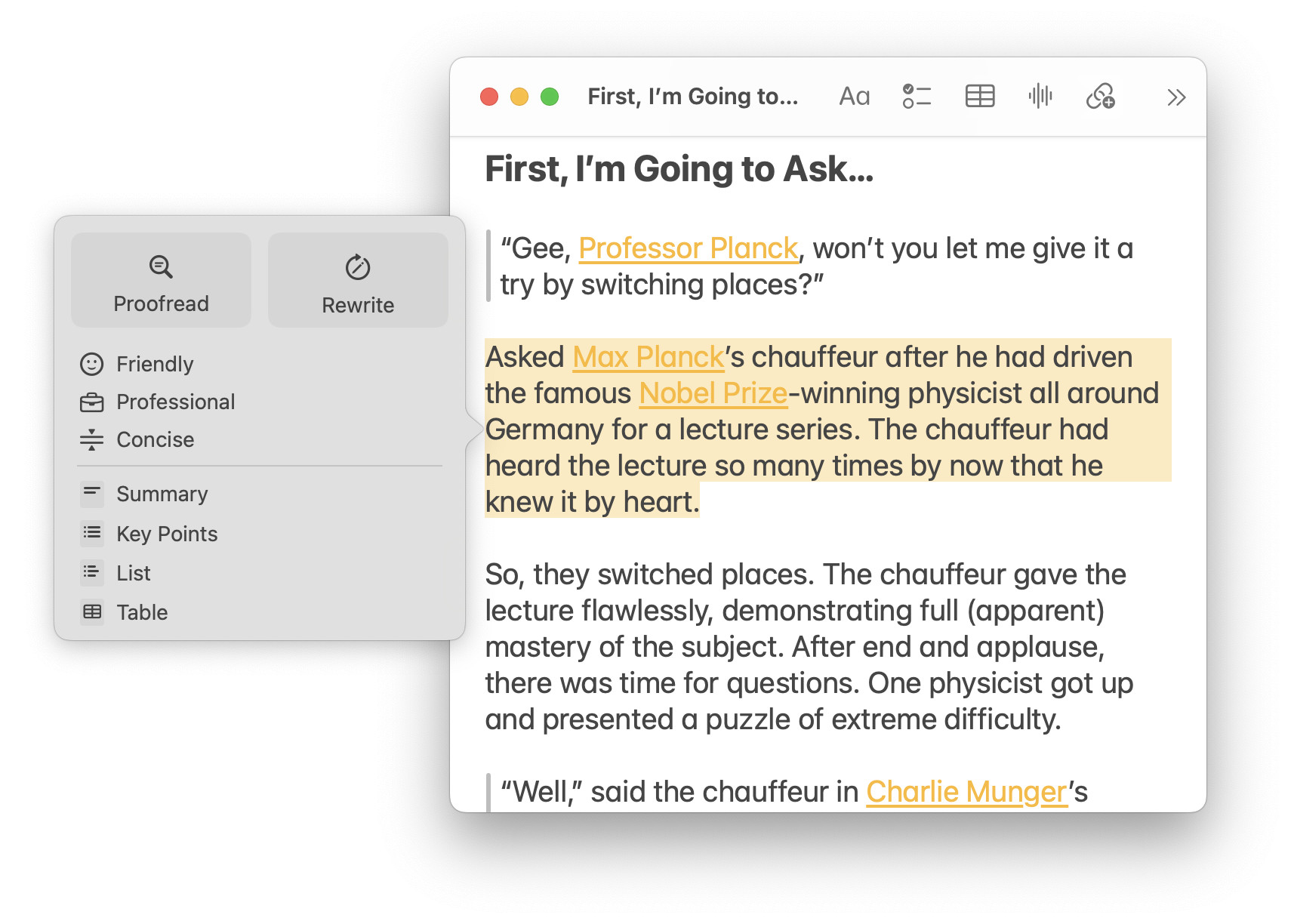
WrAIting faster than ever?
Tips help fuel these email and tech how-tos.
Add a Keyboard Shortcut to Bring up AI Writing Tools on a Mac
To set up a keyboard shortcut for Apple Intelligence writing tools:
- Open System Settings on the Mac.
- Go to the Keyboard category.
- Click Keyboard Shortcuts….
- Choose App Shortcuts.
- Click +.
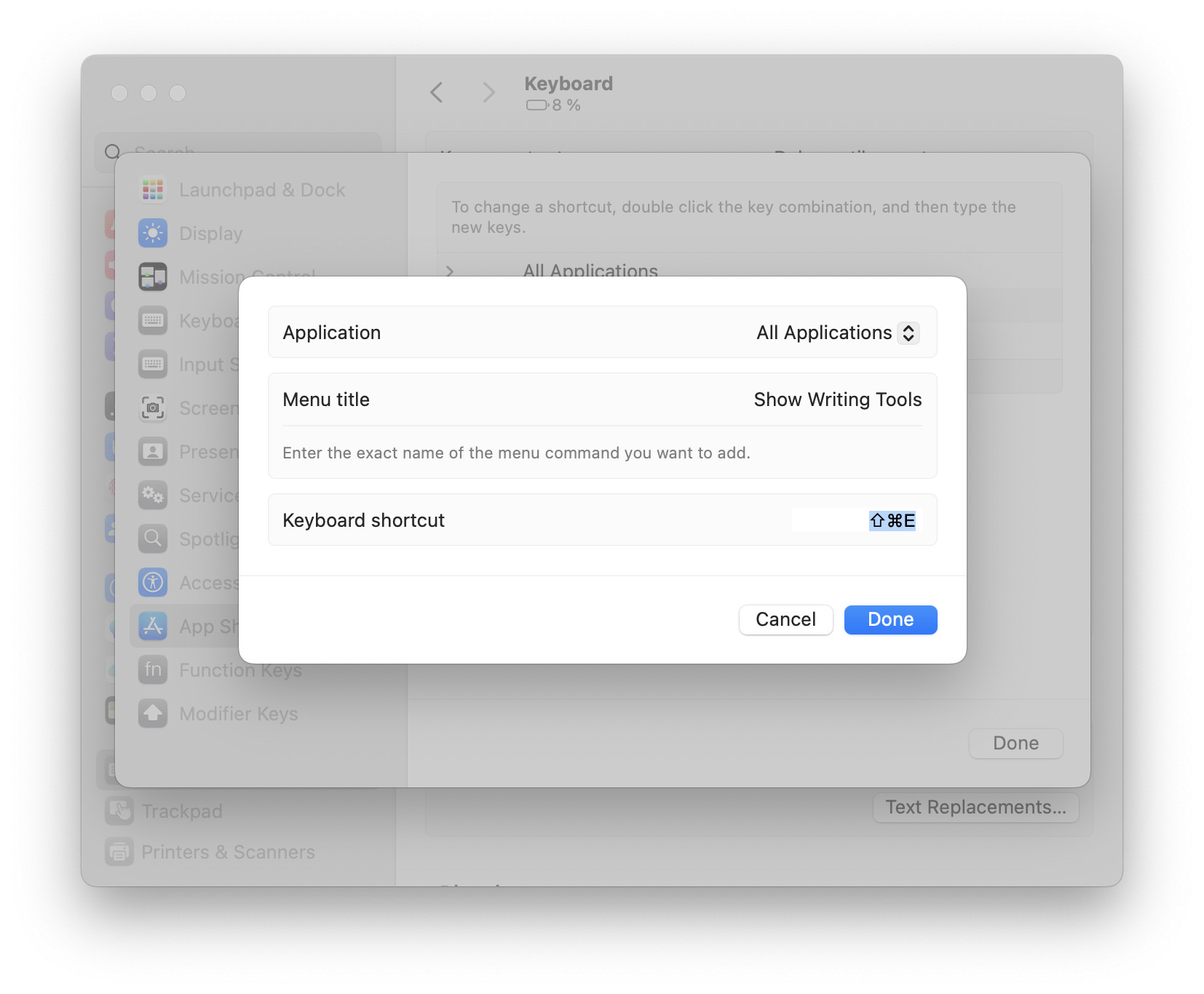
- Typically, select All Applications for Application.
Shortcut mishmash: If you run into conflicting keyboard shortcuts, you can also choose a keyboard shortcut only for a particular app, or possibly different shortcuts for different applications. - Type
Show Writing Toolsunder Menu title. - Now click in the Keyboard shortcut field.
Using the keyboard: You can also press Tab to jump to the shortcut field. - Press the key combination you want to use for bringing up AI writing tools.
Example: Command Shift E (for editing) might work, or Command Option T (for text). - Click Done.
Also editing with the keyboard: How to Use Text Editing Keyboard Shortcuts on a Mac
Add a Keyboard Shortcut for a Specific Writing Tool (e.g., Proofreading)
To engage AI writing tools (such as the proofreader) directly using the keyboard alone on a Mac:
- Go to App Shortcuts in System Settings; see above.
- Click +.
- Choose between All Applications (my suggestion) or a particular app for which the keyboard shortcut should be in effect.
- Type the desired writing tool’s name under Menu title from the table below.
Example: Type Proofread for a handy shortcut to have select text proofread for spelling, grammar, and appropriate language use. - Click in or tab to the Keyboard shortcut field.
- 6. Press the key combination you want to use for the particular writing tool.
Example: You can use Command Shift P for proofreading, for instance.
| Writing Tool | Menu Title |
|---|---|
| Proofreading for grammar, spelling and language use | Proofread |
| General-purpose rewriting | Rewrite |
| Rewriting in a friendly tone | Make Friendly |
| Keeping it professional | Make Professional |
| Shortening | Make Concise |
| Distilling the essence | Summarize |
| Itemizing for executive summary | Create Key Points |
| Making listicles | Make List |
| Tabulation | Make Table |
(Tested with macOS Golden Gate 27, Tahoe 26 and Sequoia 15; first published October 2024, last updated October 2026)