

Struggling to turn a wall of text into neat, understandable tables? Writing a report or deck for someone who’s always happy to see a matrix? Trying to understand data, extract classifications, clean up contact info — or find hidden meaning perhaps? Find out here how to convert any text to a table with Mac AI Writing Tools ⤓.
On This Page
How to Convert Any Text to a Table with Mac Writing Tools
⚡ Quick Fix
Highlight the text you want to convert, click the “Writing Tools” or “Write with Siri” icon and select Table or instruct Siri AI to convert the text to a table.
Time needed: 2 minutes
To extract information from a text and convert it to a table using macOS Writing Tools or Write with Siri on a Mac:
- Highlight the text you want to convert to a table.
Here’s where: You can turn text into tables practically anywhere you can edit text on a Mac (e.g., in Mail, Notes and TextEdit).
- Optional: Duplicate the text.
Here’s why: The resulting table will replace the existing text. While you can, of course, revert the change, having both original text and tabular form within eyesight will let you check for any missing or changed information.
Here’s how: Press Command C to copy the highlighted text, press ⬅ (left arrow) to deselect the text, press Command V to paste and, typically, Enter twice to separate the original from its copy. Do select only copy before proceeding. - Click the writing tools icon that appears to the left of the selected text.
No writing tools icon: If you are using Siri AI, it replaces the Writing Tools icon; use Siri AI to convert to a table instead.
Using the menu: You can also select Edit | Writing Tools from the menu or click on the highlighted text with the right mouse button to open the context menu.
macOS keyboard shortcut: You can also set up a keyboard shortcut to bring up AI writing tools (e.g., Command Option E). - Select Table (or Make Table depending on the menu) from the writing tools menu.
Siri AI: Using Siri AI, type your instructions (e.g.
Turn this into a table.) to Write with Siriinstead.
Their word: Apple include information on Writing Tools in the Mac User Guide as well as information on Write with Siri.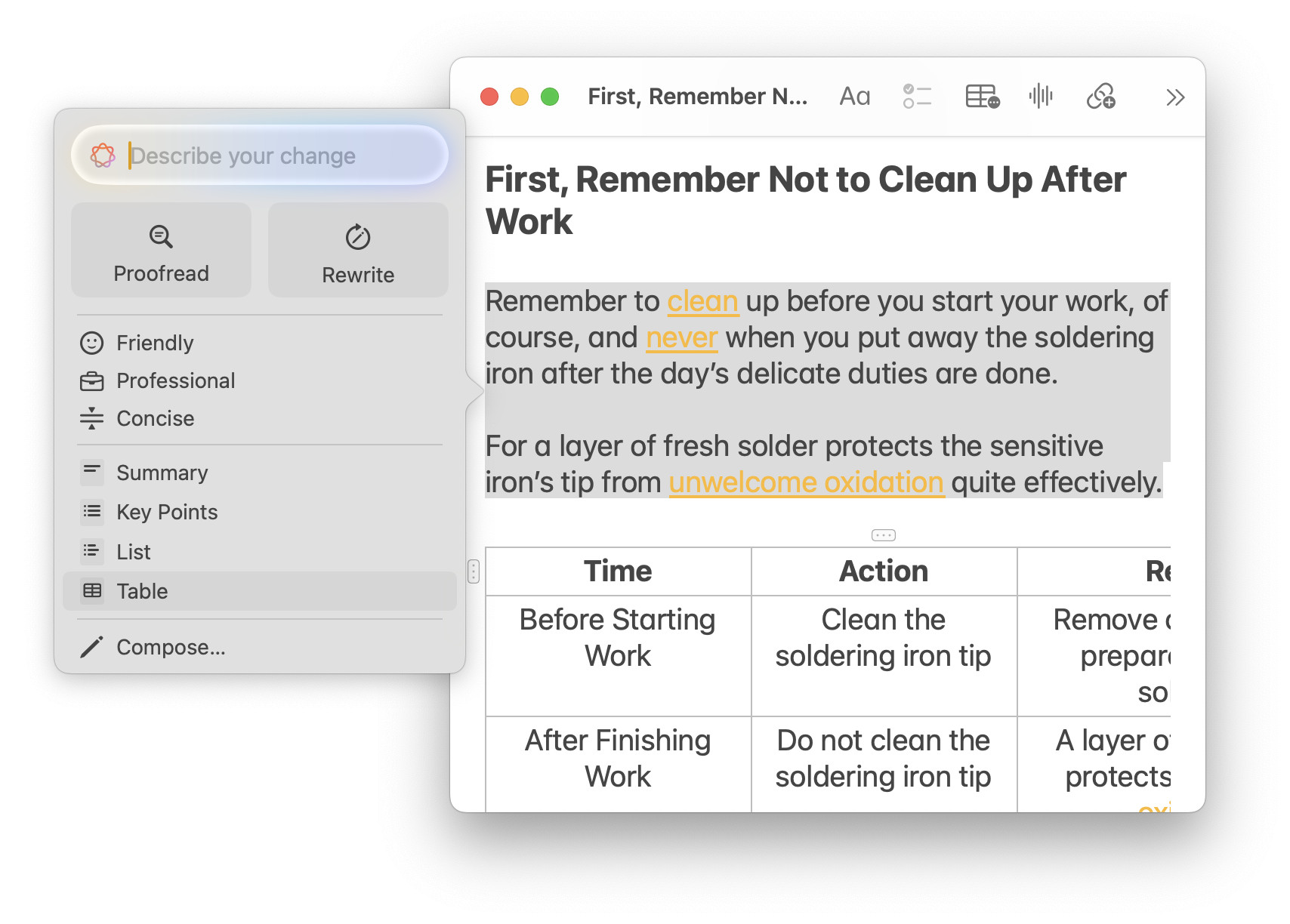
All cleanly tabled out?
Tips help fuel these email and tech how-tos.
How to Convert Any Text to a Table with Mac Writing Tools: FAQ
Can I convert any text to a table?
No.
Writing Tools will only convert to a table what can reasonably (in its interpretation) be displayed in a tabular form, i.e. some kind of matrix.
If Writing Tools fail to find tabular information in text, you will not get a descriptive error message but an alert that Writing Tools are unavailable.

Can I convert the table back into the original text.
No.
To restore the original text:
- Click Revert while Writing Tools is still open or
- undo in the editor (typically by pressing Command Z) until the original text is back.
Can I customize the number or rows and columns or pick categories?
No.
The local Writing Tools converter for tables will decide solely from the text used as input.
You can use Compose… in Writing Tools, of course, to write a prompt which will produce a custom table from highlighted text (e.g., “convert the text to a table using three columns (‘time’, ‘action’ and ‘tools to use’)”).
Can I edit the table after converting?
Yes.
You can, of course, edit the table as if you had created it by hand.
Looking to make a table in plain text — no matter the font? How to Align Numbers Perfectly in Any Text: Unicode Monospace
(Tested with Writing Tools on macOS Golden Gate 27, Tahoe 26 and Sequoia 15; first published April 2025, last updated October 2026)