

Swamped with overdue tasks in Apple Reminders, unsure how to quickly reschedule the lot? Too much to do and too little time (to catch up)? Looking for a swift way to push back multiple tasks in Reminders? Find out here how to catch up with and postpone reminders fast in Apple Reminders for Mac ⤓.
On This Page
How to Postpone Tasks in Apple Reminders for Mac
Time needed: 1 minute
To postpone tasks fast in Apple Reminders on a Mac using keyboard shortcuts:
- Highlight the task or tasks you want to postpone.
More than one: Hold Shift to select a range and Command to add to or remove from your selection; use Command A to select all on the current list.
Today and overdue: You can find all overdue tasks on the top of the Today smart list, and all other tasks due today further down on the same list.
Catching up: See below for a swift way to postpone all overdue tasks to today. - Press Command Option T to mark the highlighted tasks as due tomorrow.
Week’s end: Press Command K instead to postpone the task until the coming weekend.
Next week: Press Command Option K to move the due date to next Monday (or whichever day is set as the start of the week in macOS).
Menu alternative: Select Edit | Mark Due Date As from the menu followed by the desired future due date.
Their word: Apple has information on adding dates to to-do items in the Reminders User Guide.
Postpone Tasks in Reminders for Mac Using a Trackpad
To use the trackpad to postpone individual reminders in Reminders for Mac:
- Open the Today or the Scheduled smart list in Reminders.
- Position the mouse cursor over the task you want to snooze.
Just one: While you can select multiple tasks, of course, postponing with the mouse only applies to the task under the cursor. - Swipe to the right over the task with the two fingers until a menu appears.
- Select Tomorrow or continue swiping to move the task’s due date to tomorrow.
The weekend: Select This Weekend or Next Weekend to push the to-do back to the next weekend.
Any time: You can also select Date & Time to jump to the task’s due date and pick the new desired date (and time).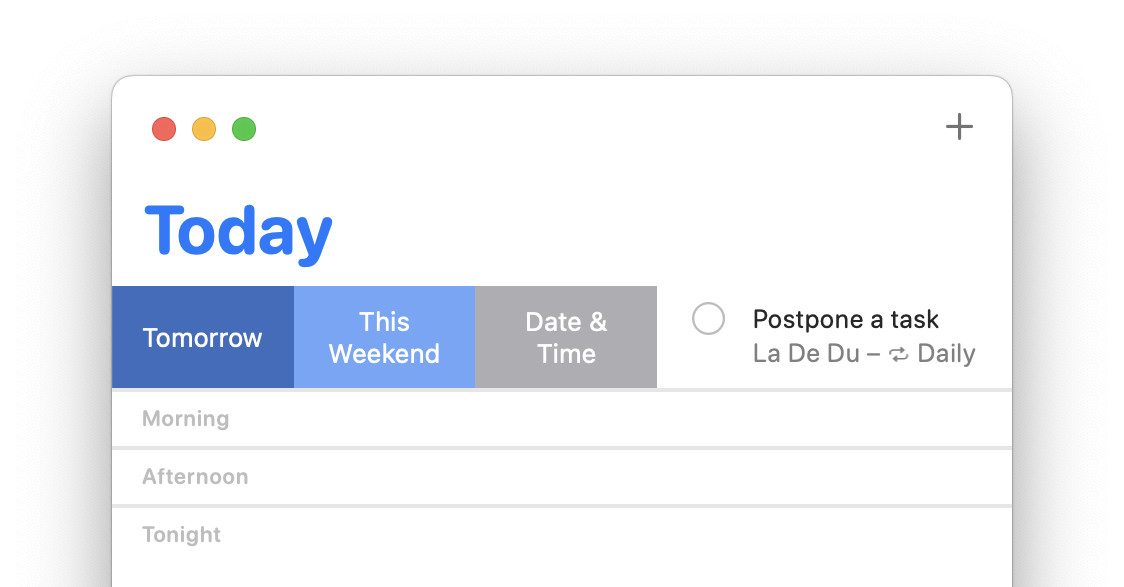
- If you are postponing a repeating task, choose whether you want the schedule as a whole to be pushed back:
Change schedule: To have all reminders occur later, select Update All Future Reminders.
Just this one: If you are just late for one iteration, choose Update This Reminder Only.
Finally caught up?
Tips help fuel these email and tech how-tos.
How to Catch Up Fast in Mac Reminders
To catch up fast with tasks past their due in Reminders on a Mac:
- Open the list with whose tasks you want to catch up.
Other lists: Catching up only applies to the current list; the due dates on all other lists will not change.
All tasks: You can open all tasks in Reminders, of course, and catch up with everything in one go from that list. - Press Command Control T.
Here’s what happens: This will set all reminders with a due date before today to be due today; see below for what that means.
Menu alternative: You can also select Edit | Mark Due Date As | Mark All Overdue to Today in the menu.
How to Catch Up and Postpone Fast in Reminders for Mac
When I catch up in Reminders, what happens to today’s reminders past their due time?
Nothing.
Reminders that were due earlier today and not yet complete will remain as they are. Their due date and time will not change.
What happens to repeating tasks when I catch up?
The next due date changes to today, and repetition will continue from today as well.
Due times (of the day), if set, do not change.
Can I set up a list only of overdue tasks?
No, not in general.
While you cannot set up a smart list that will show all and only overdue tasks on any day, you can, of course, set one up for a specific day:
- Select File | New List in Reminders for Mac.
- Choose Smart List for List Type:.
- Pick Date Before a Date <today’s date> as the criterion.
- Type a name for the temporary list under Name:.
Example:Overdueshould do the job. - Click OK.
You can also, of course, sort any list (including “All”) in Apple Reminders by due date.
(Tested in Reminders for Mac on macOS Tahoe 26.0–26.4, Sequoia 15.2–15.5 and Sonoma 14.2–14.5; first published February 2024, last updated April 2026)