

Feeling less than a writer and more like a pointer and clicker, tired of right-clicking or navigating menus — or that you have to reach for mouse and trackpad at all — to bring up smart writing tools on your Mac? Find out here how to set up and use a keyboard shortcut for bringing up Apple Intelligence writing tools on a Mac (and how to use a tool like proofreading or rewriting directly with just a key combination).
First, I’m Going to Ask My…
“Gee, Professor Planck, won’t you let me give it a try by switching places?”
Asked Max Planck’s chauffeur after he had driven the famous Nobel Prize-winning physicist all around Germany for a lecture series. The chauffeur had heard the lecture so many times by now that he knew it by heart.
So, they switched places. The chauffeur gave the lecture flawlessly, demonstrating full (apparent) mastery of the subject. After end and applause, there was time for questions. One physicist got up and presented a puzzle of extreme difficulty.
“Well,” said the chauffeur in Charlie Munger’s recounting of the apocryphal tale, “I’m surprised that a citizen of an advanced city like Munich is asking so elementary a question, so I’m going to ask my chauffeur to respond.”
À propos de cela… I’m going to ask Apple Intelligence to respond to my editing questions — by keyboard, not mouse movement or lecture:
How to Use a Keyboard Shortcut for Apple Intelligence Writing Tools on a Mac
Time needed: 1 minute
To bring up Apple Intelligence writing tools with a keyboard shortcut on a Mac:
- Set up a keyboard shortcut for writing tools on your Mac.
Here’s how: Use System Settings to pick the key combination you want to use for writing tools; see below.
- Highlight the text you want to have proofread, summarized, rewritten, etc.
Using the mouse: Incidentally, hover the mouse over the selected text and wait for the Apple Intelligence icon to appear to the top left corner’s left to open writing tools without a keyboard shortcut or right-clicking.
- Press the keyboard shortcut you set up for bringing up writing tools.
- Select the writing tool you want to use for the text using the mouse.
Direct action: You can also set up shortcuts to use individual AI writing tools (e.g., the proofreader) immediately; see below.
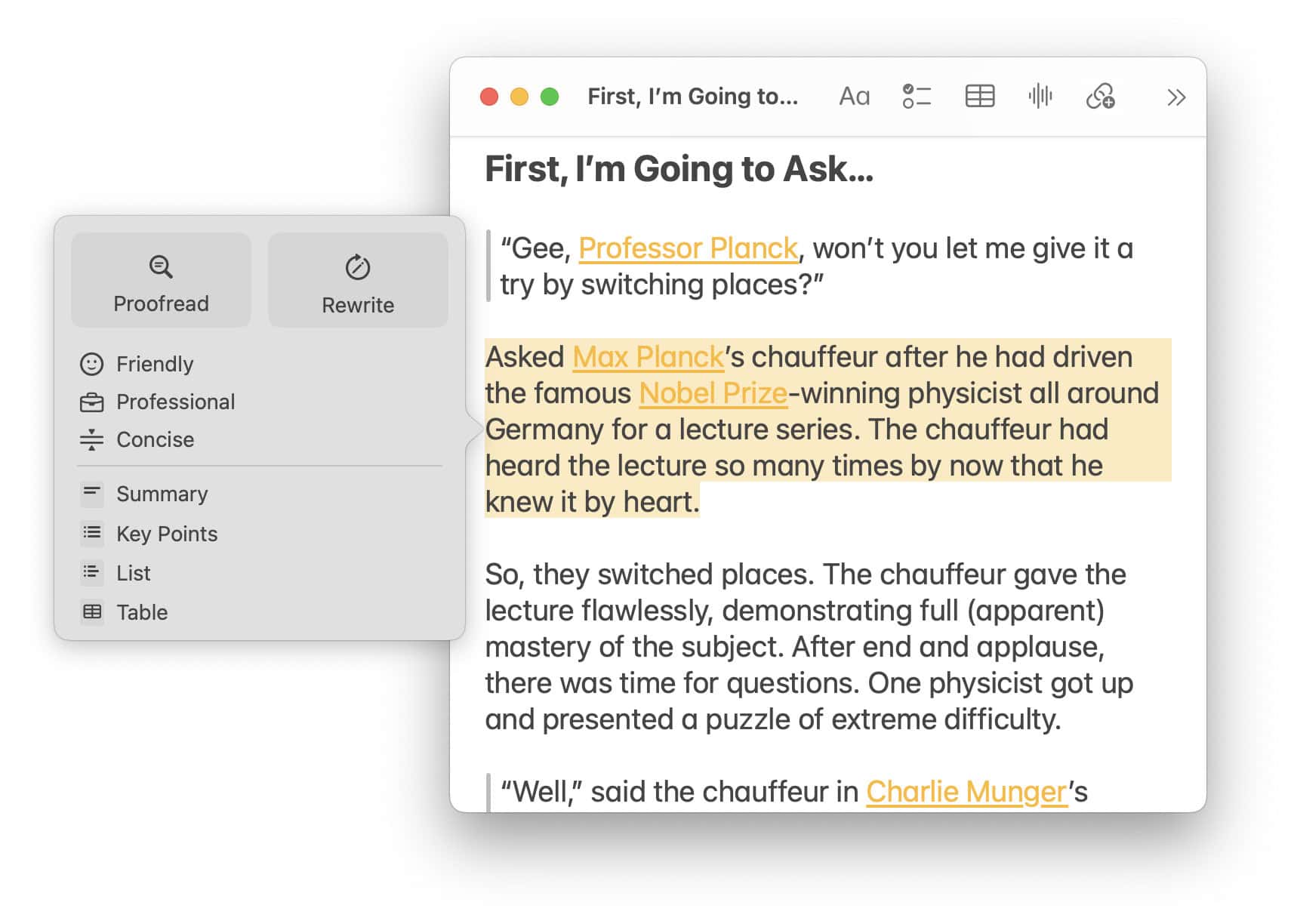
Also editing with the keyboard: How to Use Text Editing Keyboard Shortcuts on a Mac
Add a Keyboard Shortcut to Bring up AI Writing Tools on a Mac
To set up a keyboard shortcut for Apple Intelligence writing tools:
- Open System Settings on the Mac.
- Go to the Keyboard category.
- Click Keyboard Shortcuts….
- Choose App Shortcuts.
- Click +.
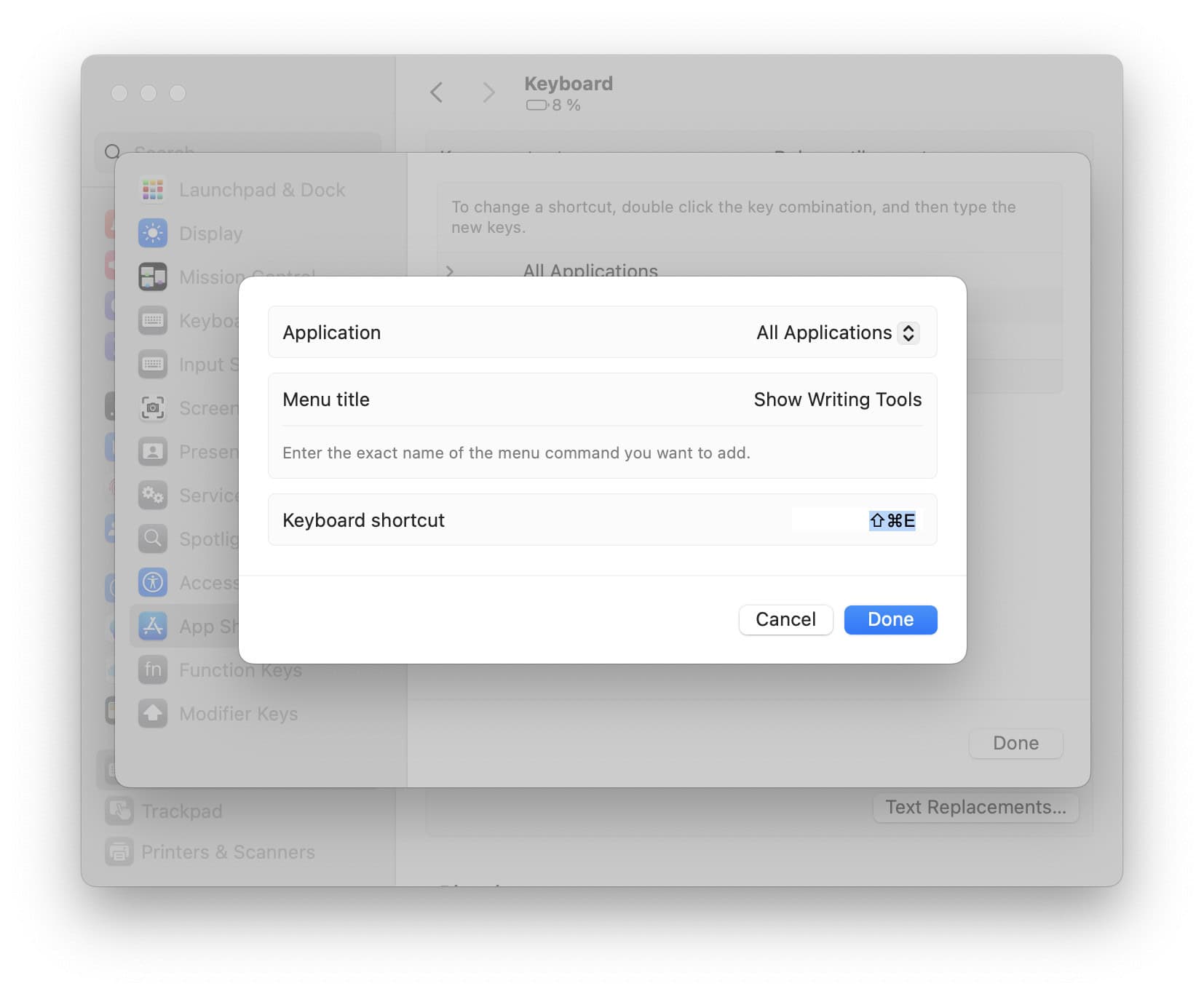
- Typically, select All Applications for Application.
Shortcut mishmash: If you run into conflicting keyboard shortcuts, you can also choose a keyboard shortcut only for a particular app, or possibly different shortcuts for different applications. - Type
Show Writing Toolsunder Menu title. - Now click in the Keyboard shortcut field.
Using the keyboard: You can also press Tab to jump to the shortcut field. - Press the key combination you want to use for bringing up AI writing tools.
Example: Command Shift E (for editing) might work, or Command Option T (for text). - Click Done.
Add a Keyboard Shortcut for a Specific Writing Tool (e.g., Proofreading)
To engage AI writing tools (such as the proofreader) directly using the keyboard alone on a Mac:
- Go to App Shortcuts in System Settings; see above.
- Click +.
- Choose between All Applications (my suggestion) or a particular app for which the keyboard shortcut should be in effect.
- Type the desired writing tool’s name under Menu title from the table below.
Example: Type Proofread for a handy shortcut to have select text proofread for spelling, grammar, and appropriate language use. - Click in or tab to the Keyboard shortcut field.
- 6. Press the key combination you want to use for the particular writing tool.
Example: You can use Command Shift P for proofreading, for instance.
| Writing Tool | Menu Title |
|---|---|
| Proofreading for grammar, spelling and language use | Proofread |
| General-purpose rewriting | Rewrite |
| Rewriting in a friendly tone | Make Friendly |
| Keeping it professional | Make Professional |
| Shortening | Make Concise |
| Distilling the essence | Summarize |
| Itemizing for executive summary | Create Key Points |
| Making listicles | Make List |
| Tabulation | Make Table |
(Tested with macOS Sequoia 15.1–15.6; first published October 2024, last updated August 2025)