

Wish Mail on your Mac didn’t waste valuable screen space by showing several lines of body text in the list of emails? Find out here how to turn off email previews inside message lists in Apple Mail for Mac ⤓ so you can browse folders in a streamlined fashion.
On This Page
How to Turn Off Email Previews in Lists for Apple Mail on a Mac
Time needed: 2 minutes
To disable (or reduce) email previews inside message lists with Apple Mail for macOS on a Mac:
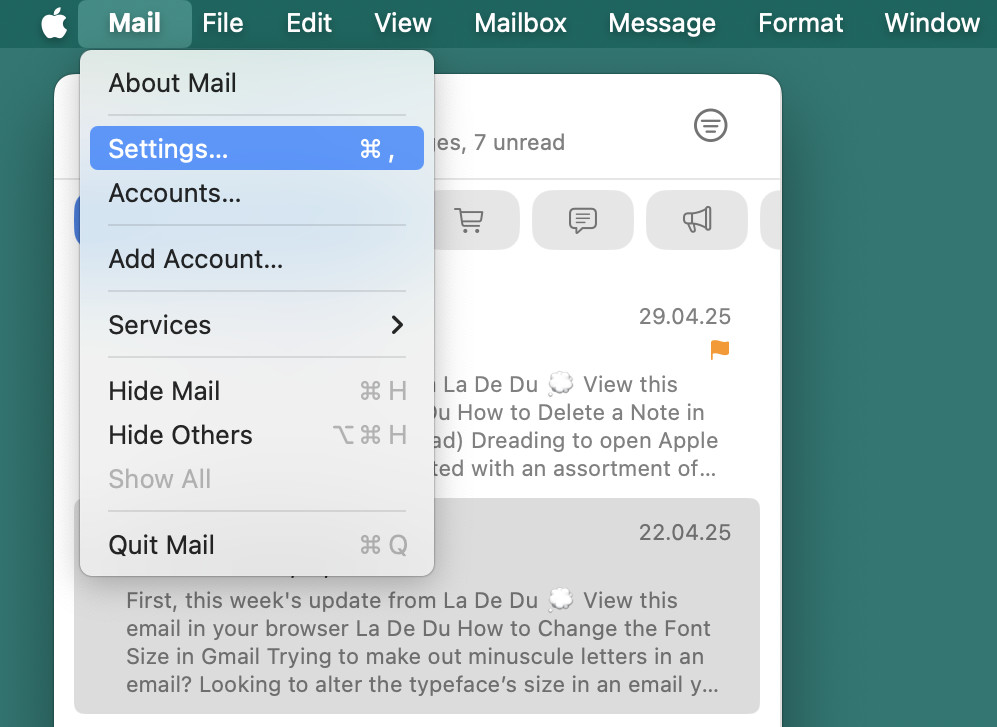
- Select Mail | Settings from the menu in Apple Mail for Mac.
Mail keyboard shortcut: You can also press Command , (comma) to open Mail settings.
- Go to the Viewing tab.
- Select None for List preview:.
More or less: You can also pick the number of lines to use for message preview in lists, of course, from 1–5.
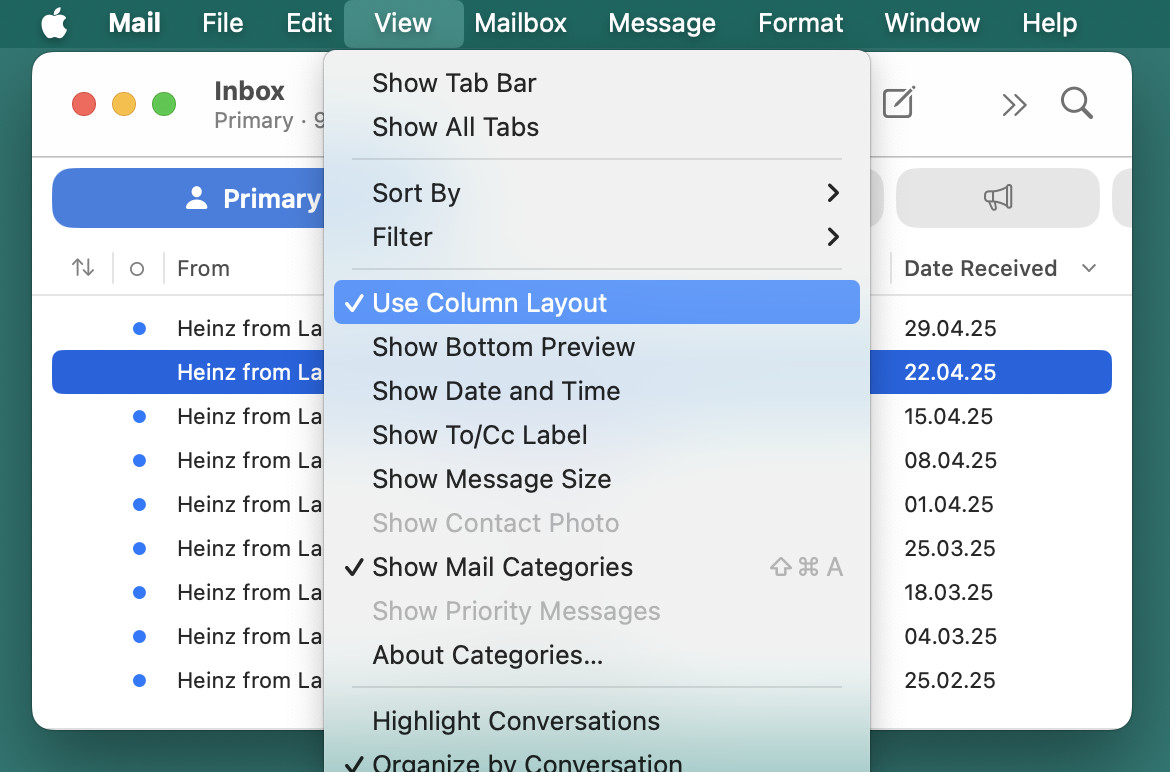
Just lines: Switching to column layout for message lists will also effectively disable email body previews; see below.
Just lists: In addition to preview lines in lists, you can also completely hide the email reading pane for a clean list-only email experience in Apple Mail.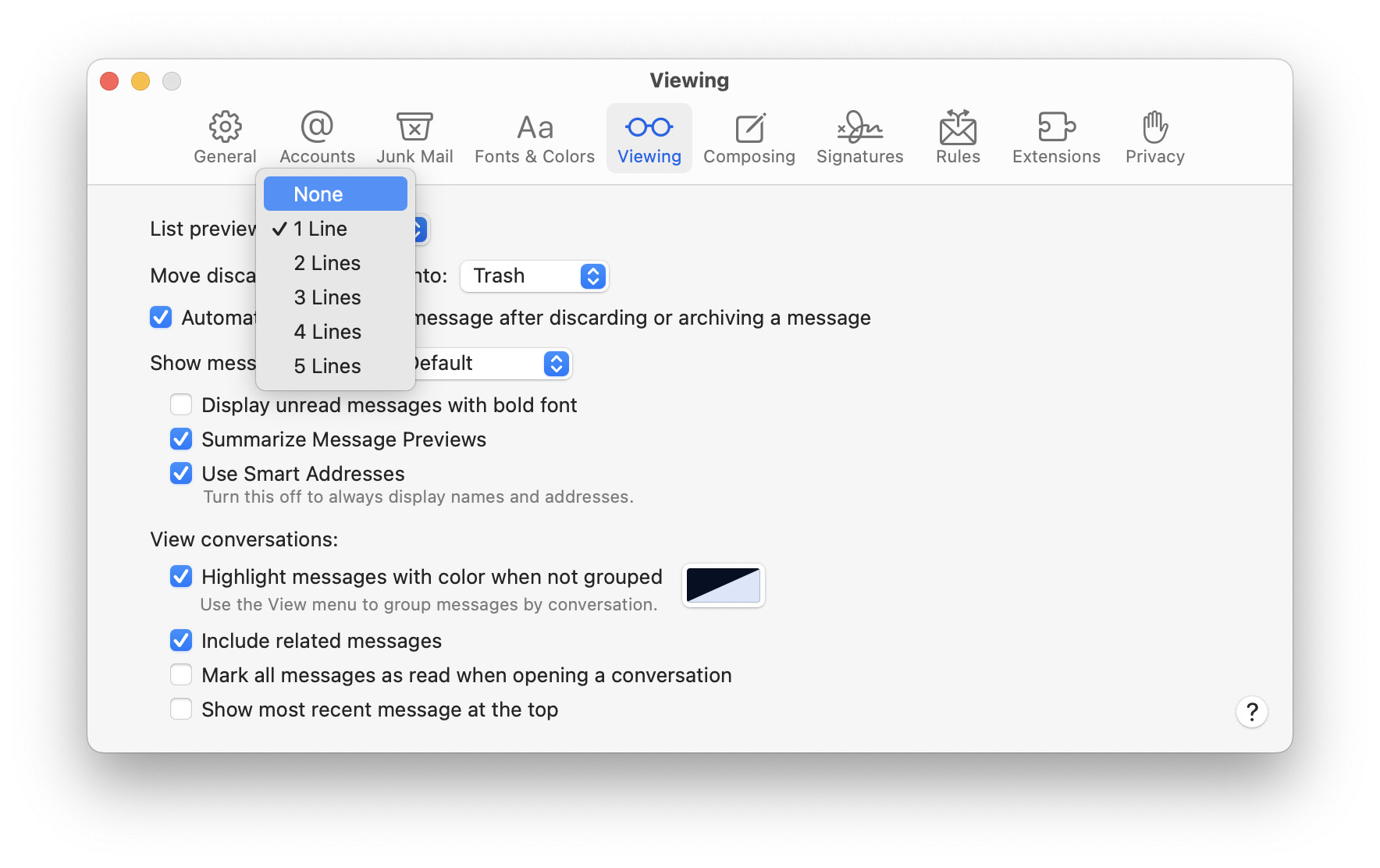
Things flowing smoothly now?
Tips help fuel these email and tech how-tos.
Switch to Column Layout for Lists in Apple Mail for Mac
To enable column layout for lists in Apple Mail for Mac (which always shows one line per email with select details, but no body text preview):
- Select View | Use Column Layout from the menu so the item is selected.
On an iPhone or iPad?
How to Turn Off Previews in iPhone Mail Message Lists
How to Turn Off Email Previews in Lists for Apple Mail on a Mac: FAQ
Can I toggle list preview lines for emails using a keyboard shortcut?
No.
You can change how many lines of body preview text appear in message lists in Mail settings.
Do preview lines appear in both column and condensed layout?
No.
Mail displays the configured number of preview lines only in condensed view; column layout for message lists does not include email body previews.
(Tested with Mail for Mac 16 on macOS Tahoe 26 and Sequoia 15; first published July 2025, last updated June 2026)