

You scroll, you snap; you scroll, you snap; you scroll more and snap more — then you juggle a mess of screenshots just to capture one long page? Chrome can do better, and it can do the full-page screenshot dance without any add-ons. Find out here how to take a full page screenshot in Google Chrome ⤓ (no extensions needed) and save the exact view you need in one go.
On This Page
How to Take a Full Page Screenshot in Google Chrome
Using Chrome Developer Tools (No Extensions Needed)
Time needed: 2 minutes
To save a screenshot of a full web page in Google Chrome (using only built-in developer tools):
- Make the page look the way you want to save it as a screenshot in Chrome.
Load everything: Scroll down the page to load anything (e.g., images) that is retrieved lazily.
Remove something: You can use Chrome developer tools to remove unwanted page elements before taking a screenshot as well. - Click anywhere on the page with the right mouse button.
- Select Inspect from the context menu that has appeared.
Chrome keyboard shortcut: You can also press Ctrl Shift I (Windows and Linux) or Command Shift I (Mac) to open Chrome developer tools, then go to the Elements tab.
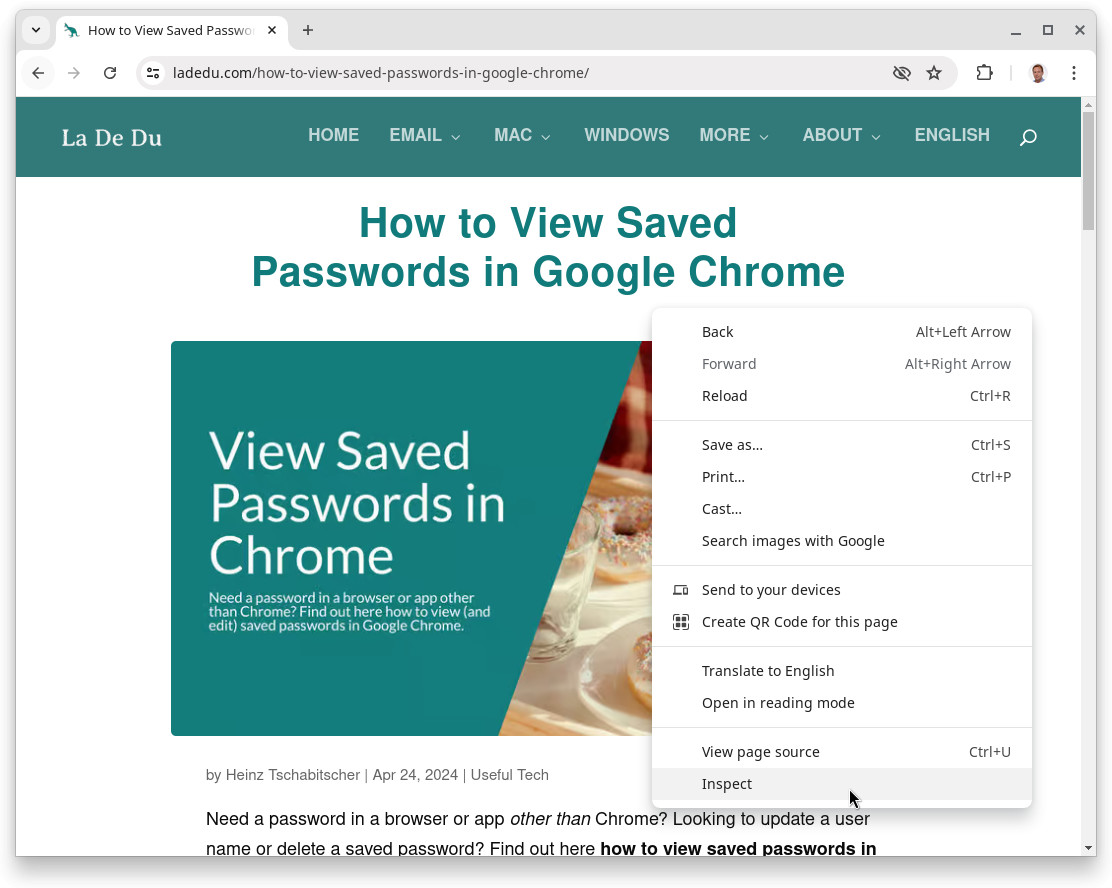
- Click on the <body> element with the right mouse button.
Other elements: You can also right-click other elements (such as a <div> or <article>, for instance) and save the corresponding part instead of the whole page.
- Select Capture node screenshot from the context menu.
Where it goes: Chrome saves to the downloads folder.
Their word: Google include information on taking node screenshots in Chrome developer documentation.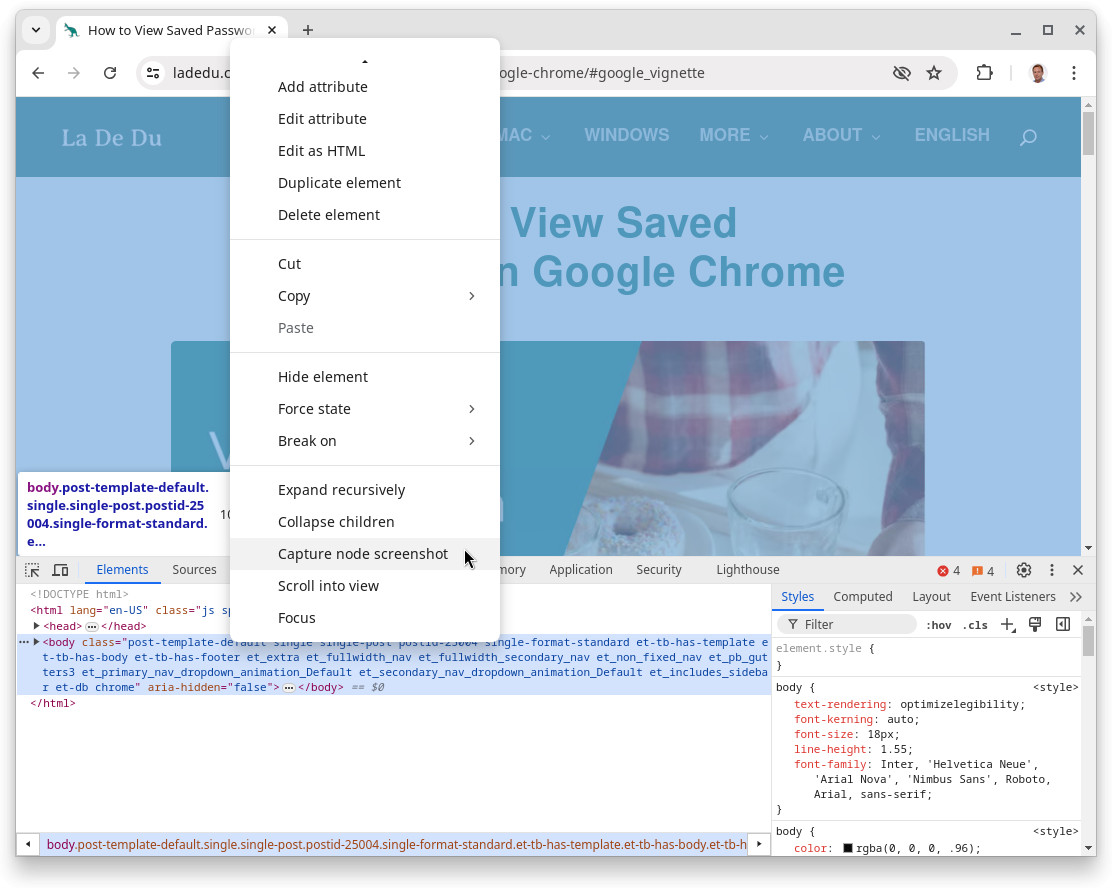
Chromium captured?
Tips help fuel these email and tech how-tos.
Chrome Screenshot Extensions
As a usually unneeded but potentially convenient alternative to taking screenshots with Chrome’s built-in tools, you can resort to a host of screenshot extensions. If your corporate environment prevents access to Chrome developer tools, curated extensions may be allowed.
Chrome screenshot extensions include
- GoFullPage (exports to PNG, JPEG and PDF)
- Webpage Screenshot (lets you share with one click),
- Screenshot Tool (comes with editing tools),
- Awesome Screen Recorder & Screenshot (can record video plus voice) and
- Fireshot (includes editing tools and can batch-export to PDF).
Before you take any screenshot with such an extension, do examine its privacy policy, of course, paying attention especially to whether — and where — your screenshots may be uploaded, say for sharing.
Using Firefox? How to Make a Website Screenshot in Firefox
Take a Full Page Screenshot of a Page’s Mobile View
In addition to taking a screenshot as you see it on the desktop, Chrome also lets you preview pages as they would be laid out in a mobile device — and capture full-sized screenshots.
To take a full page screenshot of a page’s mobile view in Chrome developer tools:
- Open developer tools.
Here’s how: Select More tools | Developer tools from the three dots menu in Chrome. - Show the developer tools’ device toolbar.
Here’s how: Click the phone/table icon or press Ctrl Shift M (Windows and Linux) or Command Shift M (Mac). - Choose the device you want to mimic under Dimensions.
- Scroll to the bottom to load all content.
As seen: Again, you can manipulate nodes to make the page appear as desired; see above. - Open the three dots menu in the device toolbar.
- Select Capture full size screenshot.
Frameless: Even if you have a device selected that includes a frame (such as iPhone 6/7/8) and the frame shows in preview, the full page screenshot will be saved without any frame.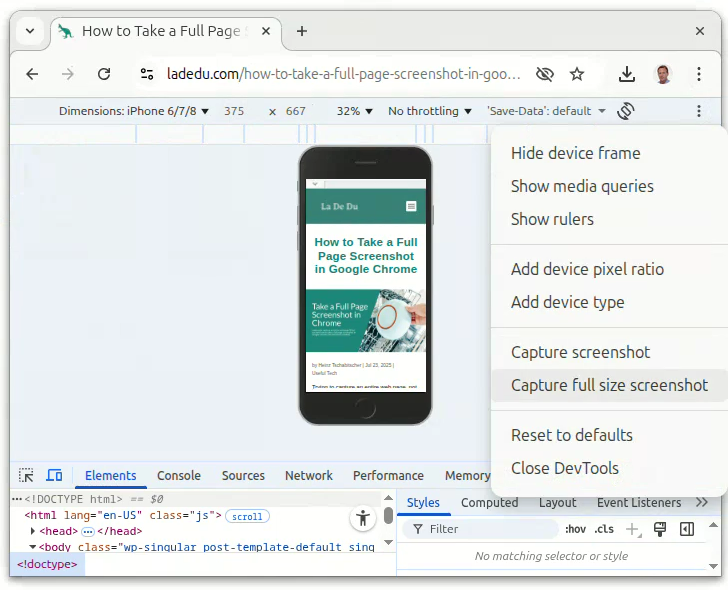
More screenshots:
How to Take a Screenshot on a Mac (Incl. Cursor)
How to Snip a Screenshot Image in Windows Snipping Tool
Take a Screenshot in Chrome Headless Mode (from the Command Line)
Using the --screenshot option, you can have Chrome save a screenshot directly at the command prompt, e.g., for further use in other command line tools and automation.
To save a screenshot using headless Google Chrome in a Terminal (Windows, Mac and Linux):
- Open a terminal application.
Here’s how: Launch Terminal on a Mac, a terminal app on Linux or PowerShell on Windows, for example. - Enter the command to run Chrome.
Here’s how: On Linux, typegoogle-chrome, for example, on a Mac typically/Applications/Google\ Chrome.app/Contents/MacOS/Google\ Chromeandchromeon Windows. - Add
--headless --screenshot=<filename.png>.
Caution: Chrome will overwrite the image file if it already exists. - Optionally, add
--window-size=<width,height>(in pixels).
Here’s why: Chrome will take a screenshot of what it virtually renders for display, not the whole page; try setting the width to 1280 and increasing the height to catch more of the page. - Finally, append the address of the page you want to capture.
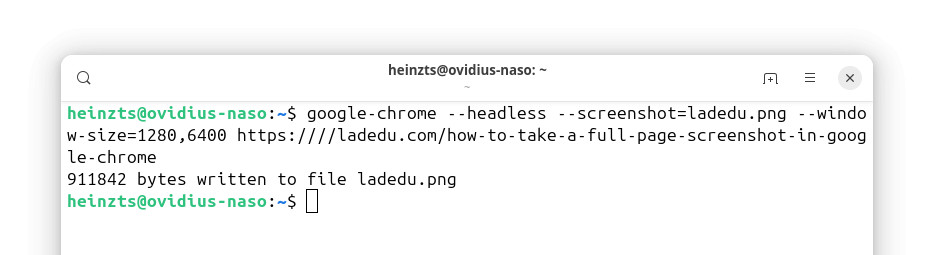
Example: Usegoogle-chrome --headless --screenshot=ladedu.png --window-size=1280,6400 https://ladedu.com/how-to-take-a-full-page-screenshot-in-google-chrome/to take a screenshot of this page on Linux. - Press Enter.
How to Take a Full Page Screenshot in Google Chrome: FAQ
Can I choose where the screenshot from Chrome developer tools saved?
No.
Chrome always saves screenshots to the folder used for saving downloads.
Can I change the file format for screenshots?
No.
Chrome will always save screenshots as PNG files.
(Tested with Google Chrome 126–149; first published July 2024, last updated June 2026)