

Irked by Mail on your iPhone wasting precious screen estate on snippets you never read? Sender and subject are enough for you to judge a message? Find out here how to turn off email body previews inside message lists for Apple Mail on iPhone and iPad ⤓.
On This Page
How to Turn Off Email Previews in Messages Lists for Apple Mail on iPhone and iPad
Time needed: 2 minutes
To disable (or configure) the message body preview shown inside message lists in Apple Mail for iPhone and iPad:
- Open the Settings app on the device.
- Open the Apps category.
- Select Mail.
- Open Preview.
- Select None to turn off email content preview.
Here’s what happens: Message lists (such as folders and search results) in Mail will now only show sender, date and subject for each message.
More or less: You can pick any number of previews lines, of course, e.g. 1 Line for a somewhat larger target area (and one line of somewhat meaningful body text preview) for each message.
Their word: Apple include rudimentary information on email settings in the Mail User Guide.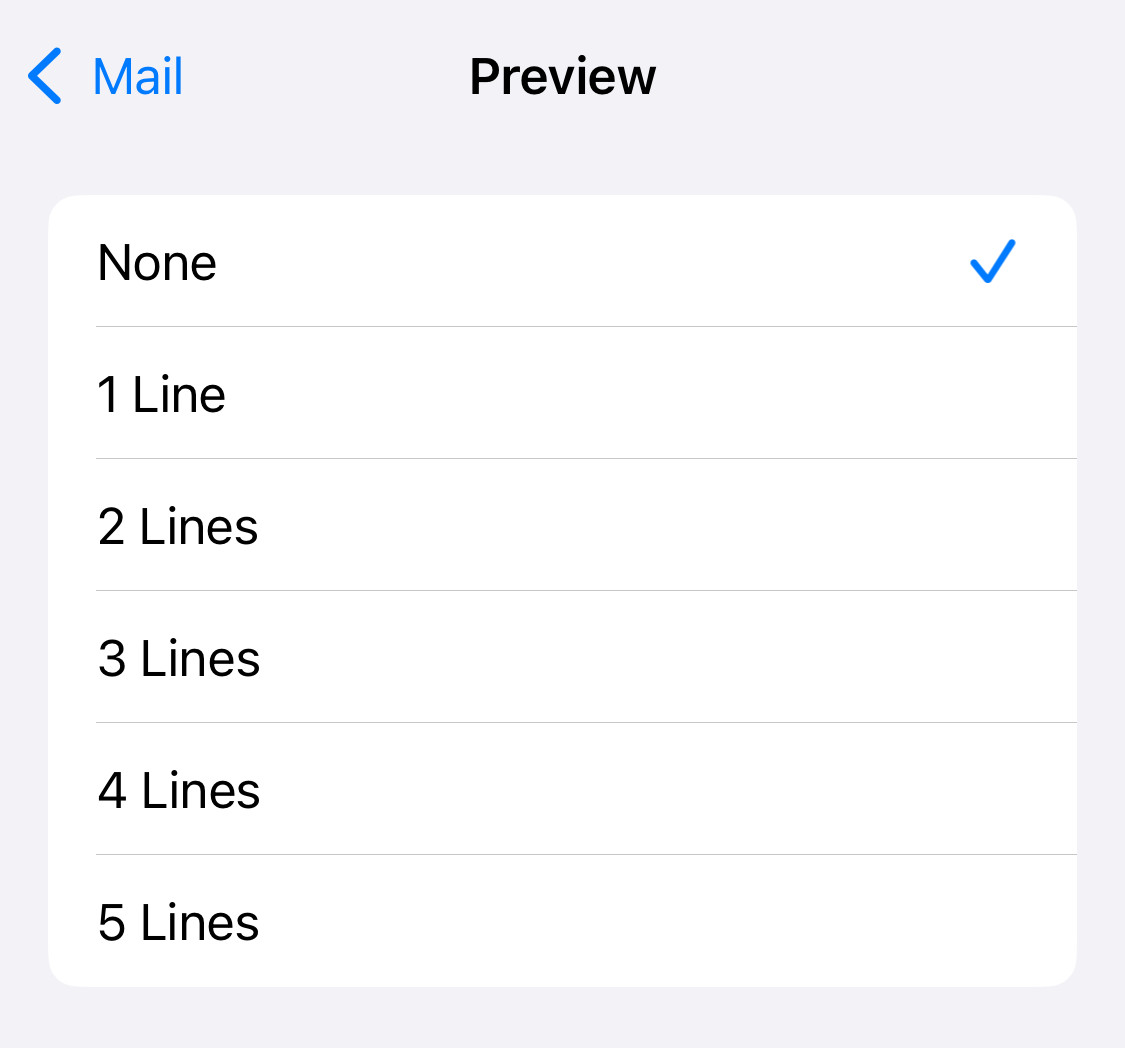
The message list can keep a secret?
Tips help fuel these email and tech how-tos.
How to Turn Off Email Previews in Messages Lists for Apple Mail on iPhone and iPad: FAQ
Will disabling email previews on one device turn it off on other devices, too?
No.
The setting for email body preview does not synchronize across devices or operating systems. You can disable previews in Apple Mail for Mac independently, for example, on each computer.
Does turning off the previews change the emails themselves?
No.
Message previews only affect how emails are displayed in the list. The setting does not change how emails are displayed when you open them.
(Tested with Apple Mail 18 and 26; first published July 2025, last updated July 2026)