

Want to capture a full webpage but find it impossible to fit everything in one image, no matter how much you zoom or resize? Firefox comes with a built-in tool that makes this easy. Find out here how to make a website screenshot in Firefox ⤓ and save part or all of a page to a PNG file (even with unwanted elements removed).
On This Page
How to Make a Website Screenshot in Firefox
Time needed: 2 minutes
To take a screenshot of a web page (in whole or in parts) without pagination in Firefox:
- Get interface elements you do not want to include in the screenshot out of the way.
Here’s how: If you cannot close or minimize an element using the page itself, you can remove the unwanted part using Firefox developer tools.
Here’s why: Firefox will take a screenshot of the page as it is rendered in memory; toolbars fixed to the bottom of the visible display will appear in that position — in the middle of content and overlaying it — , for instance.
Lazily-loading images: Scroll down the page to load images lazily loaded so they are included in a possible full-page screenshot.
Reader view: You can engage reader view for the screenshot, of course, and turn its rendering of the page’s content into a screenshot. - Bring up Firefox screenshot.
Here’s how: Click anywhere on the page with the right mouse button and select Take Screenshot from the context menu that has appeared.
Firefox keyboard shortcut: You can press Command Shift S (Mac) or Ctrl Shift S (Windows and Linux).
Toolbar: With the screenshot button added to the Firefox toolbar (see below), you can also click that button, of course.
- Take the desired screenshot of a part or the whole of the page.
Full page: Select Save full page.
Selection: Click and drag to select any area on the page; you can scroll and select beyond the currently visible.
Page element: Click any part of the page as it is highlighted in the background to save it as a screenshot. - Click Download in the screenshot preview.
Where it goes: Firefox saves the screenshot to your downloads folder.
That’s the format: Screenshots are saved as losless PNG files.
Clipboard: You can also select Copy to copy the screenshot to the system clipboard (and paste it into an image eidtor, for instance).
Their word: Mozilla include information on taking screenshots in Firefox help.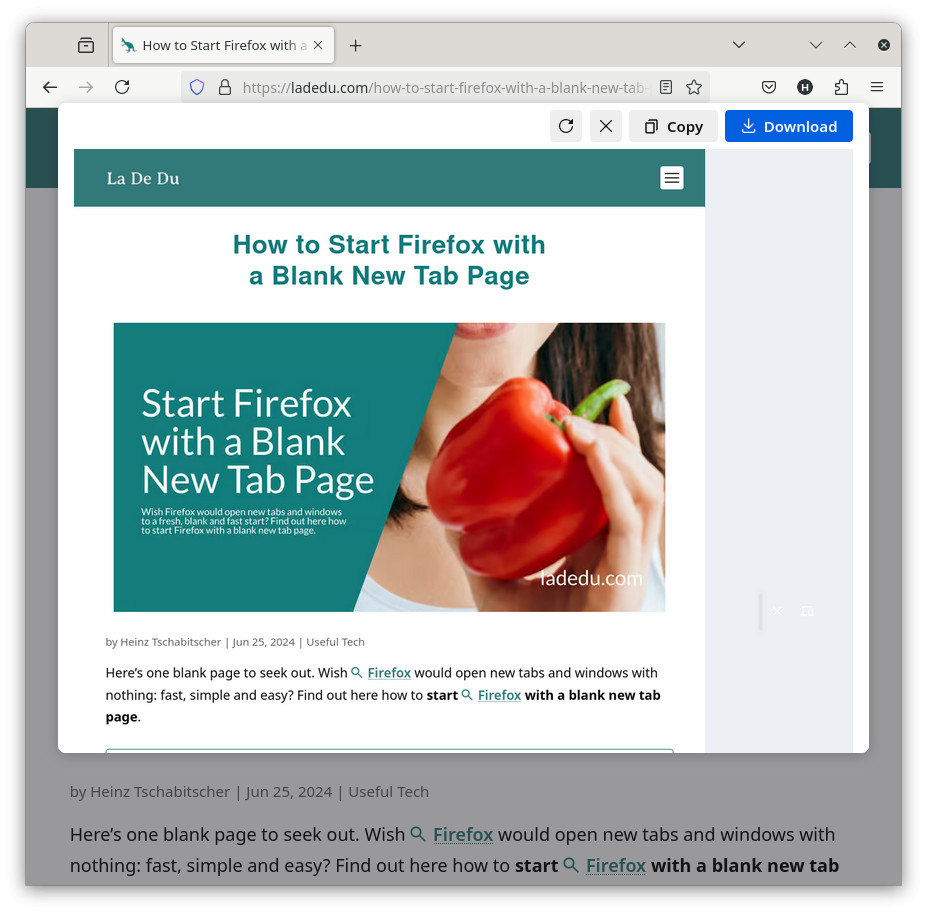
Was website… is screenshot?
Tips help fuel these email and tech how-tos.
Add Taking a Screenshot to the Firefox Toolbar
To add a screenshot command to the toolbar in Firefox:
- Click an empty area in the current Firefox toolbar.
- Select Customize Toolbar… from the context menu that has appeared.
Hamburger alternative: You can also select More tools | Customize toolbar… from the Firefox hamburger menu. - Drag and drop the Screenshot button to the desired space in the toolbar.
- Click Done.
How to Make a Website Screenshot in Firefox: FAQ
Can I take a screenshot of a page in reader view?
Yes.
With reader view enabled, all Firefox screenshot options work as they do with normal web page display.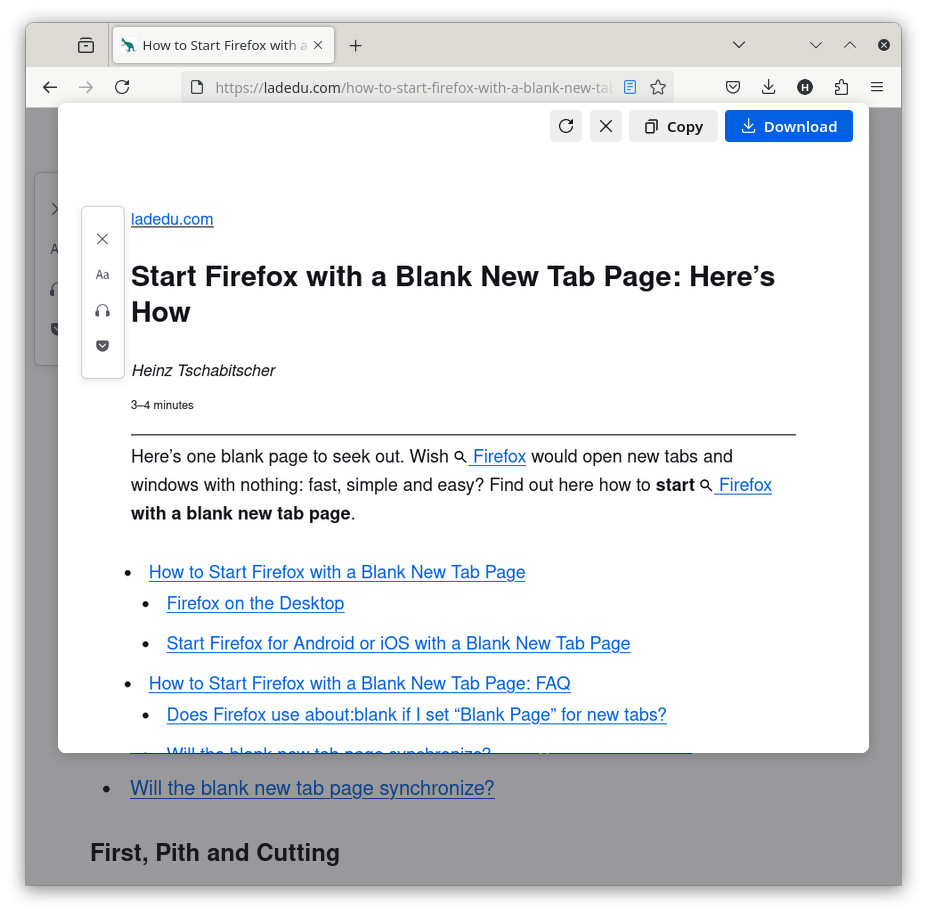
Can I include the Firefox interface in the screenshot?
No, not with Firefox.
You can take a screenshot using your operating system’s (or a thirid party) screenshot utility (Snipping Tool on Windows and Screenshots on a Mac, for instance) that includes the Firefox interface and the (possibly limited) part of the page visible in it.
To fit more into a screenshot, you can change the screen resolution or stitch together multiple screenshots, of course.
Does taking a screenshot work for every page?
Almost.
Firefox will not take screenshots of certain restricted pages (such as Firefox Add-ons) and reportedly struggles with pages that use historic HTML frames.
Can I save screenshots in a format other than PNG?
No, not directly.
You can always convert the PNG images to the desired format, of course.
(Tested with Firefox 127–151; first published July 2024, last updated June 2026)