

Found a new YouTube channel and watched a few videos, and two weeks in you have no idea where it went? Subscribing is an easy way to keep any channel’s new videos in a single spot. Find out here how to subscribe to channels on YouTube ⤓ — and how to unsubscribe or manage all your subscription in one view.
On This Page
How to Subscribe to Channels on YouTube
Time needed: 1 minute
To subscribe to a channel on YouTube:
- Go to the channel’s home page or open a video or short by the channel to which you want to subscribe.
Playlists and posts: From a playlist, go either to the channel’s home or open an individual video for playing; from a post, go to the channel home page to subscribe.
- Click or tap Subscribe.
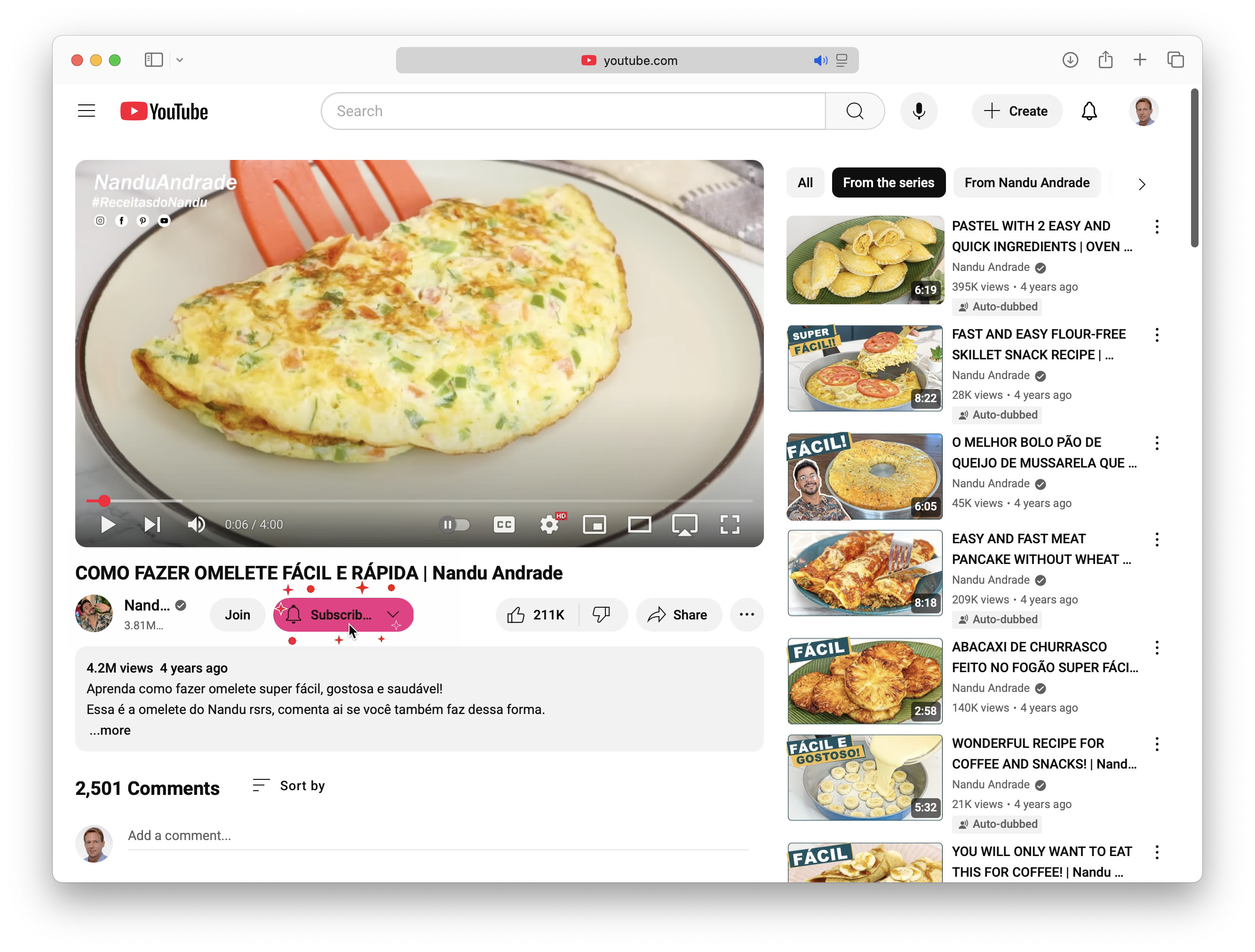
- Optional: Change how you will receive notifications about activities on the channel.
Here’s how: Select the subscription button (now labelled Subscribed or sporting a bell) again and select All, None or Personalized; Personalized is the default and lets YouTube decide which notifications it deems most relevant based on your viewing history.
Their word: Google include information on subscribing to channels in YouTube help.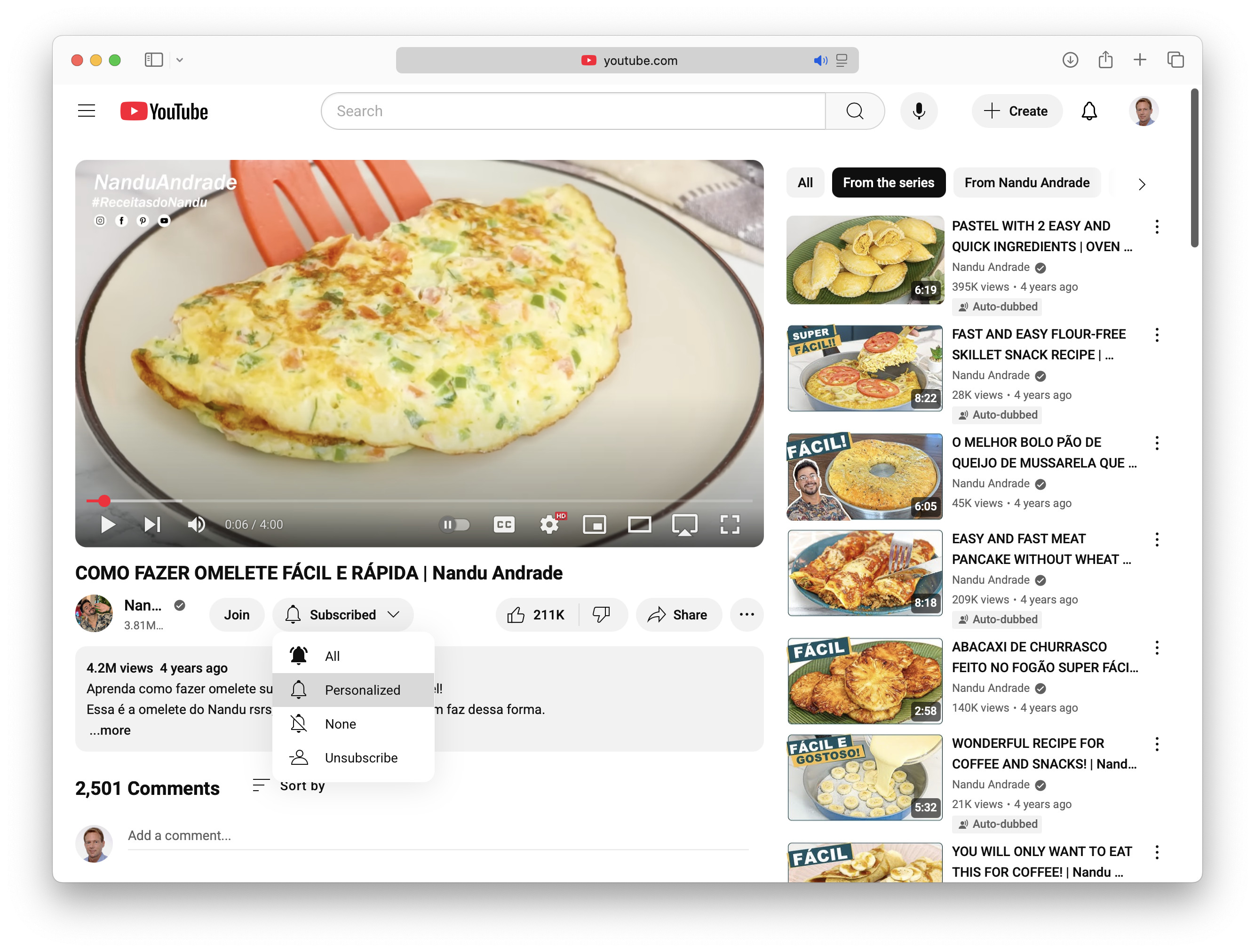
Following your favorites?
Tips help fuel these email and tech how-tos.
Remove a Subscription in YouTube
To unsubscribe from a channel on YouTube:
- Go to the channel’s page on YouTube or open one of their videos.
- Click or tap the Subscribed button.
- Select Unsubscribe from the menu that has appeared.
- Now choose Unsubscribe again to confirm.
How to Subscribe to Channels on YouTube: FAQ
Will I see all new videos from my subscriptions when I open YouTube?
No.
The YouTube home page is an assortment of videos judged to be the most likely for you to watch (or engage with) at that time. To see all the latest videos from your selection of channels, you can visit the YouTube subscriptions page.
Can I see (and manage) all my YouTube subscriptions in one place?
Yes.
To get an overview of all the channels to which you have subscribed on YouTube:
- Open the Subscriptions page in YouTube.
Here’s how: Select Subscriptions in the YouTube sidebar or toolbar. - Click or tap Manage.
No “Manage”: If you do not see a Manage link, you can manage your subscriptions using the sidebar on the Subscriptions page. - Optional: Click or tap Most relevant to change the sorting order to alphabetical or chronological (with the channels that sport the most recent updates on top).
(Tested in a desktop browser and the YouTube app for iOS; first published August 2025, last updated September 2026)