

Shopping in a Euro country — or setting up shop? Interested in typography — or the history of currencies? The reasons to look for the Euro sign are many, the places to look for it on an iPhone but few. Find out here how to insert the Euro currency symbol ( € ) on an iPhone ⤓.
On This Page
How to Type the Euro Symbol ( € ) on iPhone
Time needed: 1 minute
To input the symbol for the Euro currency ( € ) on an iPhone or iPad:
- Position the text cursor where you want to insert the Euro symbol.
Here’s where: In English, the symbol for the Euro precedes the amount of Euros; other languages follow other conventions, and putting the symbol after the monetary number is not generally wrong.
Whitespace: Do not separate the symbol from the numbers that follow it by whitespace to comply with the style guide, e.g., for EU institutions; if you do want to use whitespace for increased legibility (depending on the typeface, for instance), use a non-breaking space (and preferably a narrow non-breaking space).
Other languages: In languages other than English, the Euro symbol typically comes after the amount, separated with non-breaking whitespace.
Examples: This roll costs €3.50? and Cijena ulaznice je 10,00 €. - Tap 123 for the iOS punctuation keyboard.
- Now tap and hold $.
- Move your finger to highlight €.
- Let go of the screen to insert the Euro symbol ‘€’.
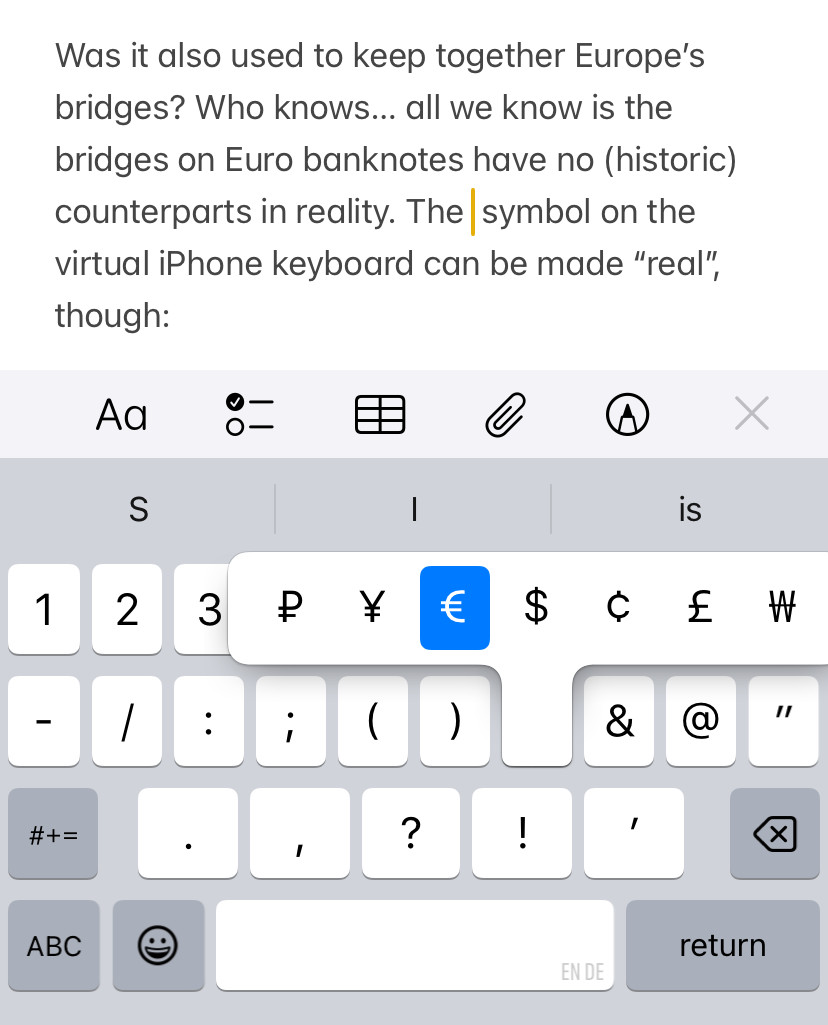
Tapped like a true €pean.
Tips help fuel these email and tech how-tos.
Insert the Euro Symbol by Dictation
To have dictation (or Siri) insert the Euro symbol for you on an iPhone:
- Say a number together with “Euros”
Here’s why: Inserting a definite Euro amount is the easiest and most reliable way to produce the Euro symbol by dictation.
Example: Say “Five Euros” for dictation to insert5€. - Remove the number to keep just the Euro symbol if that’s what you wanted.
Got the € symbol, now for the value: How to Convert Currencies Instantly on Your iPhone
How to Type the Euro Symbol on iPhone: FAQ
What can I use instead of the Euro symbol?
You can always resort to regular Latin characters as replacements for the symbol ‘€’:
- Write out the word Euro (following the number and separated by whitespace; use Euros for the plural) or
- use the abbreviation EUR (all caps and in front of the number, again separated by whitespace).
Examples: For a few Euros less. The total is EUR 129.47.
More special characters: How to Type Hidden Special Characters on iPhone Keyboard
On a Mac? How to Type the Euro Symbol ( € ) on a Mac Keyboard
Can I also paste the Euro symbol?
Yes.
Copy the Euro symbol € below, for example, and insert it anywhere on iPhone:
Euro sign € |
(Tested with iOS 17–18 and 26; first published November 2024, last updated May 2026)