

Feel like your Fastmail inbox is on a mission to hide the messages you care about most? Important emails from clients, friends and family easily get buried under newsletters, promotions and transactional messages. Find out here how to set up and use VIP senders in Fastmail ⤓ so your most valued contacts are easy to spot and find.
On This Page
How to Set up and Use VIP Senders in Fastmail
Assign VIP Status in Fastmail
Time needed: 2 minutes
To assign VIP status to a contact in Fastmail:
- Go to Fastmail Contacts.
Here’s how: Open the Fastmail app menu in the top left corner, then select Contacts.
Fastmail mobile: Tap the hamburger menu button to reveal the Fastmail app menu. - Open the contact you want to make a VIP.
- Click or tap the VIP star to designate the contact as a VIP.
Unimportant now: Click or tap the star again to remove VIP status.
Their word: Fastmail include information on VIP senders in Mail help.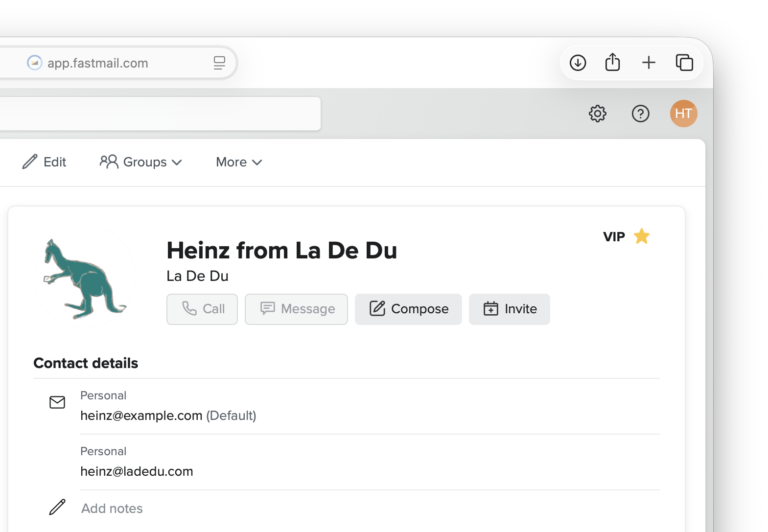
VIS and VIR?
Tips help fuel these email and tech how-tos.
Assign VIP Status from an Existing Message
To make a sender VIP from a message you have opened in Fastmail:
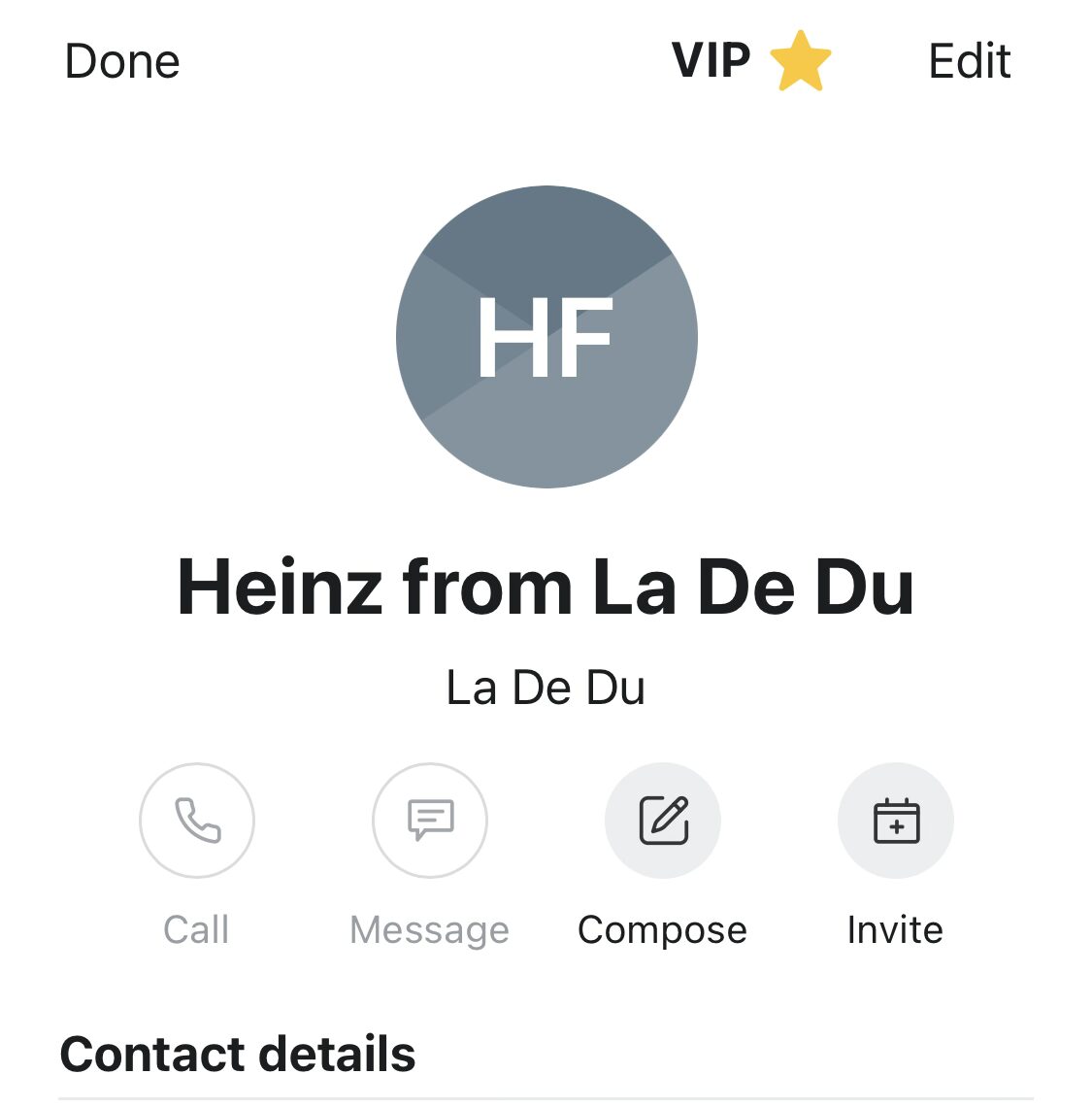
- Display the sender’s contact sheet for the email.
Here’s. how: Tap the sender avatar and select View Contact from the menu that has appeared.
Not a contact: If you do not see View Contact, add the sender to your Fastmail address book first. - Tap the VIP star to make the contact a VIP.
Identify Emails from VIP Senders in Fastmail
To spot emails from VIP contacts in Fastmail:
- Look for stars (yellow stars for unread messages and gray stars for read emails) next to senders in the message list.
Focus: You can also focus any folder to show just messages from VIP senders.
Find VIP Emails Using Fastmail Search and Smart Folders
To find emails from VIP senders in Fastmail and set up a Smart Folder that collects messages from VIPs:
- Focus the search field in Fastmail.
Here’s how: Click Search mail in Fastmail.or tap the magnifying glass search icon.
Fastmail keyboard shortcut: You can also type / to jump to Fastmail search on the desktop. - Type
fromin:VIPs.
Narrower: You can use additional search criteria, of course, to narrow search results, e.g. to include only unread emails.
Example: Usefromin:VIPS is:unread after:-10dto find emails from VIP contacts that are no more than 10 days old and unread. - Press Enter.
- Optional: Select Save search to create a Smart Folder that holds all emails from VIP senders.
No “Save search”: If you do not see Save search, tap the three dots menu button to reveal the toolbar menu.
How to Set up and Use VIP Senders in Fastmail: FAQ
Can I make multiple contacts VIPs in one go?
Yes.
To assign VIP status to more than one entry in Fastmail Contacts:
- Check all contacts you want to make VIPs.
Here’s how: Click or tap the avatar in front of one entry, then check the boxes for all contacts you want to include. - Select Add to VIPs in the toolbar.
No “Add to VIPs”: If you do not see Add to VIPs in the toolbar, click More first to expand the toolbar; on mobile devices, select VIP first to reveal Add to VIPs.
(Tested in Fastmail on the desktop as well as the Fastmail iOS app; first published November 2025, last updated July 2026)