

Want to do more than hoard a mountain of archived emails? How about turning those messages into a curated personal address book? Find out here how to add a sender to your contacts in Fastmail ⤓ on both desktop and mobile devices.
On This Page
How to Add a Sender to Your Contacts in Fastmail (Desktop, Mobile, and Browser)
Using the People Sidebar (Desktop App and Browser)
Time needed: 2 minutes
To add a sender to your address book in Fastmail:
- Open an email from the sender you want to add to your contacts.
- Open People in the sidebar.
Here’s how: Click Show sidebar, then go to the People tab.
Fastmail keyboard shortcut: You can press Command Shift I (Mac) or Ctrl Shift I (Windows and Linux) to toggle display of the sidebar. - Select In Conversation from the top drop-down menu under People.
- Click the sender’s name and email address under Sender.
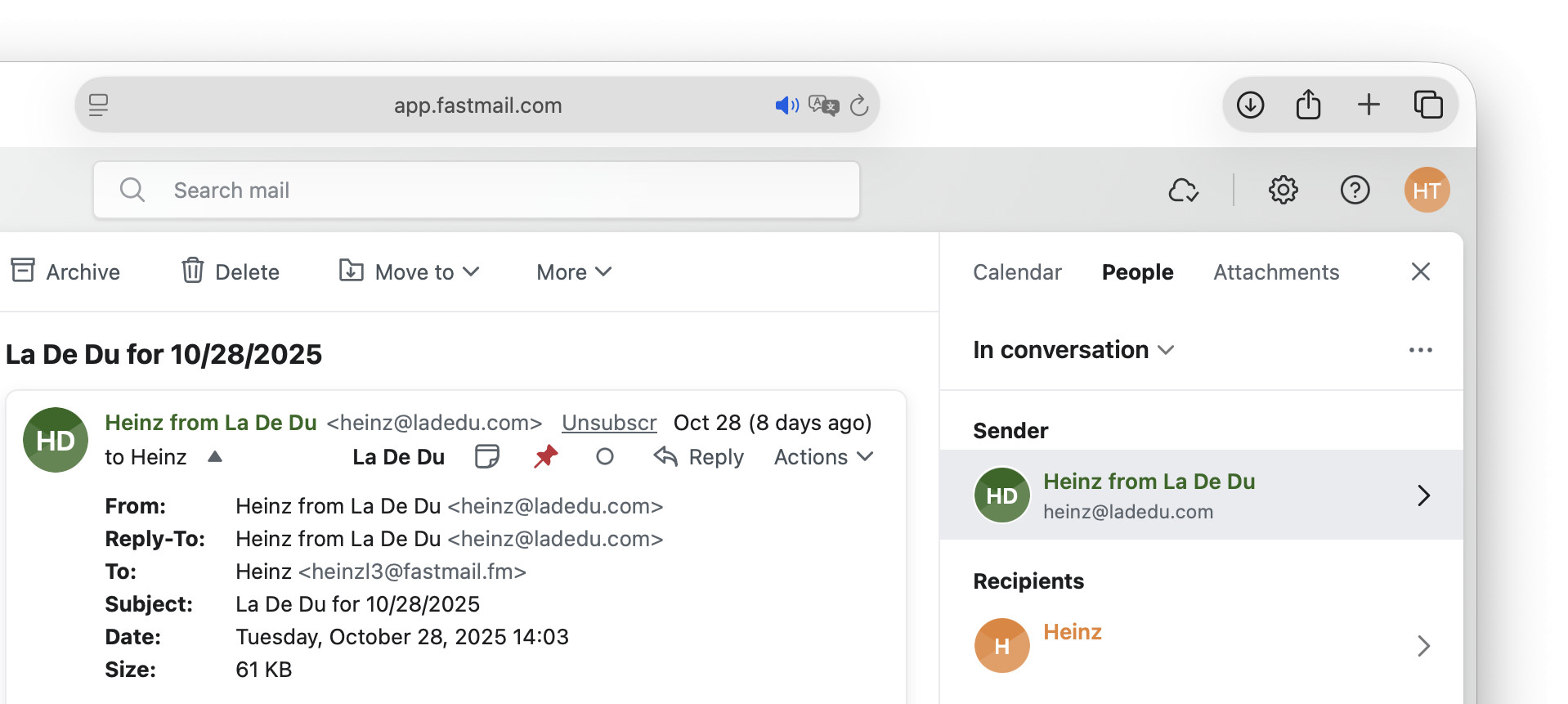
- Now click Add to contacts.
No “Add to contacts”: If the address is already in your Fastmail address book, you will see Edit instead.
Their word: Fastmail include information on adding contacts in Mail help.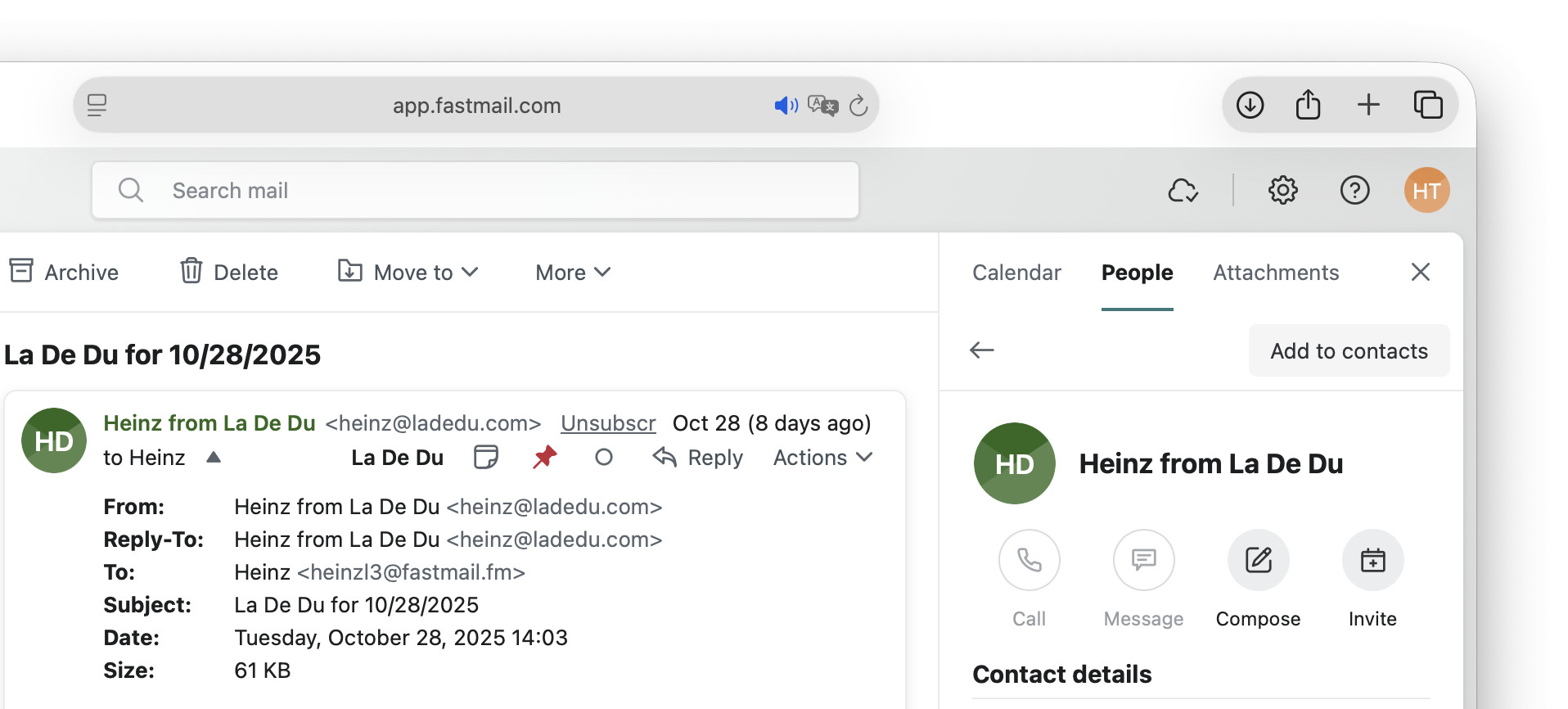
- Optional: Edit the contact’s details.
Here’s how: Click Edit, make the desired changes and click Save.
Fastcontacts.
Tips help fuel these email and tech how-tos.
Add a Sender As Is to Contacts Using a Context Menu (Mobile App and Browser)
To add a sender to your Fastmail contacts quickly as is:
- Open an email from the sender.
- Click the avatar or the sender’s name in the message header area.
Here’s where: The sender name and avatar appear before the sender’s email address (which is enclosed in angled parentheses).
No sender name: If the sender has just used the email address, Fastmail will display the user name as the sender’s “name.” - Select Add to contacts in the context menu that has appeared.
Already a contact: If the sender is already in your Fastmail address book, you will see View Contact instead.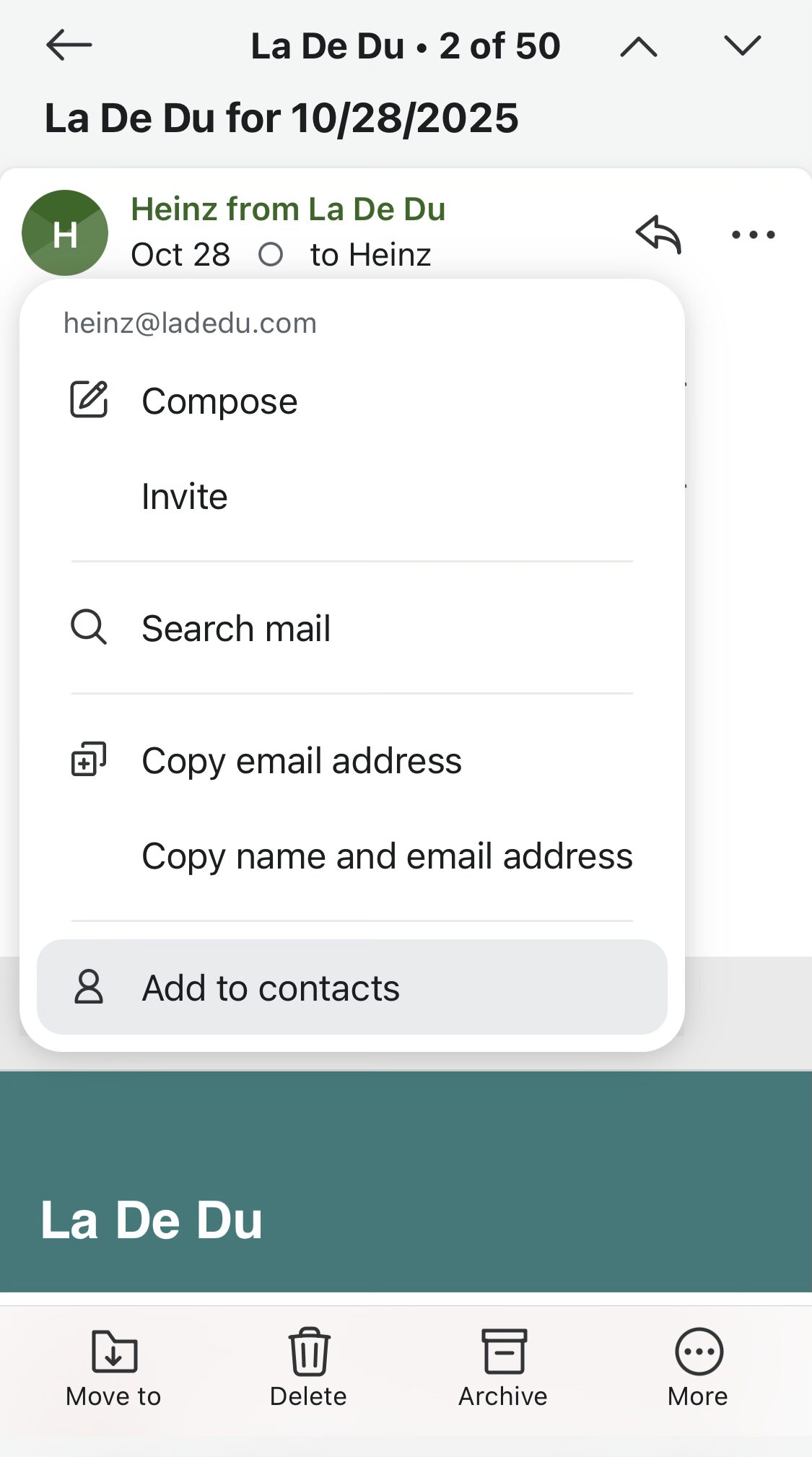
How to Add a Sender to Your Contacts in Fastmail: FAQ
Can I directly add a sender’s email address to an existing contact?
No.
Adding a sender will always create a new entry in your Fastmail contacts.
You can add the email address to the existing contact, of course:
- Click the sender’s name (or username) in the email header area.
- Select Copy email address from the context menu.
- Go to Fastmail People in the sidebar.
- Select All contacts.
- Now click the existing contact.
- Click Edit.
- Choose a label for blank address field under Email.
- Paste the address over email@example.com.
- Click Save.
As an alternative, you can add then new email address, then merge the entries in Fastmail Contacts.
(Tested with Fastmail in a desktop browser; last updated July 2026)