

Unread emails like to hide in plain sight, buried beneath read messages or tucked away in nested folders. Seeing all unread mail, no matter where it’s hiding, is the first step to regaining control of your inbox. Find out here how to quickly see all unread emails in Fastmail ⤓, even messages hidden beyond the main inbox.
On This Page
How to See All Unread Emails in Fastmail
Time needed: 2 minutes
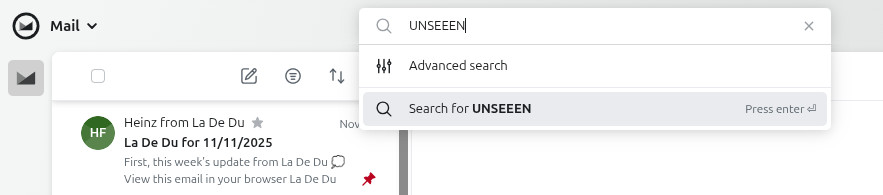
To see all unread emails (from across folders) in one place in Fastmail:
- Focus the Fastmail search field.
Fastmail keyboard shortcut: Press / (slash) to jump to the search field in Fastmail on a desktop computer.
- Type
UNSEEN.All caps: This Fastmail search operator only works in all caps.
Alternative: You can also typeis:unreadto search for unread emails.
No typing: Select Advanced search after clicking in the Search mail field, then check is unread in the menu. - Press Enter
Their word: Fastmail include information on searching mail in Fastmail help.
Seeing unread not un-red.
Tips help fuel these email and tech how-tos.
See Only Unread Messages in the Current Fastmail Folder
Using the View menu, you can also quickly filter the current folder to show only the unread emails.
How to See All Unread Emails in Fastmail: FAQ
Will searching for unread emails also include messages in “Spam” and “Trash”?
No.
A standard search for UNSEEN will include messages from all folders except Trash and Spam.
How can I include unread emails from all folders (including “Spam” and “Trash”)?
To make Fastmail show you absolutely all unread messages from all your folders (including Trash and Spam):
- Go to the Fastmail search field; see above.
- Type
UNSEEN in:*.
Here’s why: The search operatorin:*makes Fastmail look in all folders.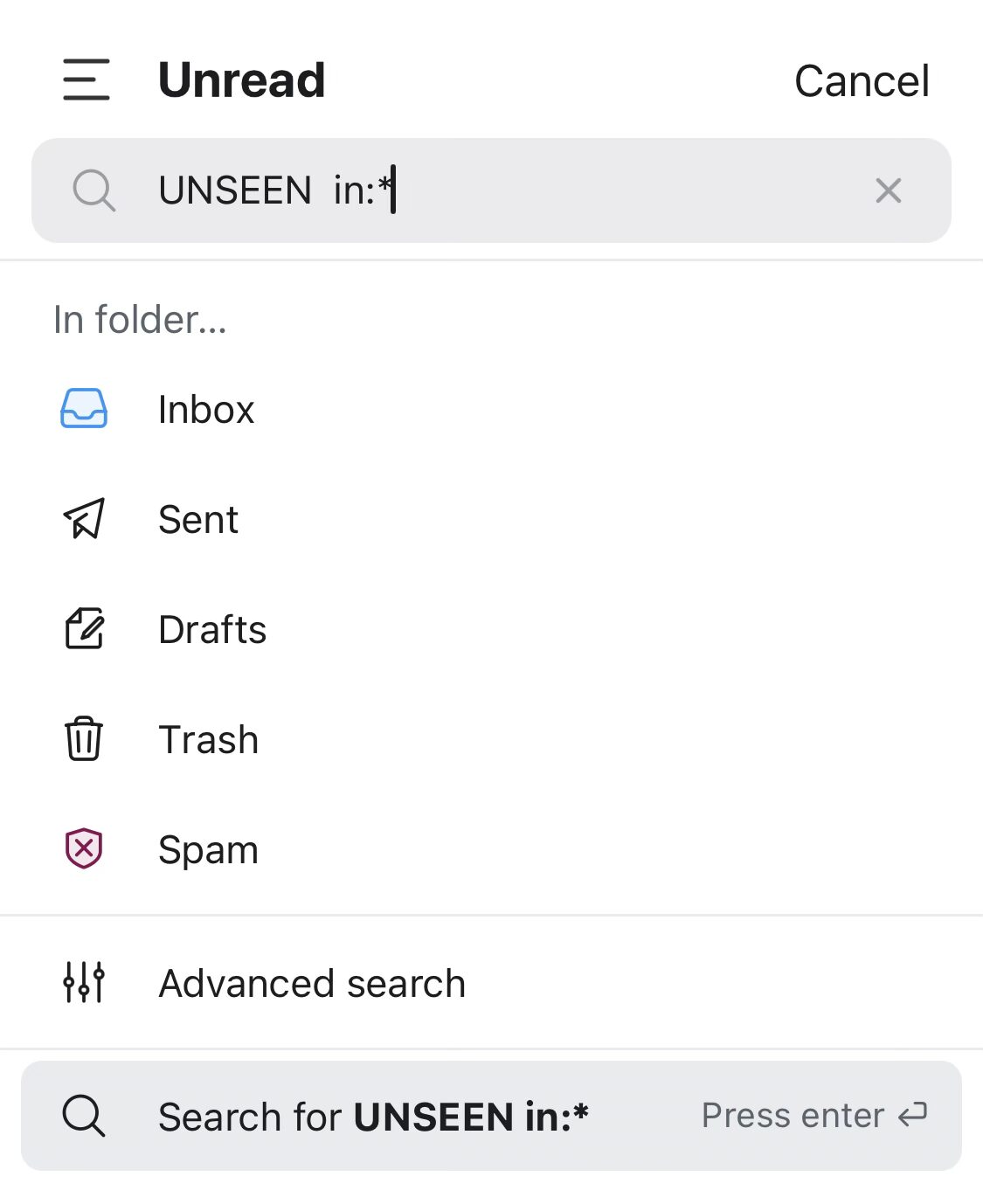
- Press Enter.
(Tested with Fastmail on a desktop computer as well as the Fastmail app; first published November 2025, last updated August 2026)