

Scrolling through a sea of emails just trying to select a special handful — or all unread messages perhaps? Whether you want to mark, move or delete in bulk, precision is the key to efficient inbox sanity. Find out here how to select messages in Fastmail ⤓ using both mouse and keyboard shortcuts.
On This Page
How to Select Messages in Fastmail
Select Individual Conversations
Time needed: 3 minutes
To select more than one email for action in Fastmail on the web or in the Fastmail desktop application:
- Hover the mouse cursor over the sender icon in the message list for the email you want to select.
Here’s what happens: A checkmark appears in the icon’s stead.
- Click the checkmark to include the email in your selection.
From–to: If you hold the Shift key while you click, all emails between (and including) the one you clicked last and the current one will be selected; if you hold Shift with no emails already selected, the range from the top of the list to the current message will be selected.
“Shift”-click: Clicking an individual message while you hold Shift opens the email in its own, separate Fastmail window.
Deselect: Click the checkmark again to remove the message from the selection.
Their word: Fastmail include information on selecting emails using the keyboard in Fastmail help.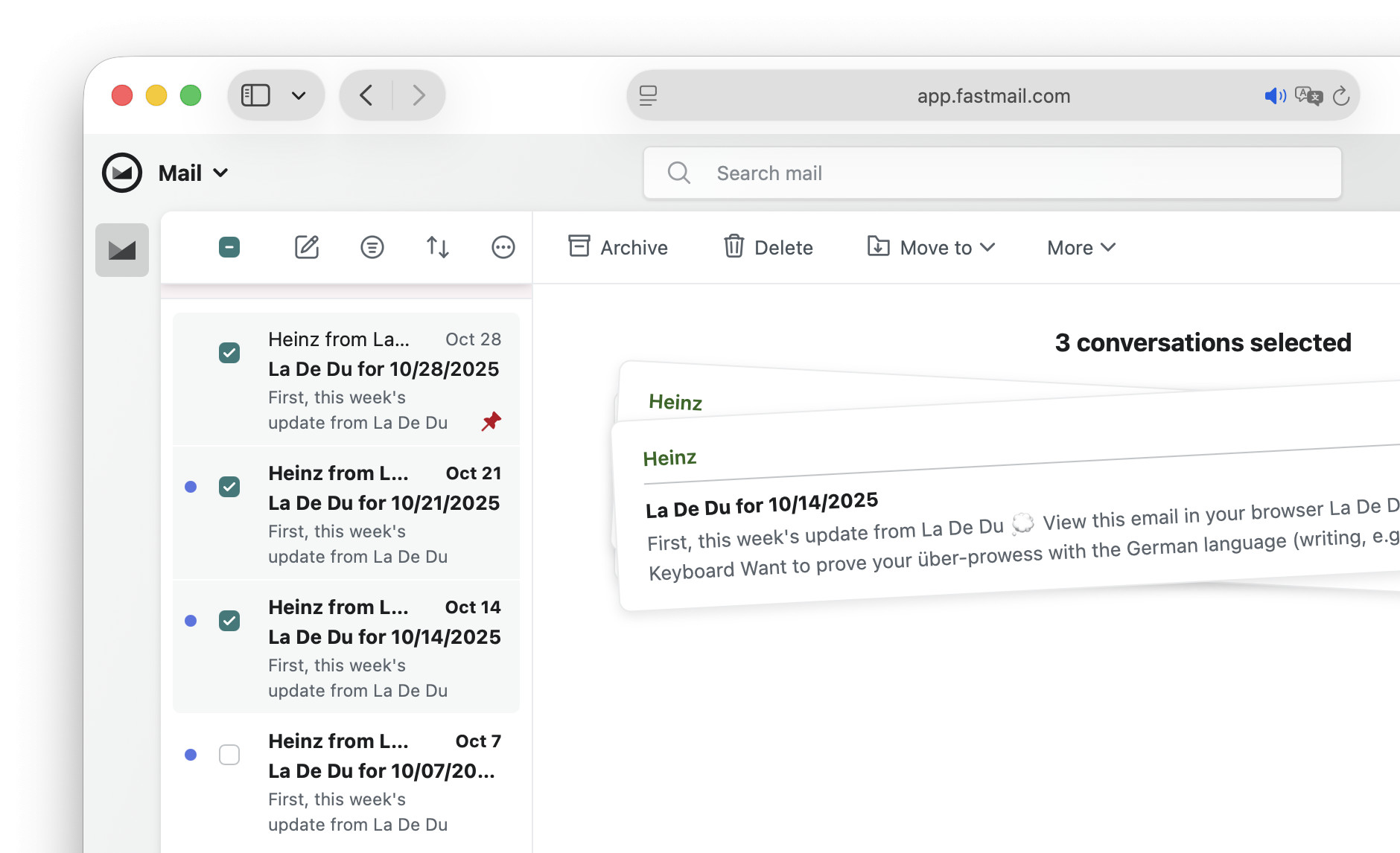
Clicked your eclectic mix of messages?
Tips help fuel these email and tech how-tos.
Using the Keyboard to Select Emails in Fastmail
To check emails for acting on them, you can also use the keyboard in Fastmail:
- Press J and K to move the highlighting cursor in the message list down and up respectively.
Nothing checked: With no email checked in the list yet, pressing these movement keys will also open the message. - Press X to toggle the inclusion of the currently highlighted email in the selection.
Range: Press Shift X to select a range in the same manner that holding Shift works for selection with a mouse (see above).
Select All Visible Messages in Fastmail
To quickly select all emails in the current folder (or a subset of them):
- Optional: Use a filter or search so Fastmail displays all and only the emails you want to select as a group.
Here’s how: Click the Filter button in the toolbar right above the message list and pick the kind of emails to show (Unread, Pinned, VIPs or All mail) or click in the Search mail field to use advanced search criteria. - Click the empty selection checkbox in the message list header to select or deselect all visible emails.
Fastmail keyboard shortcuts: You can also press * followed by A to select all and * followed by N to clear the selection.
How to Select Messages in Fastmail: FAQ
Can I select unread (pinned, big,…) emails without filtering first?
No.
To select a certain kind of email in Fastmail, filter or search to see only the messages you want to work on (e.g. to see only unread emails), then select all emails.
(Tested with Fastmail in a desktop browser; first published November 2025, last updated April 2026)