

Is your Fastmail inbox a chaotic pile of newsletters, receipts and half-glazed messages from three months ago? Don’t have time to scroll through all that to find what matters right now? Find out here how to filter email view quickly in Fastmail ⤓ so you can breeze through unread, pinned or “very important” emails.
On This Page
How to Filter Your Fastmail Inbox View Quickly
⚡ Quick Fix
Click View (Filter) in the message list header, select Unread, Pinned or VIP.
Using the keyboard: Press / and type is:unread or is:pinned to focus on either type of message.
Time needed: 1 minute
To swiftly adapt the view on a folder in Fastmail so you see only a certain kind of email:
- Tap or click the View (Filter) button in the message list header.
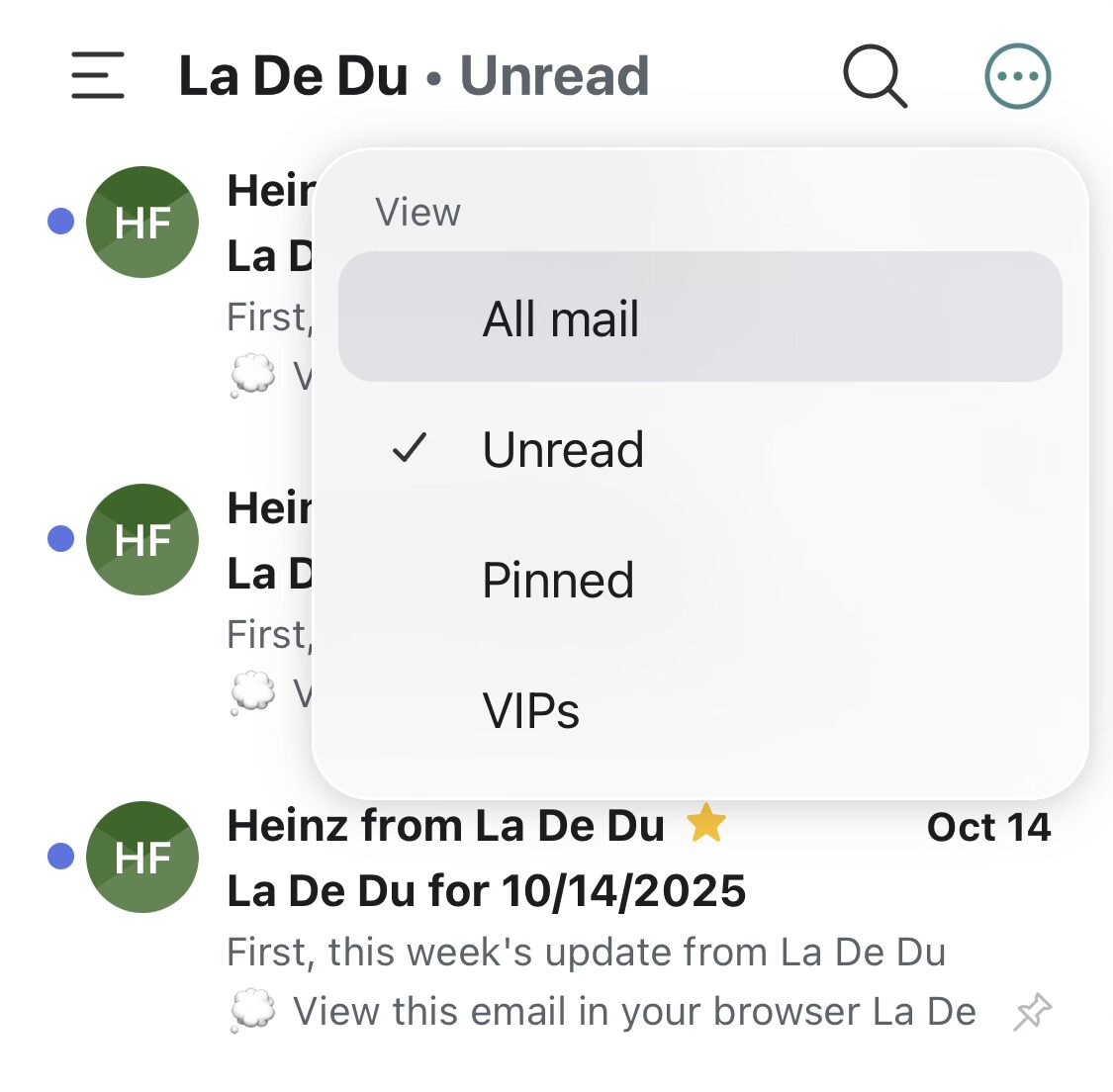
Mobile: With the message list header toolbar not visible (e.g., on a mobile device), tap the three dots menu button first.
- Choose the kind of emails you want to focus on.
“Unread”: Shows only unread messages.
“Pinned”: Focus on pinned (flagged) emails.
“VIPs”: Display only emails from VIP senders.
Their word: Fastmail include information on mailbox views in Mail help.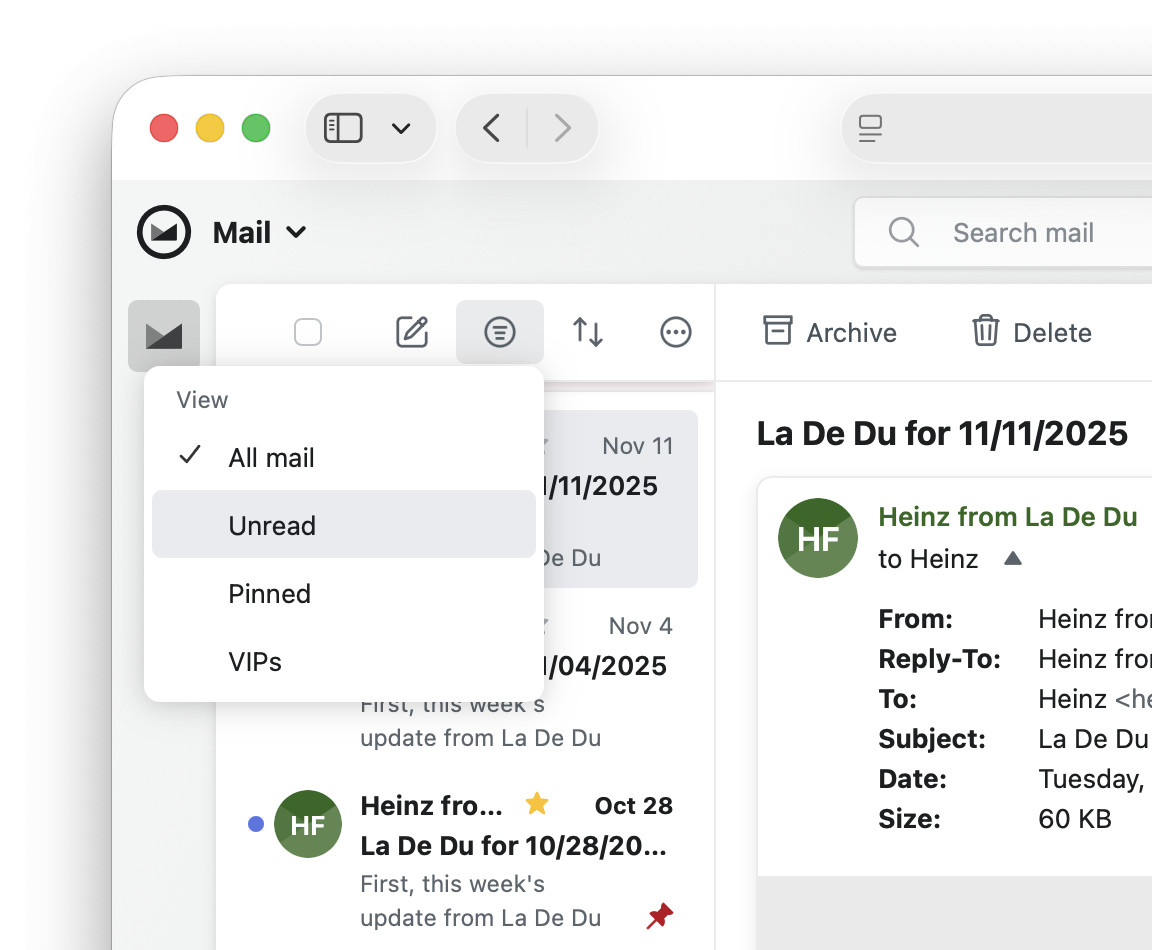
Fastmail to Fast’n’filteredmail?
Tips help fuel these email and tech how-tos.
Return to Showing All Emails in Fastmail
To switch back to having all messages display in Fastmail:
- Select All mail from the View menu.
With your filtered view: How to Select Messages in Fastmail
All unread: How to See All Unread Emails in Fastmail
How to Filter Your Fastmail Inbox View Quickly: FAQ
Can I use the keyboard to filter emails in Fastmail?
Yes and no.
No, Fastmail does not offer keyboard shortcuts for filtering the mailbox view. Use the mouse to use these filters as above.
Yes, you can use Fastmail search to achieve something analogous.
To filter emails in a folder quickly using the keyboard:
- Press / (slash) to focus the Fastmail search field.
- Use the drop-down menu to narrow the search to the current folder.
Here’s how: Press ⬇ (down arrow) until In <current folder> is highlighted, then press Tab. - Now type the search criterion to narrow search results:
is:unread— show only unread emails;is:pinned— show only pinned messages andfromin:vips— show only messages from VIP contacts.
More: Here, you are not restricted to just these criteria, of course; you can use all search operators to filter the folder’s messages. - Press Enter.
(Tested in a desktop browser and the Fastmail app; first published November 2025, last updated October 2026)