

Struggling to coordinate a meeting across time zones? Want to preview your itinerary exactly as it will look at your destination? Find out here how to see Apple Calendar in a different, custom time zone on your Mac ⤓ (without changing the Mac’s clock or date).
On This Page
How to See Apple Calendar in a Different Time Zone on Your Mac
Time needed: 2 minutes
To see your calendar and events in a different time zone with Apple Calendar for macOS on a Mac so you can more conveniently plan journeys, coordinate meetings and confirm schedules across time zones:
- Enable time zone support for Apple Calendar on macOS; see below.
Change it all: You can also change the time zone for the Mac altogether to make it behave as if it were in a different location.
- Click the current time zone in the top area of the Calendar app’s main window.
Here’s where: You can find the drop-down menu next to the Calendar search field and the view selector.
- Choose a recently used time zone or Other: for a new time zone.
New time zone: Click on the map to choose a location, then click OK.
Search: You can also (and more practically) use the Closest city: field to search for locations by city or country.
Here’s what happens: You will see everything in Calendar as if you were in the chosen time zone.
As if you’re already there: With time zone support enabled, you can also create an event with a time using a specific time zone.
Their word: Apple include information on juggling time zones in the Calendar User Guide.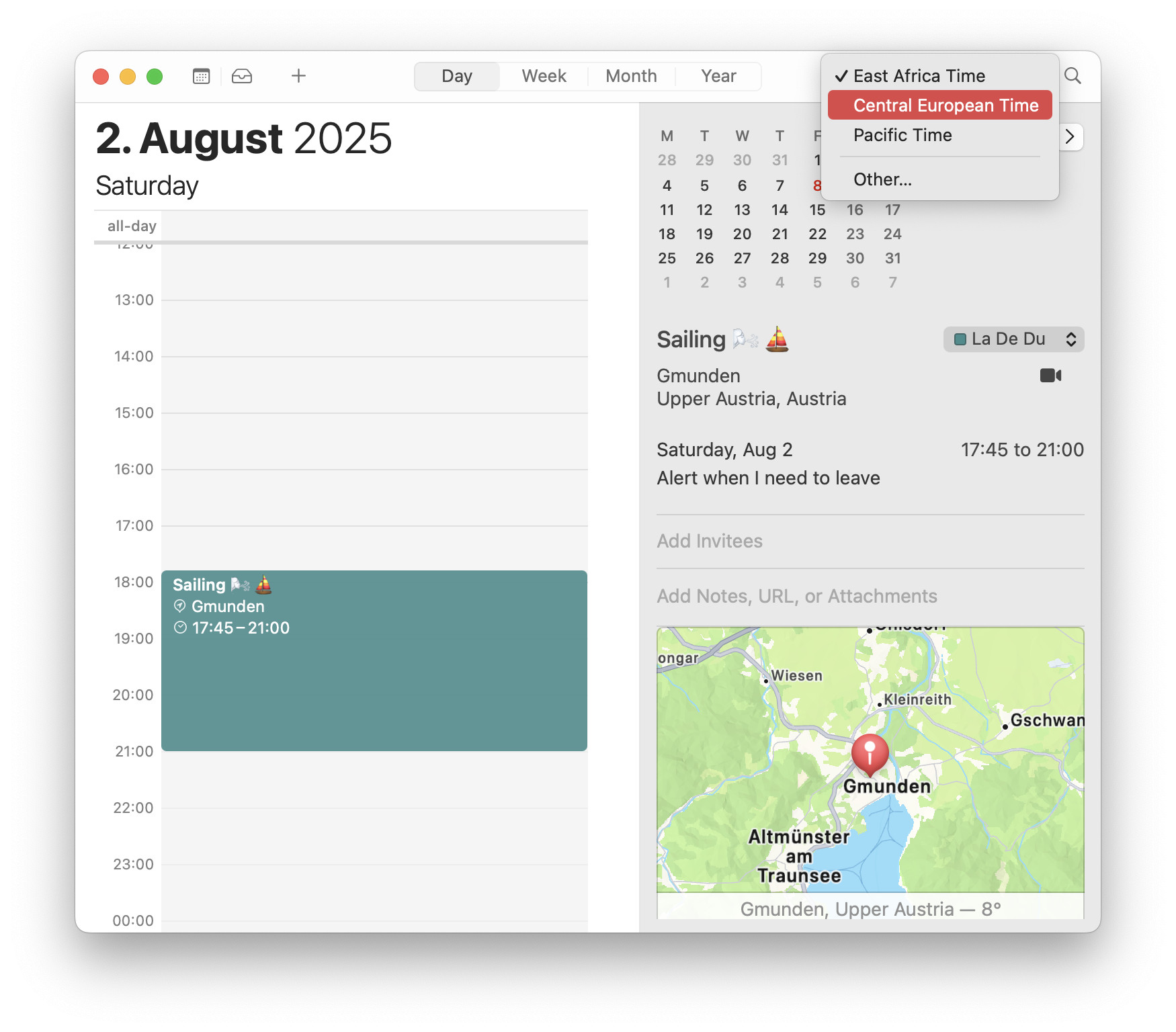
Zoning out and zoning in?
Tips help fuel these email and tech how-tos.
Enable Time Zone Support in Apple Calendar for Mac
To turn on time zone support in Apple Calendar so you can enter events using custom time zones and see your calendar in a different time zone:
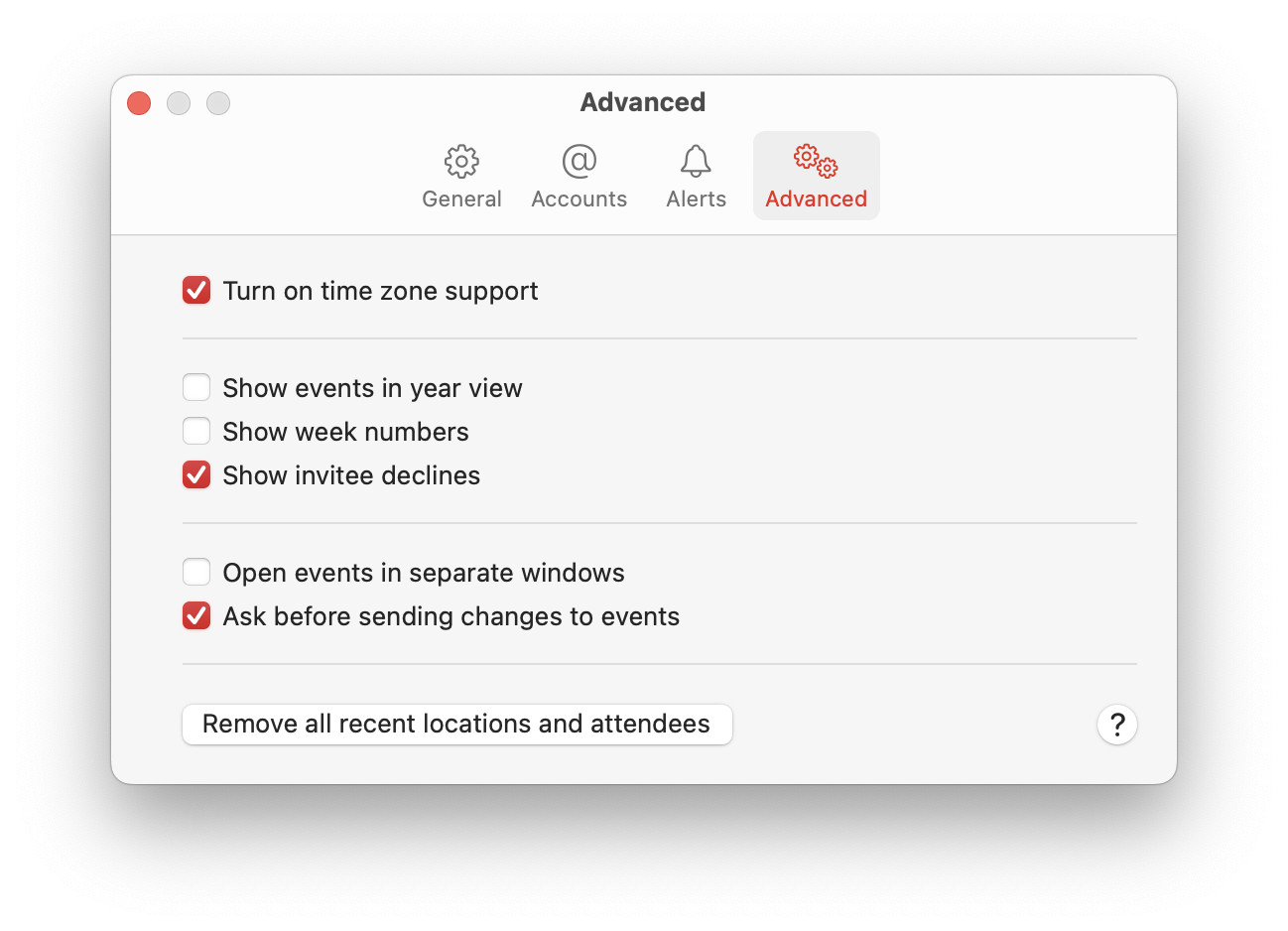
- Open the Calendar app’s settings.
Here’s how: Select Calendar | Settings… from the menu in Calendar.
Apple Calendar keyboard shortcut: You can, as usual, also press Command , (comma) to open settings. - Go to the Advanced section.
- Enable Turn on time zone support.
- Close the settings window.
On an iPhone? How to Use iPhone Calendar with a Different Time Zone
How to See Apple Calendar in a Different Time Zone on a Mac: FAQ
Will existing events “move” to show in the chosen time zone?
Yes.
All events remain fixed at their absolute time, of course, and display correctly in the chosen time zone.
Exception: Events explicitly set up to float in Apple Calendar always display at the same time relative to the local time (e.g. at 8 p.m. whatever the time zone).
Can I switch between (or pick) time zones using a keyboard shortcut?
No.
Apple Calendar includes neither a menu item nor a keyboard shortcut to change the time zone used for display.
Can I clear the list of recently used time zones?
Yes.
While you cannot remove items from the list in the Calendar application itself, you can clear the list using Terminal.
To reset the list of recently used time zones in the Calendar app on a Mac:
- Close Calendar.
- Open Terminal.
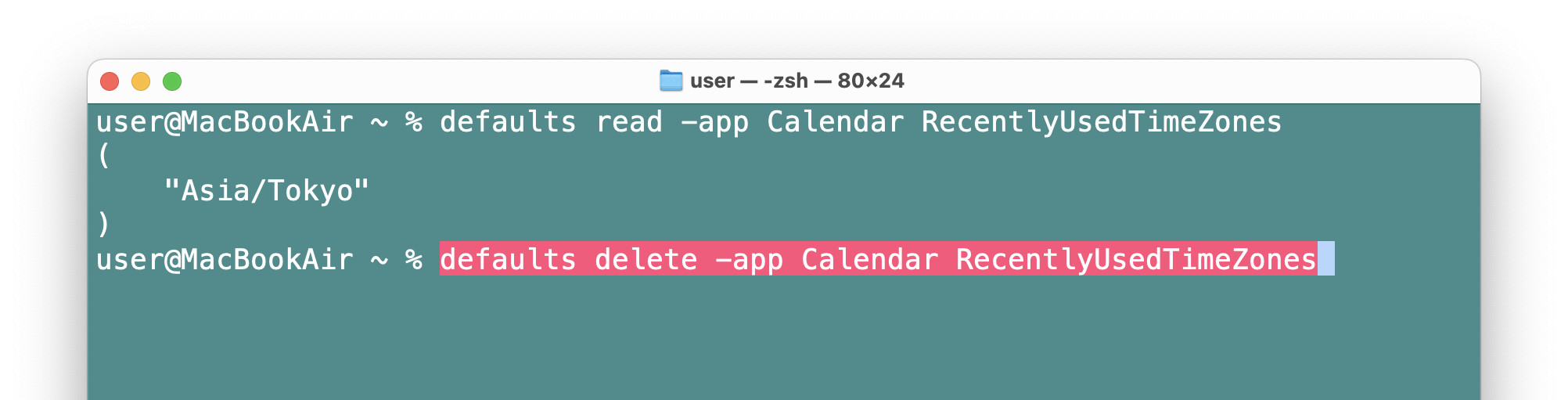
Here’s how: Search for terminal in Spotlight search, for example, to open the Terminal app. - Type
defaults read -app Calendar RecentlyUsedTimeZones.
Here’s why: This command will display the currently saved list for your account; do check it to make sure you’re resetting the right thing. - Press Enter.
- Now type
defaults delete.-app CalendarRecentlyUsedTimeZones
Here’s why: This will bluntly remove the whole list as the simplest way to start fresh.
Editing instead of deleting: To change the existing list, you can use thedefaults write -app Calendar RecentlyUsedTimeZonescommand; see below.
App alternative: In place of “-app Calendar”, you can also use “com.apple.iCal”, e.g.defaults delete.com.apple.iCalRecentlyUsedTimeZones - Press Enter again.
What’s the command and format to edit the list of recently used Calendar time zones?
In the Calendar configuration, the list or recent time zones uses the following format: entries are surrounded by double straight quotation marks; entries are separated by comma; the whole list is enclosed in parens.
Example:RecentlyUsedTimeZones = (
"Asia/Tokyo",
"Africa/Nairobi",
"America/Los_Angeles"
)
To remove Los Angeles from the list, you can use the following command:defaults write -app Calendar RecentlyUsedTimeZones '("Asia/Tokyo", "Africa/Nairobi" )'
(Tested with Calendar 15–16 on macOS Tahoe 26 and Sequoia 15; first published August 2025, last updated September 2026)