

Tired of your Apple Calendar events jumping around to odd hours when you travel across time zones? Apple Calendar ties events to specific time zones, so a cozy “Nighttime Reading” ritual might pop up mid-morning or while you’re sound asleep in a different city. Find out here how to add a time zone-agnostic “floating” event in Apple Calendar for Mac ⤓ that sticks to the same local time, wherever you go.
On This Page
How to Add a Time Zone-Agnostic (Floating Local-Time) Event in Apple Calendar for Mac
Time needed: 2 minutes
To add an event that has no absolute time but stays the same as you switch time zones in Apple Calendar for Mac:
- Turn on time zone support in Apple Calendar.
Here’s how: Enable Turn on time zone support on the Advanced tab in the Calendar app’s settings.
- Add a new event.
Here’s how: Clicking and dragging on the calendar will add a new event in Apple Calendar, for instance.
Old as new: You can also change an existing event to be always-local, of course. - Open the event’s details.
Here’s how: Double-click the event or press Enter with the event highlighted; on Calendar’s Day view, you can also click the event to open essential details.
- Expand the timing, repletion and alerts section if necessary.
Here’s why: Make sure the starts: and ends: times are visible so you can choose the time zone.
- Click the current time zone under time zone:.
- Select Floating from the drop-down menu.
Here’s why: The “Floating” time zone is a virtual time zone that removes any specific time zone from the event.
Here’s what happens: The event will always happen at the specified time in your current time zone.
Example: An event for reading at 8 p.m. you set up using Honolulu time (HST) will happen at 8 p.m. GMT as you travel to London, and at 8 p.m. IST if you travel on to New Delhi.
Their word: Apple include information on floating events in macOS Calendar help.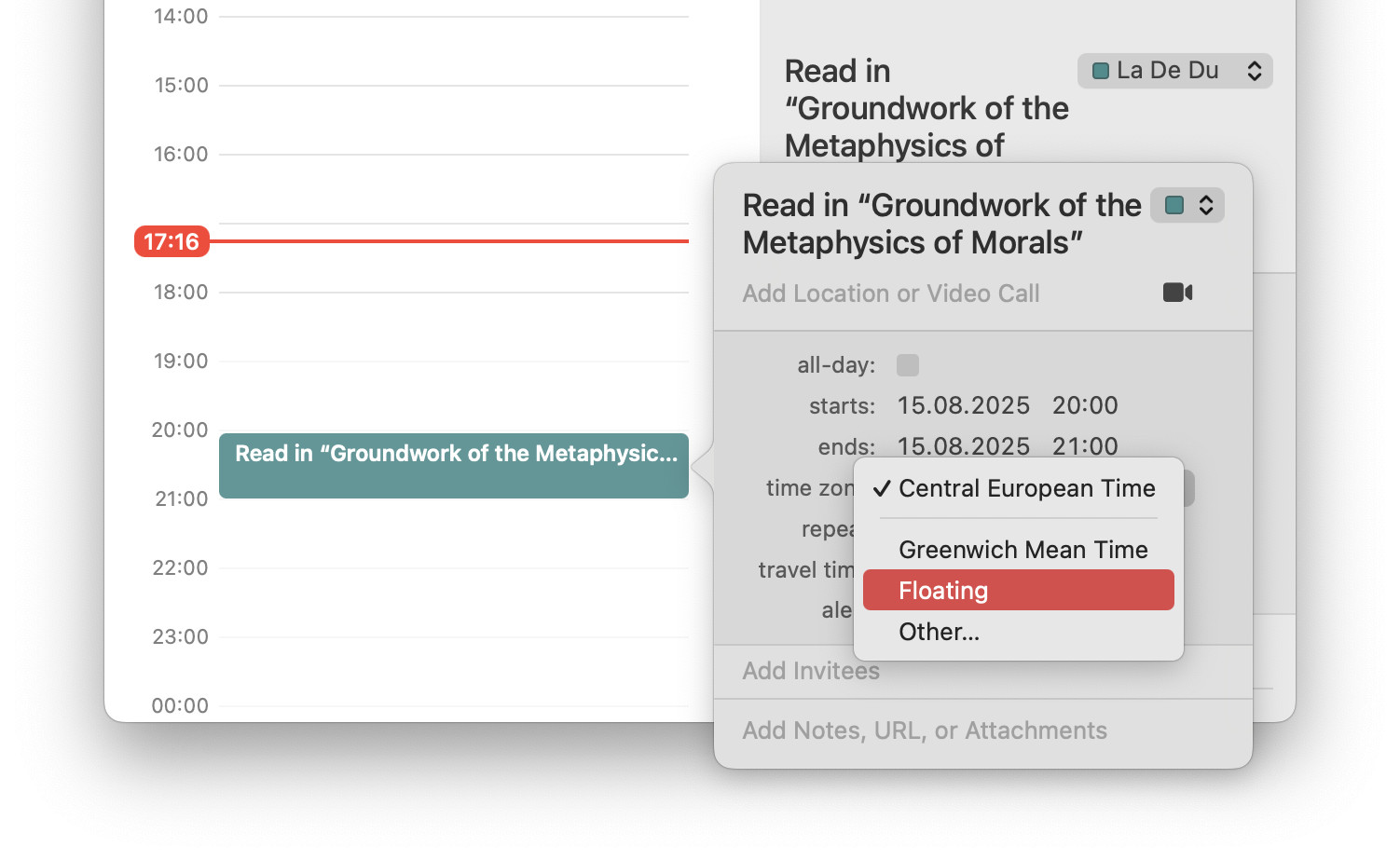
It’s always 3pm somew... here?
Tips help fuel these email and tech how-tos.
How to Add a Time Zone-Agnostic (Floating Local-Time) Event in Apple Calendar for Mac: FAQ
Will floating events synchronize and work with Apple Calendar for iPhone and iPad?
Yes, partially.
Events you have created to be floating and time zone-agnostic in Apple Calendar for Mac will synchronize and display as desired in Calendar for iPhone and iPad. You cannot edit the events on iOS or iPadOS and keep the floating time zone. On mobile devices, events do need a specific time zone assigned.
(Tested with Apple Calendar 15 on macOS Tahoe 26 and Sequoia 15; first published August 2025, last updated September 2026)