
Working halfway around the world? Preparing for a trip spanning continents? Does your Mac stubbornly keep picking the wrong time zone? Find out here how to change the time zone for macOS on a Mac ⤓ — easily through System Settings or, if you prefer, straight from the Terminal.
On This Page
How to Change the Time Zone for macOS on a Mac
Time needed: 2 minutes
To pick a time zone different from the one chosen automatically based on your (presumed) location by macOS on a Mac:
- Open System Settings on the Mac.
Here’s how: Select System Settings… from the Apple logo menu.
Just Calendar: You can also change the time zone only for the Apple Calendar application. - Select the General section.
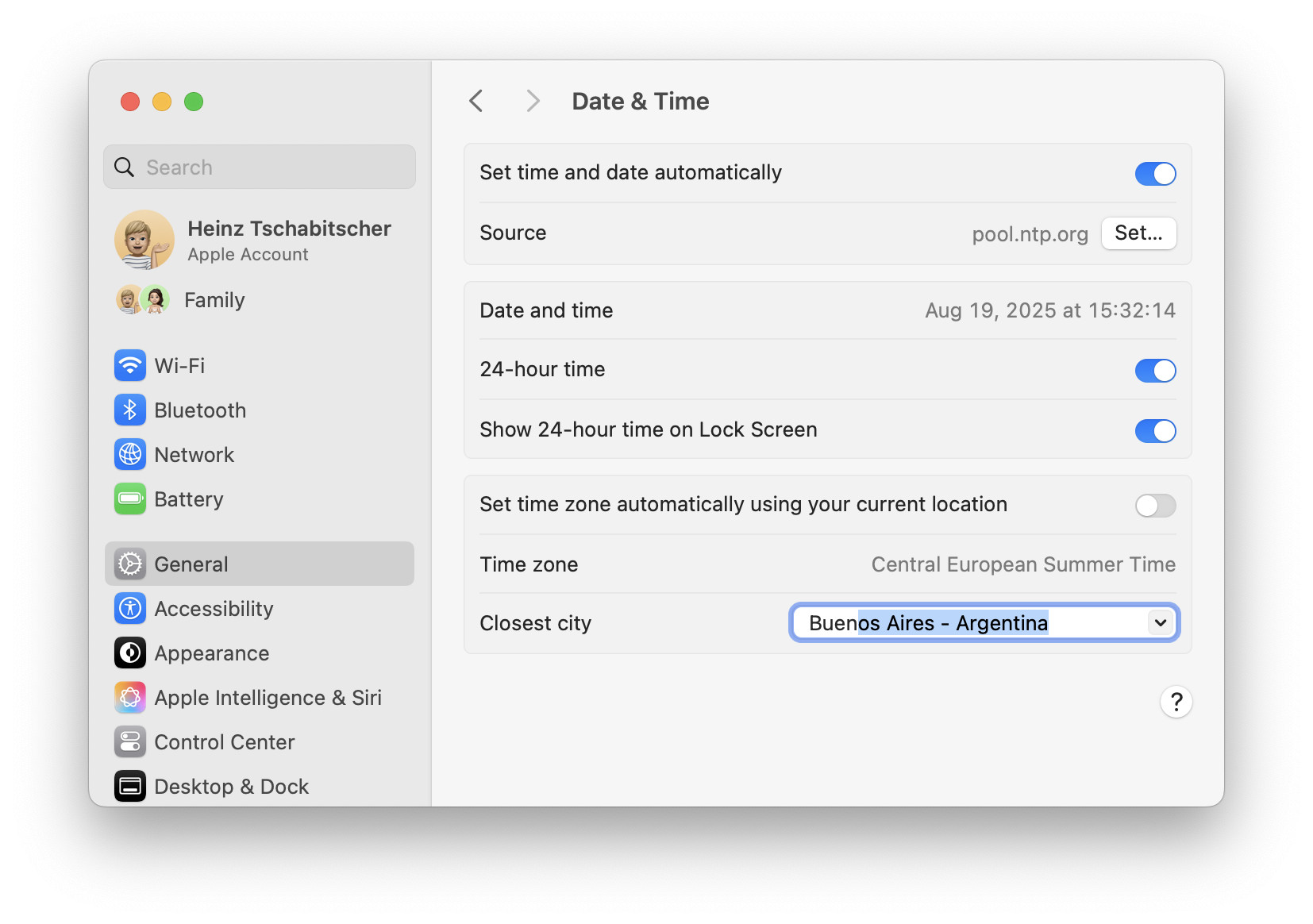
- Open Date & Time.
- Turn off Set time zone automatically using your current location.
- Select the desired location under Closest city.
What to search: You can search for countries and cities in the list; after you have selected a location, you can find other cities in the (general) vicinity.
- Press Enter.
Other macOS versions: Check the Mac User Guide for your version if it differs markedly from the above.
Time zone tamed?
Tips help fuel these email and tech how-tos.
How to Change the Time Zone for macOS on a Mac
Will enabling Set time zone automatically using your location override the chosen location?
Yes.
If you turn on automatic selection, your Mac will forget the manual selection and replace it with the one chosen from your location.
Their word: Apple include information on setting time zones automatically in the Mac User Guide.
Changed your time’s zone? Now change your time’s face:
How to Change the Appearance of the Mac Menu Bar Clock
Can I choose a time zone by name?
No.
macOS relies on locations to derive time zones (and daylight saving time when applicable).
Can I have macOS synchronize time and date with an NTP server and still pick my own time zone?
Yes.
Do leave Set time and date automatically enabled in Date & Time settings to synchronize the time, no matter the time zone. The chosen location merely changes the offset from UTC.
On Linux? How to Change the Time Zone on Linux
On Windows? How to Change the Time Zone in Windows
Can I change the time zone using Mac Terminal?
Yes.
To set the system time zone from the Terminal command line on a Mac:
- Open Terminal.
- Type
sudo systemsetup.
Here’s why: This will run the command line setup utility with administrator privileges. - Press Enter.
- Enter your Mac admin password and press Enter.
- Type
listtimezonesat the systemsetup command prompt.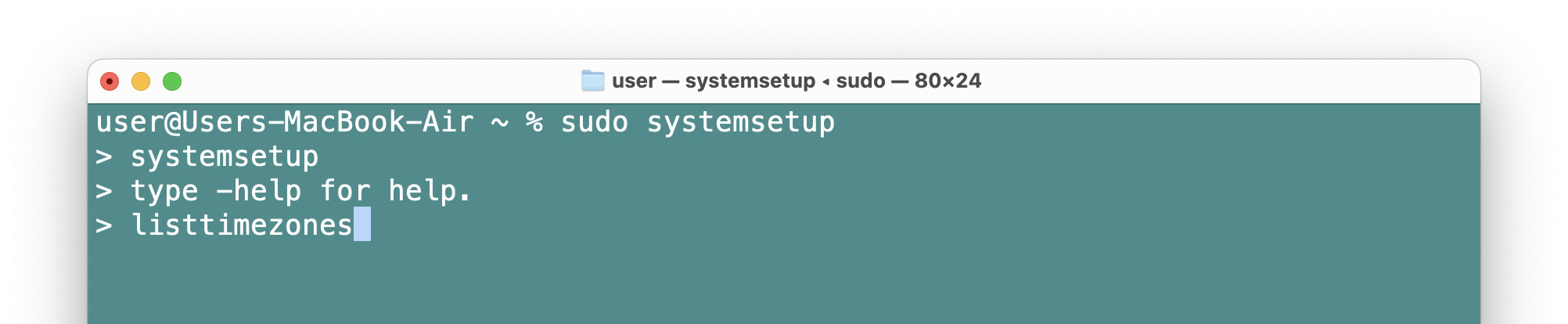
- Press Enter.
- Find and remember (or copy) the location you’d like to use for the system time zone.
Search: Press Command F to search the terminal window — Including the list of cities — for regions and locations. - Now type settimezone <time zone>.
Time zone: Replace “<time zone>” with the chosen location.
Example: Type settimezone America/Sao_Paulo to set the Mac’s time zones to BRT (Brasilia Time).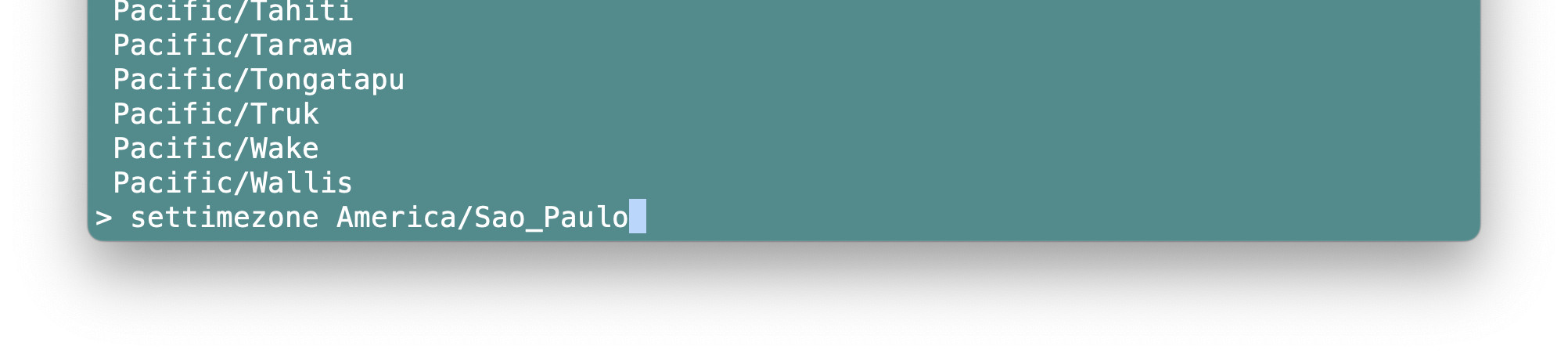
- Press Enter.
- Type
quitand press Enter to close the system setup utility.
(Tested with macOS Tahoe 26 and Sequoia 15; first published August 2025, last updated August 2026)