

Tired of jumping from one inbox category to another just to read a handful of new emails? With iCloud inbox categories, it’s easy for emails to get scattered. Find out here how to see all your inbox email across categories in iCloud Mail at iCloud.com ⤓ for a simple, unified view of new messages.
On This Page
How to See All Inbox Mail (from All Categories) in iCloud Mail at iCloud.com
⚡ Quick Fix
Make the Mailboxes sidebar visible in iCloud Mail, then open the top-level Inbox folder instead of any of the category sub-folders.
Time needed: 1 minute
To get a classic view of your iCloud Mail inbox with all emails visible irrespective of their category at iCloud.com:
- Make the list of mailboxes visible in iCloud Mail.
Here’s how: If the leftmost sidebar (including the list of mailboxes) is hidden, click Show Mailboxes next to the Search field.
No “Show Mailboxes” button: If the sidebar has been collapsed into one sidebar showing either the list of messages or the list of folders, click < Mailboxes in a folder. - Open the Inbox folder.
Here’s where: You will find the Inbox folder at the top of the list; the inbox categories (Primary, Transactions, etc.) appear as sub-folders to that top Inbox folder.
Their word: Apple include information on using inbox categories in the iCloud User Guide.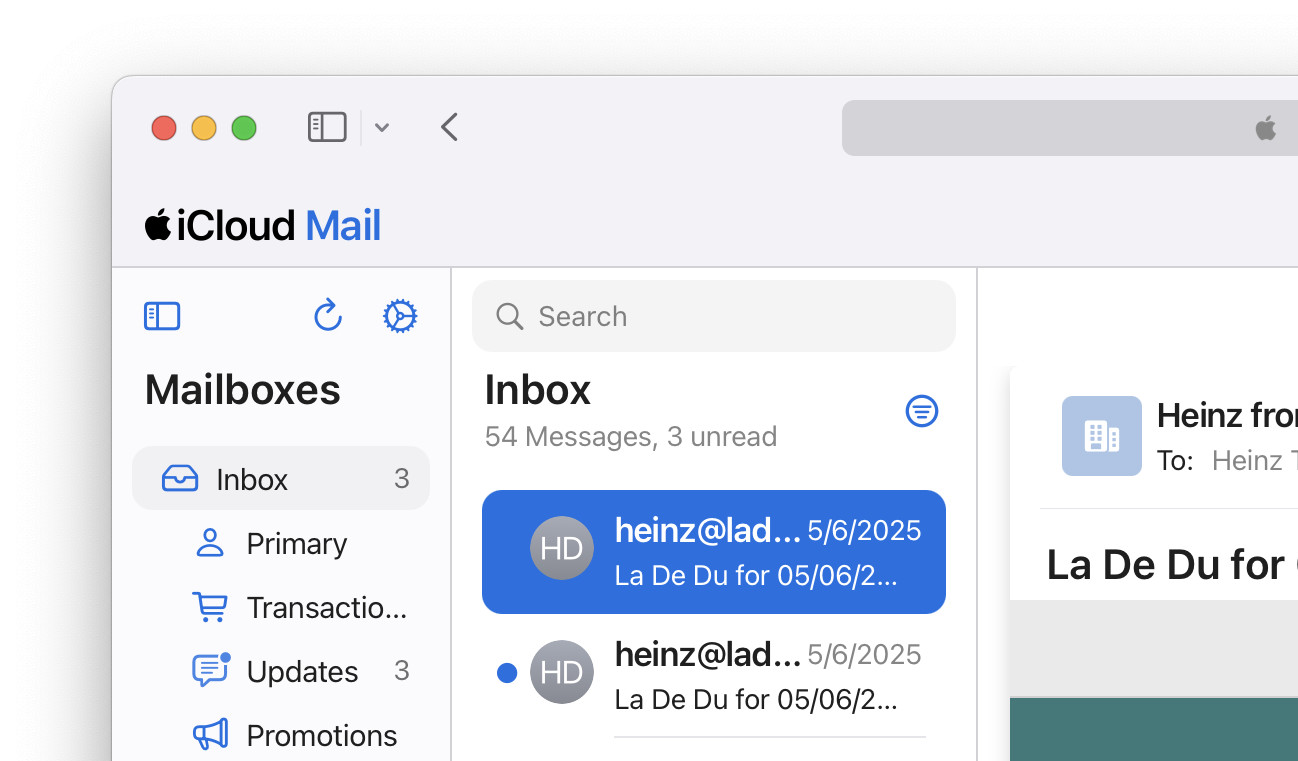
All in one won?
Tips help fuel these email and tech how-tos.
How to See All Inbox Mail (from All Categories) in iCloud Mail at iCloud.com: FAQ
Can I see which category an email belongs to from the classic inbox?
No.
iCloud Mail will not display the categorization for an email anywhere if you open it in classic inbox view.
To find out in which category an email has been classified from the overall Inbox folder
- Open the message.
- Do make sure the folder list (Mailboxes) is visible alongside the open message in the sidebar.
Here’s how: If you only see the list of messages in the Inbox in the sidebar, click < Mailboxes. - Mark the email unread.
Here’s how: You can mark an email unread using the keyboard shortcut Command Shift U (Mac) or Ctrl Shift U (Windows and Linux), for example. - In the Mailboxes list, watch which category sub-folder to Inbox has its unread mail count increased.
More than one: If you see two category’s unread messages increase simultaneously, wait for step 6 below to confirm. - Mark the email read again.
Here’s how: The keyboard shortcut for marking unread will also mark the email read again. - Check for one of the inbox counts to decrease.
Found it: The category whose number of unread messages decreased as you marked the message read is, of course, the one holding the email.
Anything to categorize? How to Check iCloud Mail for New Email in a Browser
Can I classify senders from the classic iCloud Mail inbox?
No.
To change the classification for a sender’s emails, open an email from them in the current category.
(Tested in a desktop browser; first published May 2025, last updated October 2026)