

Opened an email by mistake, and now you’re afraid it might get lost on the sea of seen emails? Want to keep track of emails that still need your attention? Marking messages unread lets you easily flag them for later review — even if you have already opened them by accident. Find out here how to mark an email unread in iCloud Mail at iCloud.com ⤓.
On This Page
How to Mark an Email Unread in iCloud Mail at iCloud.com
Using a Keyboard Shortcut (Fastest)
Time needed: 1 minute
To mark a message unread in iCloud Mail at iCloud.com using a keyboard shortcut:
- Open or highlight the email you want to mark unread.
More than one: You can also highlight more than one message, of course, to mark the whole bunch unread.
The whole lot: Just like you can with individual messages, you can also select all emails in a folder for marking them unread. - Press Command Shift U (Mac) or Ctrl Shift U (Windows and Linux).
Un-unread: Press the key combination again to mark the message or messages read again; the keyboard shortcut effectively toggles the status.
Their word: Apple include information on marking emails unread in the iCloud User Guide.
All unread and done?
Tips help fuel these email and tech how-tos.
Using Mouse and Menu
To mark an email as unread in iCloud Mail in a browser at iCloud.com:
- Open the email to be marked unread.
- Click the three dots menu button ⋯⃝ that appears above the message’s display.
- Select Mark Message as Unread from the menu that has appeared.
Multiple messages: if emails are organized by thread and the current folder contains more than one message in the thread, you can mark them all unread in one go; the menu will then read Mark <Count> Messages as Unread instead.
Just one: To mark only one email in a thread as unread, select the three dots menu in the bottom right corner of the specific message instead.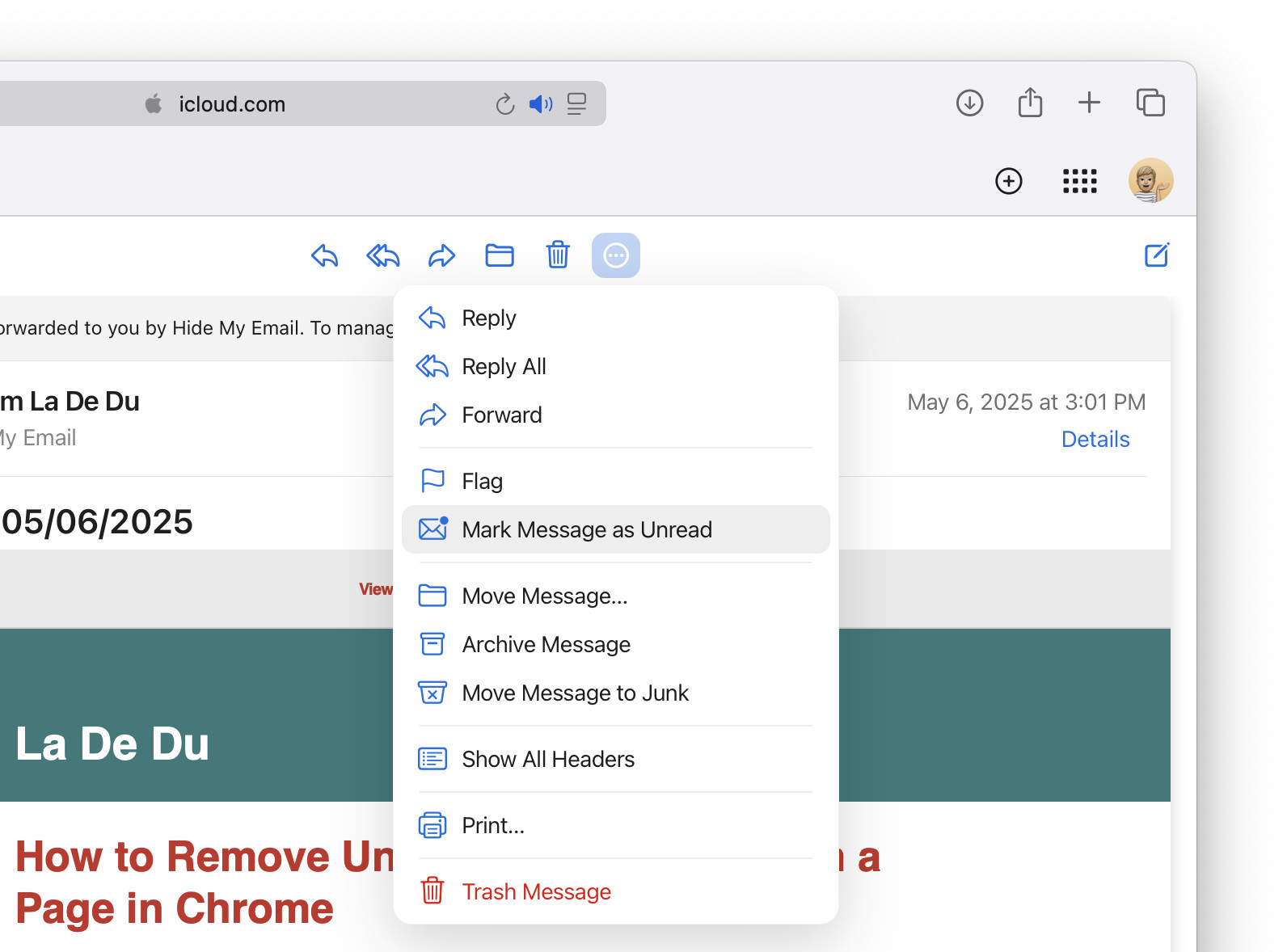
How to Mark an Email Unread in iCloud Mail at iCloud.com: FAQ
Can I mark emails unread without opening them?
Yes.
To mark messages as unread from the message list without opening the email (or emails) first:
- Optional: Highlight the messages you want to mark unread int he message list.
Here’s how: You can hold the Command (Mac) or Ctrl (Windows and Linux) key while you click on an email to toggle its inclusion in selected messages.
All: Using a keyboard shortcut, you can also select all emails in the iCloud Mail folder. - Click the three dots menu that appears as you hover over the email you want to mark unread (or any one of the selected emails).
- Select Mark Message as Unread (or Mark <Count> Messages as Unread) from the context menu that has appeared.
Another menu: You can also click Mark in the message display area and pick Mark as Unread from the menu.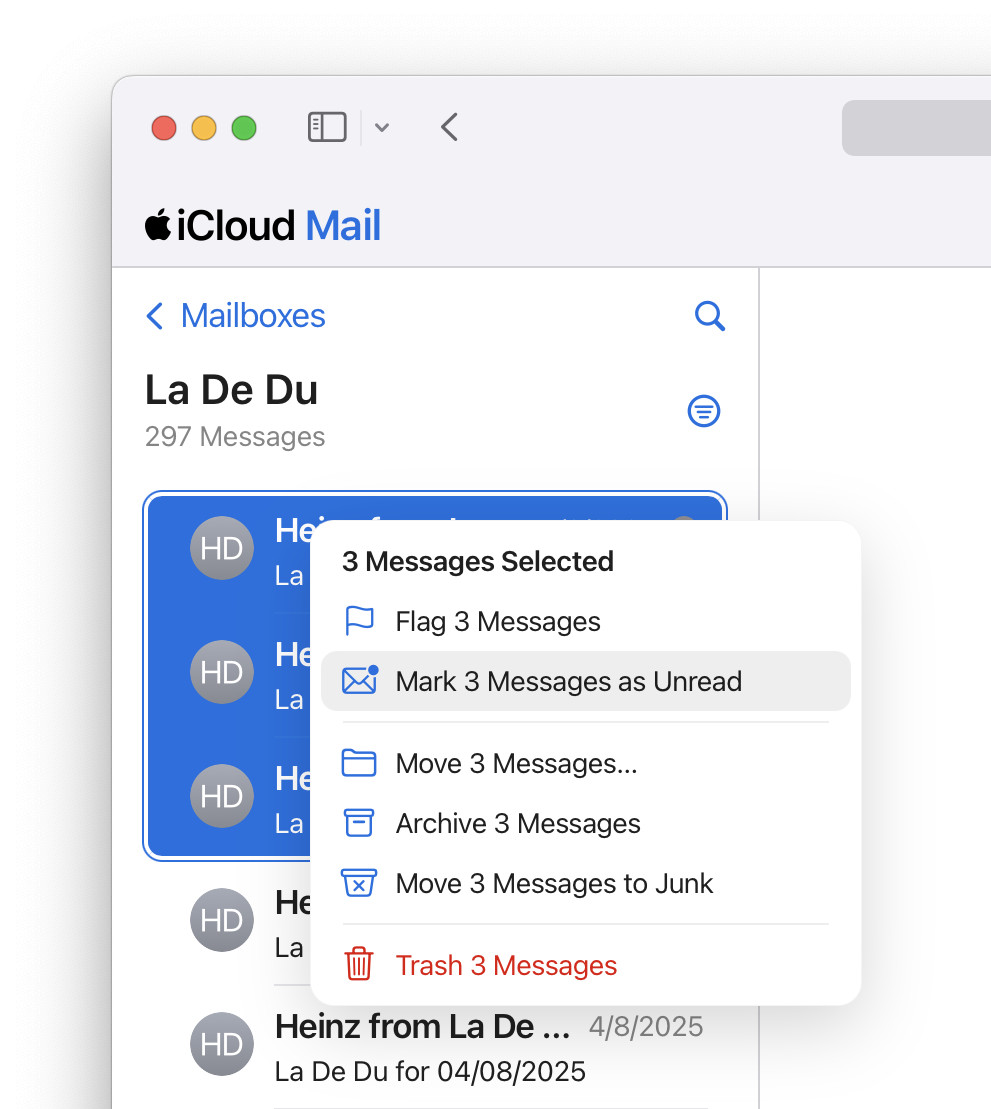
Can I mark unread from search results?
Yes.
The keyboard shortcut and menus for marking emails unread work with search results just the way they do with folders in iCloud Mail.
(Tested in a desktop browser; first published May 2025, last updated April 2026)