
Want the weather icon to the left of the volume slider with focus modes neatly tucked in between? Whether you fancy change or want to replicate the same setup across all your Macs, the items in the macOS menu bar are more flexible than they appear. Find out here how to reorder menu bar items on a Mac ⤓.
On This Page
How to Reorder Menu Bar Items on a Mac
Time needed: 2 minutes
To change the order in which items added to the menu bar appear on a Mac:
- Press and hold the Command key.
- Now click the menu item you would like to move with the left (or only) mouse button.
- Holding the mouse button pressed, move the item to the desired position.
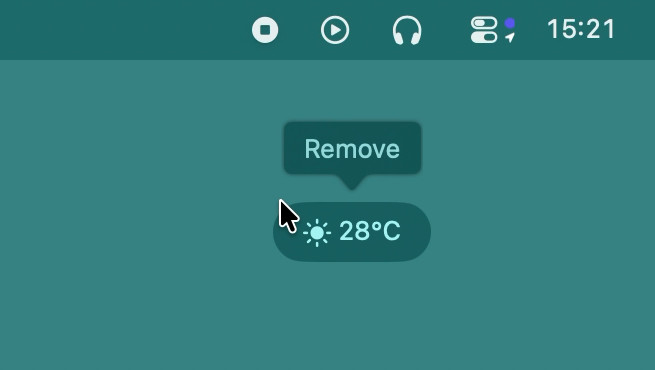
Move to remove: If you drag the item significantly out of the menu bar, Remove will appear; release the mouse button here to cut the item from the menu bar altogether.
- Release mouse button and Command key.

Order on the menu?
Tips help fuel these email and tech how-tos.
Rearrange Menu Bar Items Using Control Center Editing
To change the order of macOS menu bar items with the Control Center editing interface:
- Open Control Center.
Here’s how: You can click the Control Center item in the menu bar, for example.
Mac keyboard shortcut: Press Fn C to open Control Center using the keyboard. - Click Edit Controls.
- Arrange (as well as add and remove) menu bar items as you see fit.
- Now click Done.
How to Reorder Menu Bar Items on a Mac: FAQ
Can I re-order menu bar items in System Settings?
No, not directly.
You can influence — and set — the order of items using the sequence in which you add them, however:
- items enabled in the Menu Bar section appear in their order of addition from right to left.
Example: If you enable Fast User Switching immediately before you turn on Weather, fast user switching will show just to the right of the weather.
So, to make menu items appear in the desired order using just System Settings on your Mac:
- Open macOS System Settings.
- Go to the Menu Bar category.
- Disable all menu bar items except the one you want to appear to the very right of the menu bar.
- Enable items in the order in which you want them to appear from right to left.
While you’re in Settings: How to Hide the Menu Bar on a Mac
Can I move items in the macOS menu bar using three-finger dragging?
Yes, in combination with the Command key.
To re-arrange menu items using three-finger dragging on your Mac, hold Command while you drag with three fingers.
Which menu items are fixed?
Not all items in the macOS menu bar can be moved freely; specifically, two items have fixed positions:
- The clock always appears as the rightmost item.
Any way: The position of the clock also does not depend on its format or how much detail is shown. - Control Center is the item to the left of the clock.
(Tested with macOS Tahoe 26; first published July 2026)