

Worried your Zoho Mail password might not be yours alone, especially after a prominent data leak? Changing passwords periodically is one of your habits anyway? Find out here how to change the password to your Zoho Mail account ⤓.
On This Page
How to Change Your Zoho Mail Password
Time needed: 3 minutes
To change the password to your Zoho Mail account:
- Click the My Profile avatar near Zoho Mail’s top right corner.
- Follow the link to My Account.
Another factor: Log in to your Zoho account using two-factor authentication if you are prompted.
- Go to the Security section.
- Click Change Password under Password.
- Type your existing Zoho Mail password under Current Password.
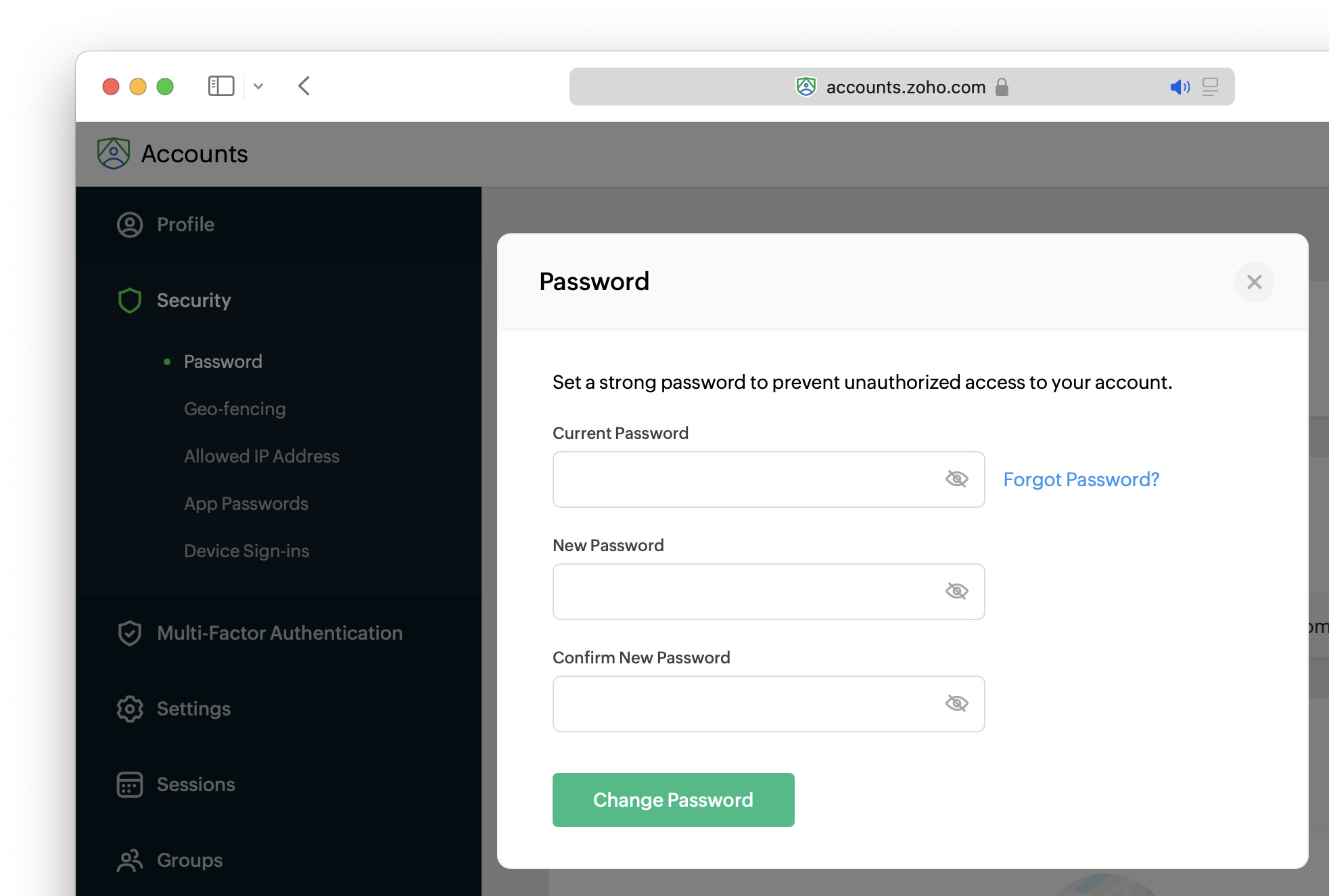
- Enter the new desired password under both New Password and Confirm New Password.
- Click Change Password.
Their word: Zoho include information on changing your password in Mail help.
To secure your Zoho Mail account, do enable two-factor authentication as well or switch to passcode log-in for Zoho Mail.
Crkr Pdlo vhfxuhg?
Tips help fuel these email and tech how-tos.
How to Change Your Zoho Mail Password: FAQ
Will changing the Zoho password also change application-specific passwords?
No.
Application passwords you have set up in Zoho Mail (for accessing the account using IMAP, for example) do not change when you change your account password.
If you are changing your password because you suspect unwarranted access, do change your application-specific passwords as well by deleting the lot and creating new ones for the applications that currently access your account.
(First published October 2024, last updated July 2026)