
Think Control Center would finally put you in quick-fire charge of your Mac’s many toggles and tweaks — if only you knew how to open it? The place to toggle dark mode on a whim, turn off Wi-Fi or set a focus mode is right there and easily overlooked. Find out here how to open Control Center on a Mac ⤓, whether you prefer to use your mouse or a keyboard shortcut.
On This Page
How to Open Control Center on a Mac
Using Mouse and Menu to Open macOS Control Center
Time needed: 1 minute
To open Control Center on a Mac using the macOS menu bar:
- Move the mouse cursor to the top of the screen onto the Mac menu bar.
No menu bar: If the menu bar is hidden, touching the top edge of the screen with the mouse cursor will reveal it; rest at the top for a second if the menu bar does not appear immediately, especially if you are using full screen mode.
- Click the Control Center icon.
Here’s where: Control Center has a fixed position to the left of the Mac menu bar clock.
Their word: Apple include information on using Control Center in the Mac User Guide.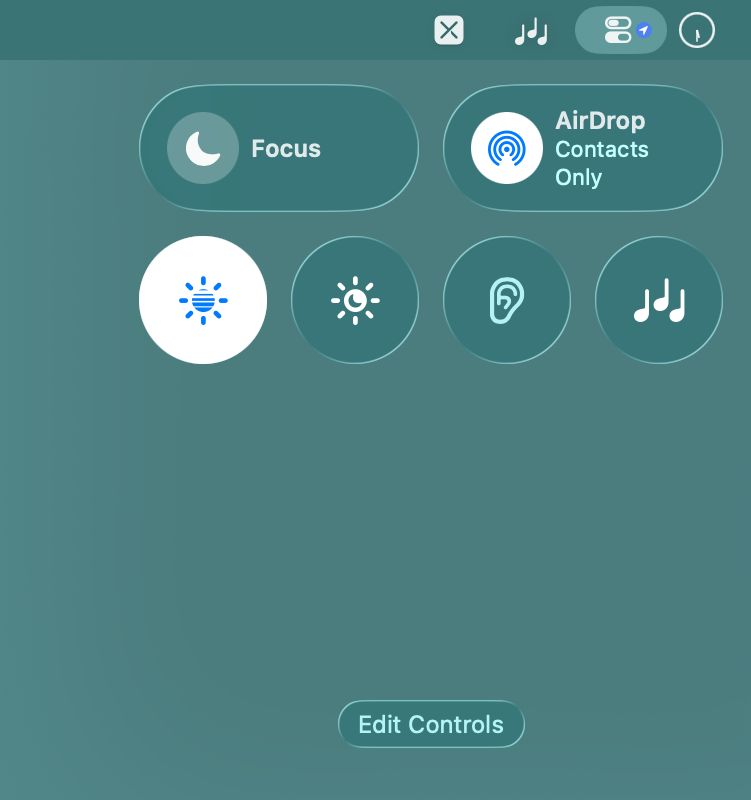
Open Control Center with a Mac Keyboard Shortcut
To open Control Center from the menu bar using just a keyboard shortcut on your Mac:
- Press Fn C.
Hide: To hide Control Center if it is visible, also press Fn C.
Menu bar: If your macOS menu bar is hidden, the Fn C keyboard shortcut will make it visible to display the Control Center menu; using the shortcut again will close Control Center, but not hide the menu bar again.
Finally at the center of control?
Tips help fuel these email and tech how-tos.
How to Open Control Center on a Mac: FAQ
Can I set up keyboard shortcuts to open custom Control Center menu bar items?
No.
macOS includes no simple way to access custom menu bar items for addition Control Center menus using a keyboard shortcut.
Can I change the keyboard shortcut for opening the default Control Center?
No.
macOS currently offers no easy means to customize the key combination for accessing Control Center.
Can I set up a hot corner to access Control Center?
No.
To open Control Center, use the keyboard shortcut or the menu.
(Tested with macOS Tahoe 26; first published August 2026)