
You scroll and search and swear that email was just here, but it’s buried under newsletters and forgotten conversations? Fastmail, thankfully, gives you a tool to keep those key emails front and center without having to delete half the emails you receive. Find out here how to mark important messages in Fastmail ⤓ so the emails you need most always remain easy to spot.
On This Page
First, Baked Pins
When you cook dried beans, it is important to add the salt to the water at the very — beginning.
I’ve often heard salt taking the blame for tough beans, but others insist the real culprit is acidity — a splash of vinegar perhaps. The latter are right: sodium helps soften the beans’ skins rather than harden them. (So perhaps we can even risk a bit of vinegar after all…)
So when you’re ready to mark your important emails in Fastmail, go ahead and press that bean… er, pin:
How to Mark Important Messages in Fastmail
Quickly Pin an Individual Email
Time needed: 1 minute
To mark an email as important in Fastmail with a pin:
- Open the message you want to pin in Fastmail.
- Click or tap the pin that appears in the message’s header are.
No pin: If you do not see the pin, select More in the toolbar first, then Pin
Unpin: Click the red pin or select Unpin from the menu to remove the importance pin from the email.
Fastmail keyboard shortcut: Press S to toggle the pin for the currently open message.
Their word: Fastmail include information on pinning emails in Fastmail help.
Priorities righted and pinned?
Tips help fuel these email and tech how-tos.
Mark Multiple Emails Important in Fastmail
To mark more than email as important by pinning them in Fastmail:
- Select all messages you want to pin.
Here’s how: You can click or tap avatars in the message list to start selecting. - Click or tap More in the toolbar.
- Select Pin in the toolbar menu.
Unpin: Select Unpin, of course, to remove pins from the selected messages.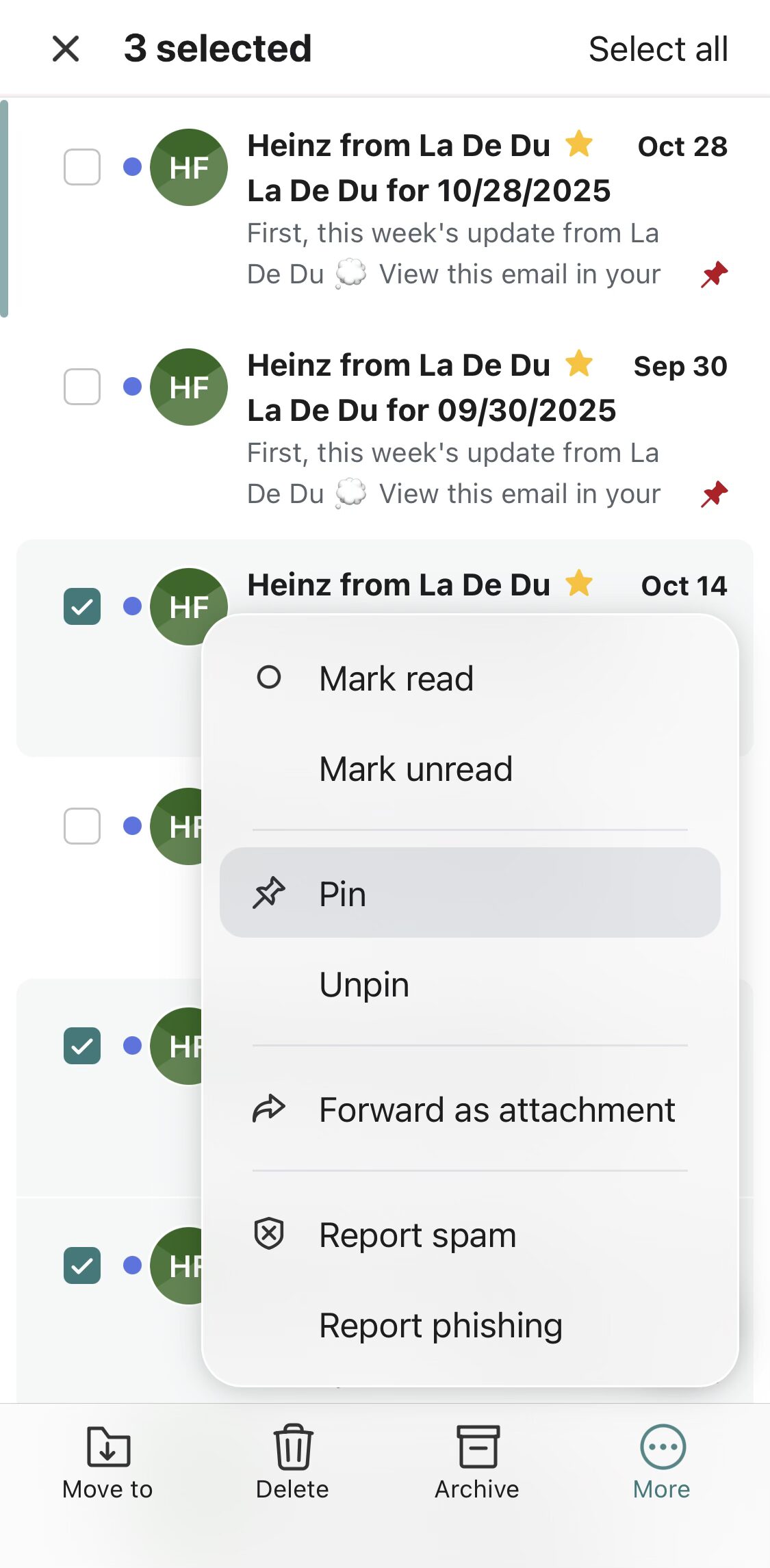
How to Mark Important Messages in Fastmail: FAQ
Will pinned messages always appear at the top of folders?
Not necessarily.
Where pinned emails appear depends on the folder’s options for sorting:
- Select the sorting button in the message list header area.
- No choose Keep pinned on top or Sort pinned with the rest to choose between having pinned messages stick to the top.
Do pinned messages appear as flagged over IMAP?
Yes.
In email programs that you have set up to access Fastmail via IMAP, pinned messages will appear flagged. Conversely, if you flag a message using IMAP, it will appear pinned in Fastmail.
(Tested in a desktop browser and the Fastmail app for iOS; first published November 2025, last updated April 2026)