

Want to keep your thoughts and ideas in neat order? Whether you are jotting down quick notes or groceries to buy, it’s time to get organized with a list. Find out here how to make a list within a note in Apple Notes ⤓ — including numbered, unordered and to-do lists.
On This Page
How to Make a List in Apple Notes
Time needed: 2 minutes
To quickly add a list (numbered, dashed or bulleted) to a note in Apple Notes on a Mac, iPhone, iPad and accessing iCloud.com in a browser:
- Position the text cursor where you want to insert the first list item.
Here’s where: Do start the list on a new line.
- Type
-(minus) for a dashed list,*(star) and1.(number followed by a period) for a numbered list. - Now press Space.
Here’s what happens: Apple Notes will turn the characters so far entered into the first item in the list.
- Type the first item.
- End each item with Enter (a newline character).
Up and down: You can re-arrange list items using a keyboard shortcut or the menu.
Sideways: On iPhone and iPad, you can change list indentation by just swiping. - Finish the list by typing Enter on the last and superfluous, empty item without entering any text for the item.
Enter-enter: Effectively type Enter twice to ende the list and start a new paragraph after it.
Here’s what happens: The list marker for the last item will disappear, and you will return to regular body formatting.
Their word: Apple include information on creating lists in the Notes User Guide.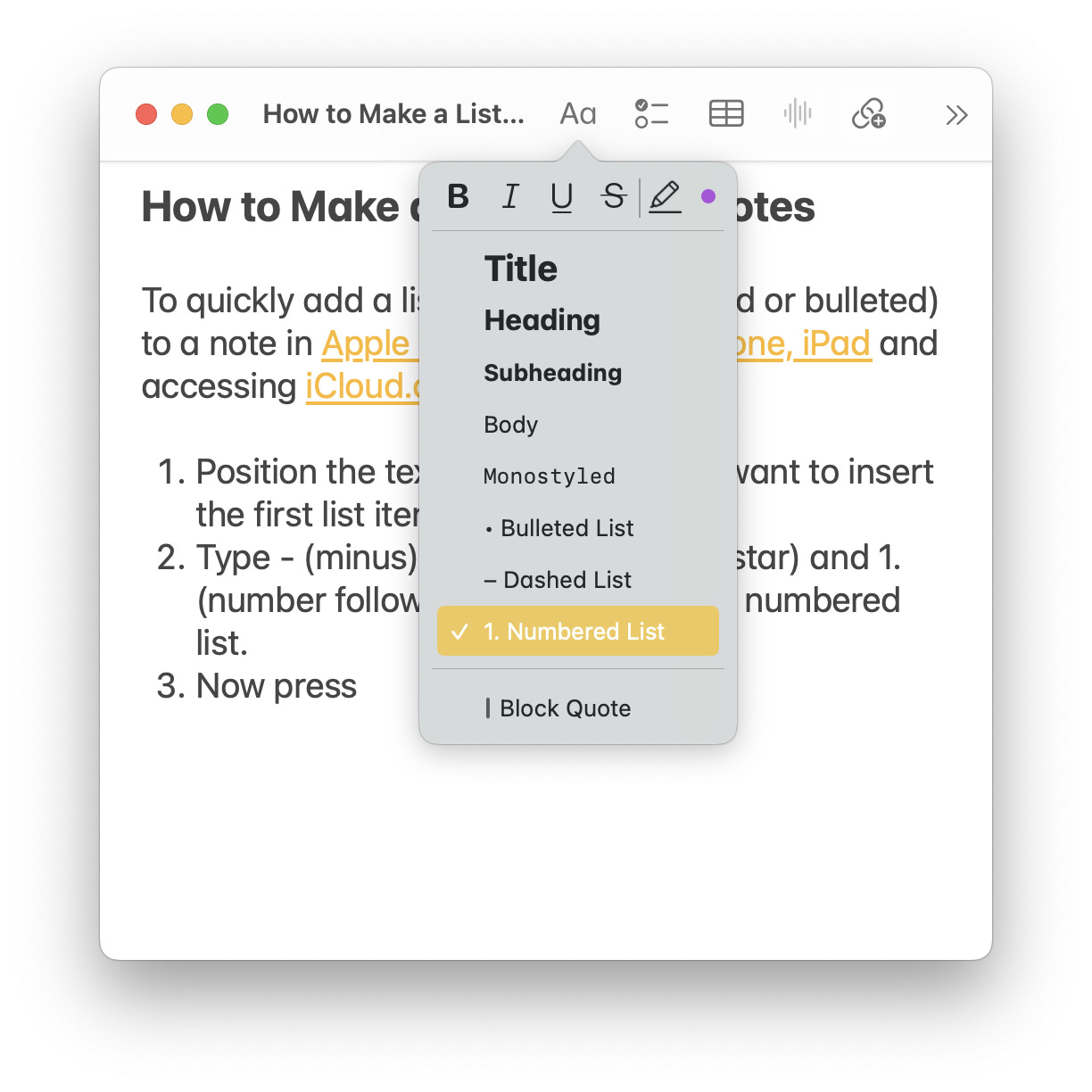
To-do list done?
Tips help fuel these email and tech how-tos.
Insert a Checklist (To-Do List)
To insert a checklist — a list with checkboxes you can tick — in a note with Apple Notes:
- Position the text cursor where you want to insert the checklist.
- Tap or click Make a Checklist in the note’s toolbar.
Notes keyboard shortcut: On a Mac and iPad, you can also press Command Shift L to start a new checklist.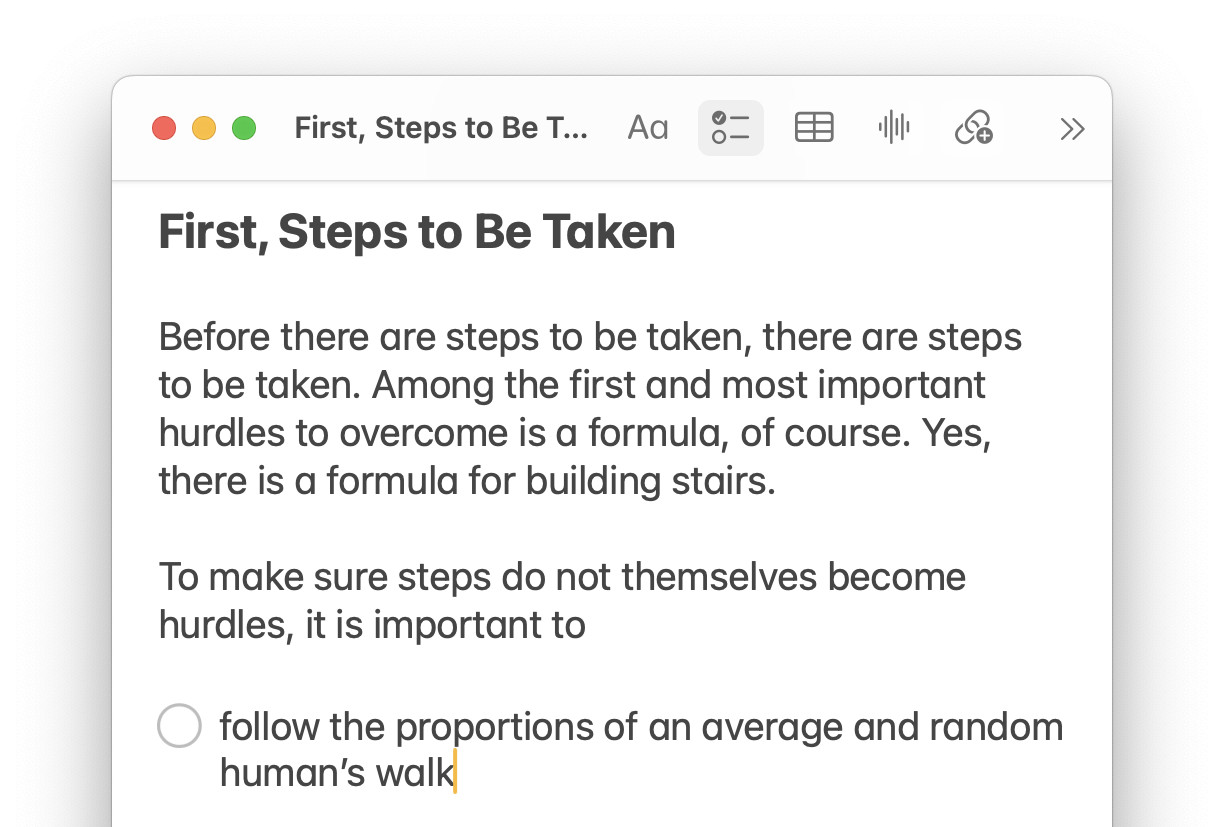
More structure:
How to Structure Text Hierarchically in Apple Notes
Turning Text Into Lists and Vice Versa in Apple Notes
You can, of course, also turn existing text into a list.
To format body text as a list in Apple Notes:
- Format the text so each item appears on a line of its own with no empty lines in between (except where you want to break up the list).
- Highlight all the text you want to format as a list.
- Select the desired list style from the Aa formatting menu or choose Make a Checklist for a to-do list.
Notes keyboard shortcuts: You can also press Command Shift 7 for a bulleted list, Command Shift 8 for a dashed list, Command Shift 9 for a numbered list and Command Shift L for a checklist.
To turn any list back into regular text:
- Apply the Body formatting to the list (or parts of the list).
Keeping score?
How to See the Creation and Last Edited Date in Apple Notes
How to Make a List in Apple Notes: FAQ
Can I start with a number other than ‘1’?
Yes.
You can start your list at any number.
Example: Typing 54. and following up with Space will start a list counting up from 54 as its first item.
Can I make Apple Notes numbered lists count down, or increment by a number other than 1?
No.
Numbered lists in Apple Notes always count up by one. You can always format body text to work as a list, of course, and number each line or item as desired.
Is there a text shortcut for starting a checklist?
No.
You can use the toolbar or the keyboard shortcut to create to-do lists in Notes. Text shortcuts you might envision (such as [ ]) will not work.
(How to make a list tested with Apple Notes 4 on macOS, Notes for iOS 18 and 26 as well as Notes on the web at iCloud.com; first published May 2025, last updated May 2026)