

Need a sub-item, and reaching for the toolbar feels just a little sub-optimal? Whether you’re organizing categories or adding subtasks to a to-do list, you can change indentation without slowing down. Find out here how to swipe to indent or outdent lists in Apple Notes on iPhone ⤓.
On This Page
How to Swipe to Indent Lists in Apple Notes for iPhone
Time needed: 1 minute
To change the indentation level of an item in a list in Apple Notes on an iPhone and iPad:
- Format text as a list in a note.
Here’s how: You can start a list with typing
-or1.at the beginning of a line, for example.
Which lists: Swiping to indent works in all lists in Notes, dashed lists, bulleted lists, ordered lists and to-do lists. - Swipe over the item to the right to increase the level of indentation.
Swipe left: Swipe left, of course, to decrease the indentation level.
Indentity crisis averted?
Tips help fuel these email and tech how-tos.
Change iPhone List Item Indentation with Menu Taps
To change the indentation level of a list item:
- Position the text cursor in the item you want to intent or outdent.
Multiple items: You can highlight more than one list item to change the invitation level for the lot in one go. - Tap the “increase indentation” button in the formatting toolbar to indent.
Outdent: Tap the decrease indentation button to decrease indentation by one level.
Context menu: You can also select > in the context menu that has appeared, then choose Format | Indentation | Increase (or Decrease).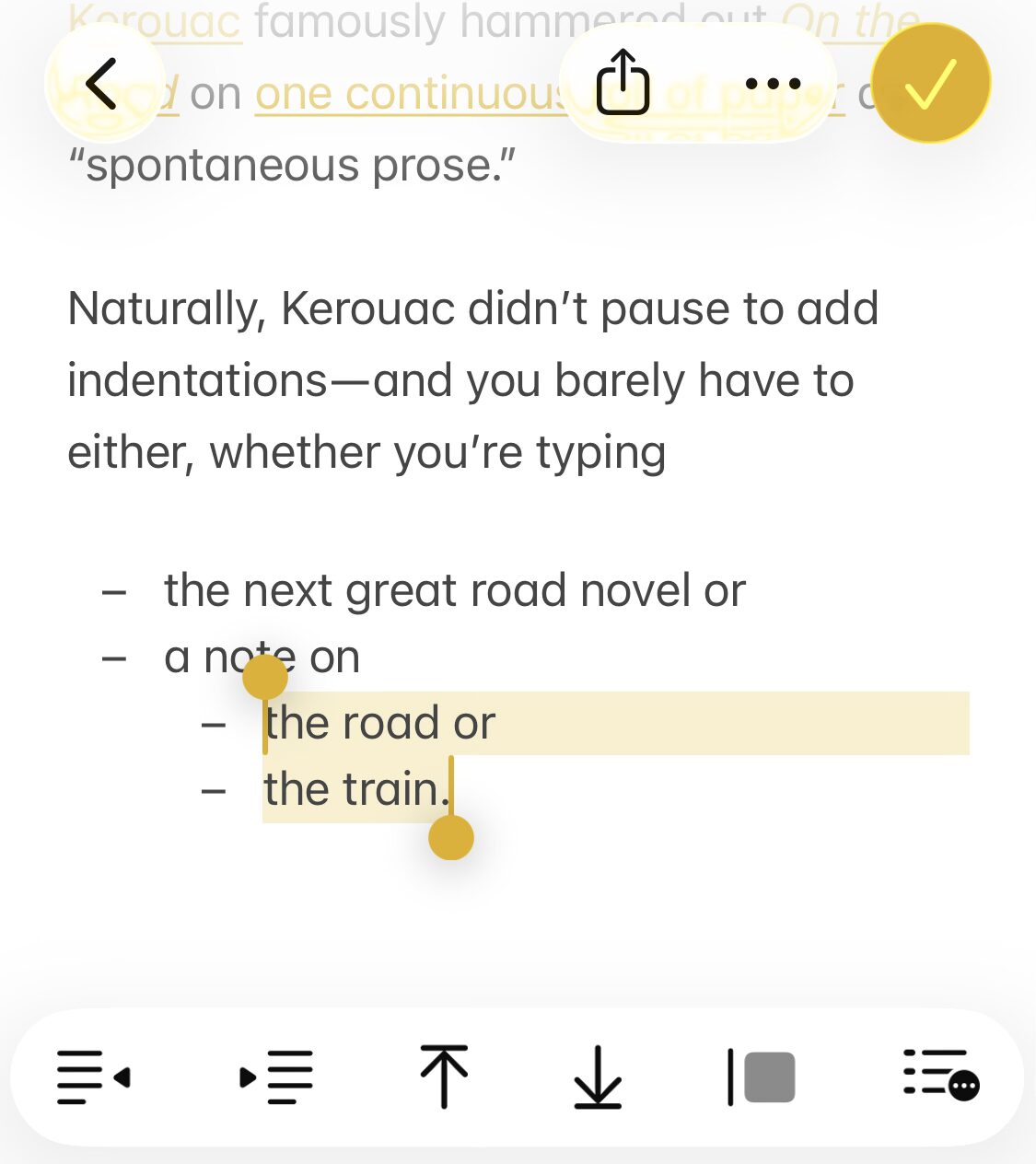
More structure: How to Structure Text Hierarchically in Apple Notes
How to Swipe to Indent Lists in Apple Notes for iPhone: FAQ
Do I have to select an item to change its indentation?
No.
You can swipe over any visible item to change its indentation.
Can I outdent to the top level using swiping?
No.
You cannot move an item out of a list by reducing its indentation level to zero with swiping.
Can I indent more than one item at once by swiping?
No.
Swiping always indents or outdents only the item over which you are swiping.
To change more then one item at a time, you can use the formatting toolbar; see above.
(Tested with Apple Notes for iOS 26; first published April 2026)