
Hunted for foot and inch marks on your iPhone’s keyboard — and came up empty-handed? That does not mean you cannot produce the symbols for feet, inches, minutes, seconds and prime. Find out here how to input foot ( ′ ) and inch ( ″ ) symbols (as well as other prime signs) on iPhone and iPad ⤓.
On This Page
How to Input Foot ( ′ ) and Inch ( ″ ) Symbols on iPhone and iPad
⚡ Quick Fix
Copy and paste anywhere on iPhone and iPad:
Using Text Replacement for Foot and Inch Symbols
Time needed: 1 minute
To insert a foot (minute ′) or inch (second ″) symbol on an iPhone or iPad using text replacement:
- Set up a text replacement for inserting the desired symbol; see below.
On a Mac: You can also set up the replacement on a Mac signed in to the same iCloud account and have settings synchronization push the replacement to your iPhone or iPad.
- Position the text cursor where you want to insert the foot or inch symbol.
- Now type the character combination set up to insert the foot or inch symbol.
Starts with a letter: If your combination of characters begins with a letter (e.g.,
fft), do insert a whitespace character right before it. A text replacement that begins with a letter only works if the shortcut characters make up a word surrounded by whitespace; you will remove the extra whitespace character later. - Press Space.
Auto-completion: You can also select the desired symbol (foot or inch mark) from auto-completion suggestions, of course.
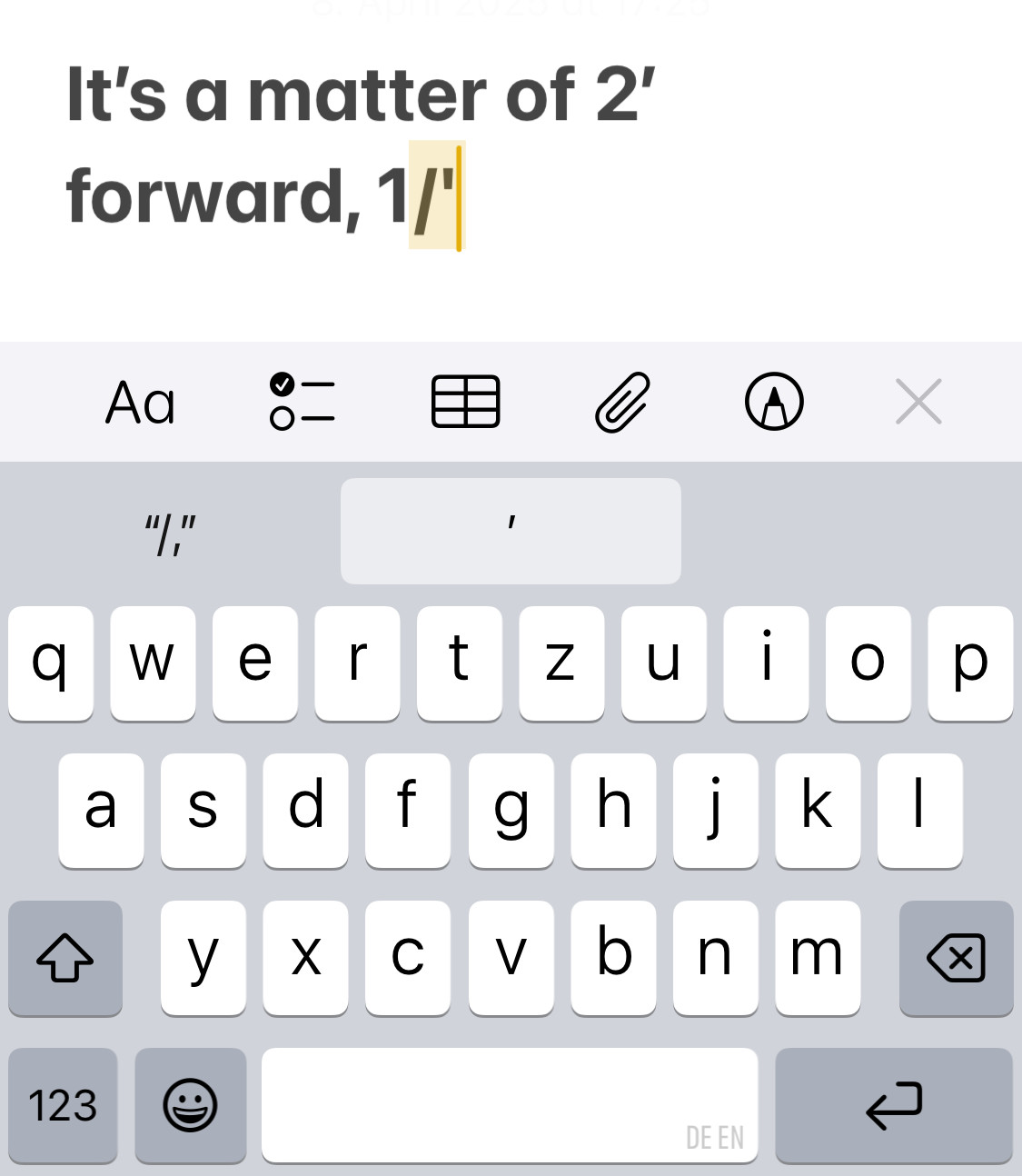
The inch now is a cinch?
Tips help fuel these email and tech how-tos.
Set up iPhone Text Replacements for the Foot and Inch Symbols
To configure character combinations that will be replaced with the foot and inch symbols as desired (and automatically) on iPhone and iPad:
- Copy the foot, inch or prime symbol you want to insert with a text replacement using the table below.
- Open the Settings app.
- Go to the General category.
- Select Keyboard.
- Now pick Text Replacement.
- Tap +.
- Paste the foot or inch symbol under Phrase.
Here’s how: Tap in the field and select Paste from the context menu that appears. - Now enter the character sequence you want to use for the foot mark under Shortcut.
At the beginning: Do start the shortcut with punctuation if at all opportune.
Here’s why: This lets you use the shortcut directly following any character; if, conversely, the shortcut begins with a letter, you have to separate it from any characters before with whitespace. - Tap Save.
Their word: Apple include information on text replacements in the iPhone User Manual.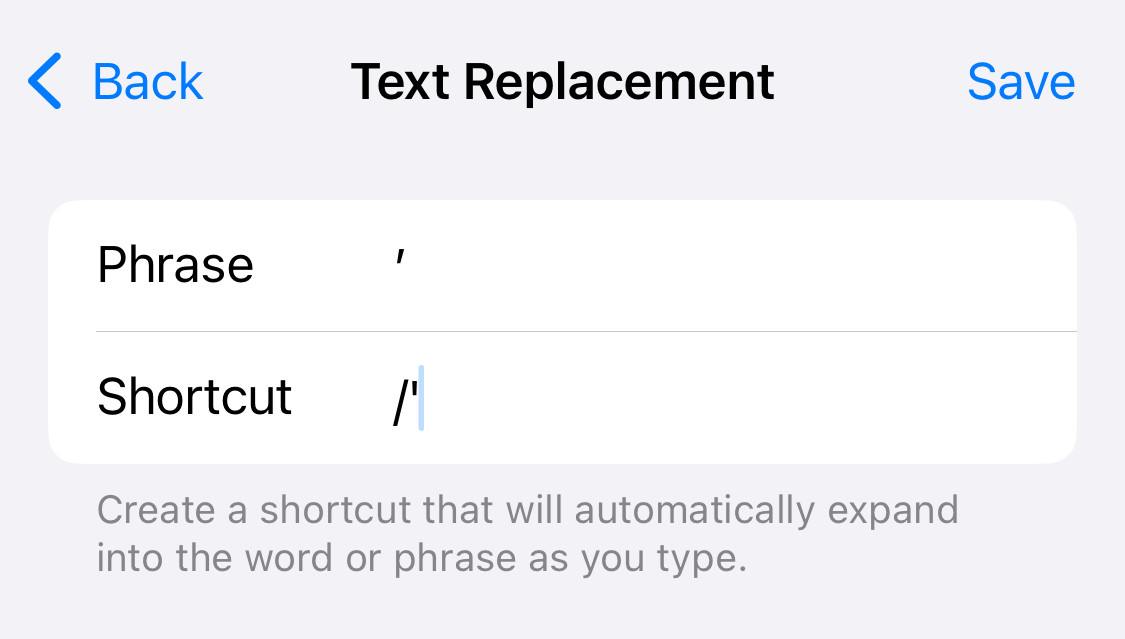
Word mark: How to Insert Foot ( ′ ) and Inch ( ″ ) Marks in Word
Copy the Foot and Inch Symbols for Pasting on iPhone and iPad
To insert a foot or inch symbol (or
foot (minute) ′ | |
inch (second) ″ | |
triple prime ‴ | |
quadruple prime ⁗ |
For mathematical formulae, you can also use the modifying characters:
modifying single prime ʹ | |
modifying double prime ʺ |
How to Input Foot ( ′ ) and Inch ( ″ ) Symbols on iPhone and iPad: FAQ
Can I insert the prime symbols directly using the keyboard?
No.
The keyboards on iPhone and iPad do not include the foot and inch marks or prime symbols.
Can I use the quotation marks found on the iPhone keyboard instead?
Yes.
If you need to enter a foot (minute) or inch (second) symbol fast, you can use the straight quotation marks on the iPhone keyboard in lieu of setting up text replacements or copying and pasting.
| Best | Acceptable | Avoid |
|---|---|---|
| ′ | ' | ’ |
| ″ | " | ” |
(Tested with iOS 18 and 26; first published April 2025, last updated September 2026)