

Tired of poring through keyboard layouts or copying and pasting special characters on Linux? Looking for a way to insert accented letters or special symbols without lifting your hands from the keyboard? Find out here how to enable and configure the “Compose” key on Linux ⤓ (Gnome and KDE) for advanced shortcuts.
First, Coffee Spelled Another Way
When the sweet scent of cinnamon buns, cakes and pastries blends into that of freshly ground roasted coffee in Sweden’s homes, cafés and out of doors, it’s time for fika, the country’s famously joyous and regular gathering of friends.
If legend is to be believed, the tradition started with coffee — and the old Swedish word for it, “kaffi” — alone. For the gathering, the word’s two syllables switched places, and “fika” was born.
Now, with this way of composing words from words in mind, let’s see to composing characters from characters:
How to Enable and Set the “Compose” Key on Linux
Gnome
Time needed: 3 minutes
To pick a Compose key for entering special characters under Linux using Gnome:
- Open the Settings app.
Here’s how: Open the quick settings menu from the top right corner, for example, and select the settings gear icon (⚙).
- Go to the Keyboard category.
- Select Compose Key under Special Character Entry.
- Enable Compose Key (if the option is present).
- Turn off Use layout default (if the option is present).
- Now choose the key you want to use as the Compose key.
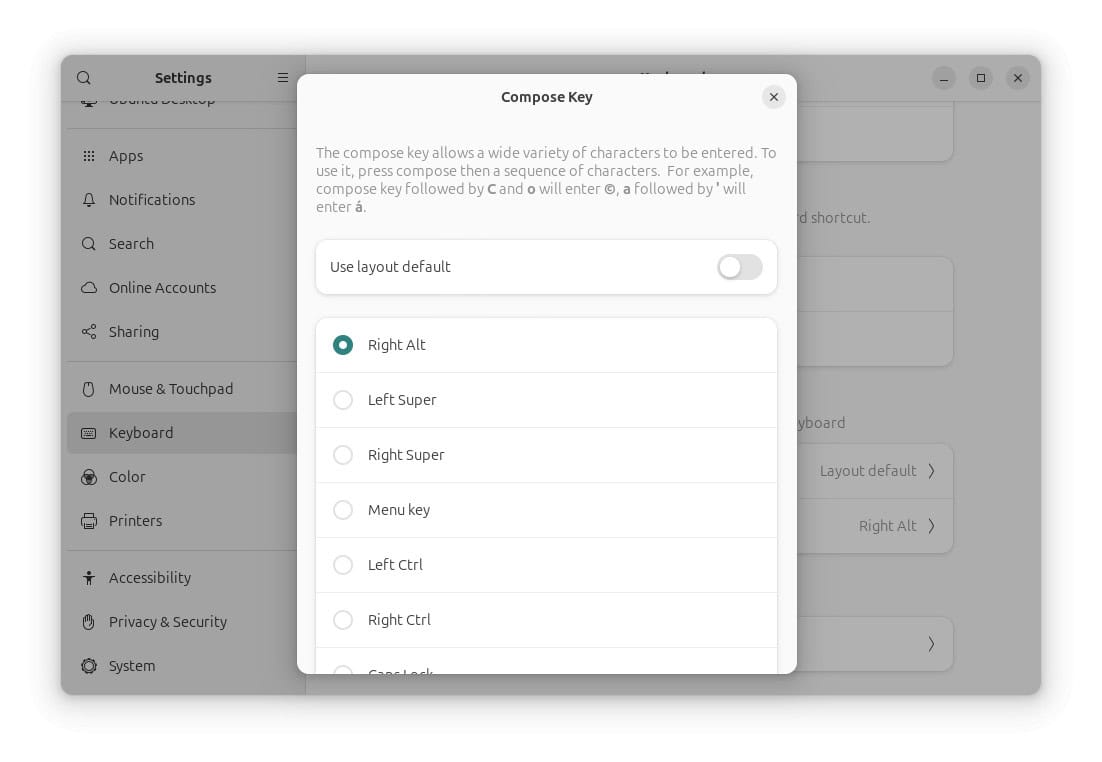
Happily Compose-ing along?
Tips help fuel these email and tech how-tos.
KDE
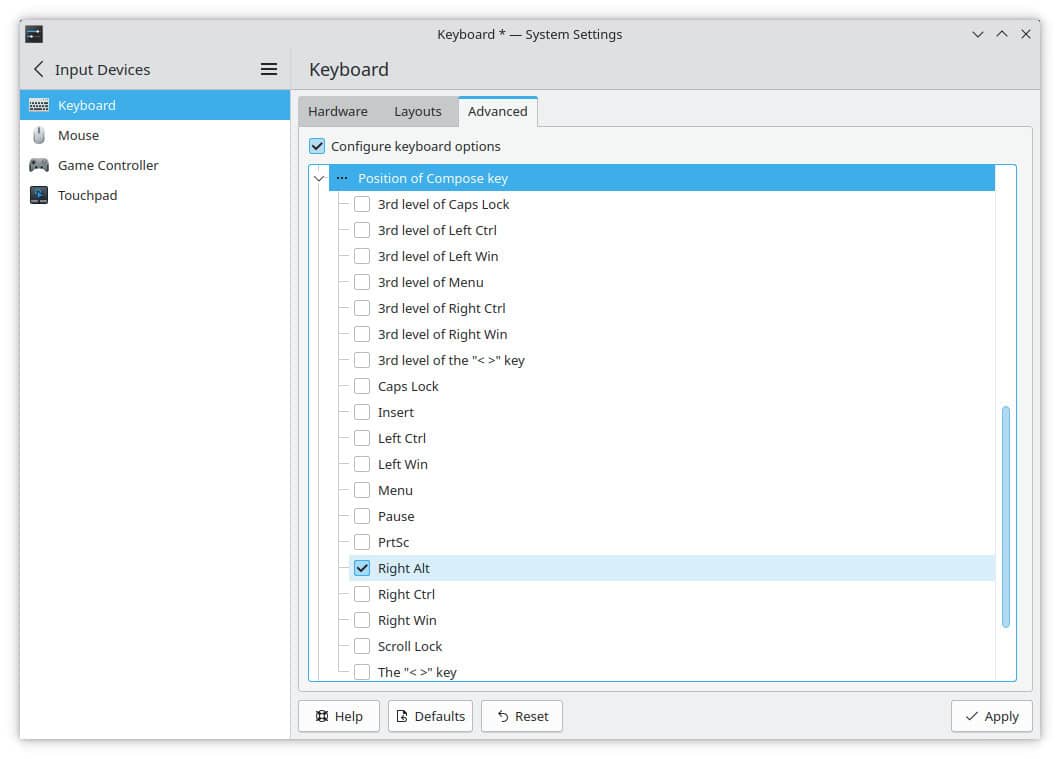
To pick the Compose key using KDE Plasma:
- Open the System Settings app.
Here’s how: Open the Application Launcher menu, for example, then choose System Settings in the Settings category. - Go to the Input Devices category under Hardware.
- Switch to the Advanced tab.
- Expand the Position of Compose key.
- Check the key (or keys) you want to use as the Compose key.
- Now click Apply.
Keyboard layouts for all kinds of characters: How to Change the Keyboard Layout on Linux
How to Enable and Set the “Compose” Key on Linux: FAQ
Can I set the Compose key using configuration files?
Yes.
Using X11 configuration files, you can also set the Compose key mapping directly.
How do I use the Compose key?
To inset a special character using the “Compose” key on Linux:
- Position the text cursor where you want to insert the character.
- Press the key Compose (if your keyboard includes one) or the key you set up to act as the “Compose” key (see above).
- Now type the key combination that will produce the desired character.

What are some examples characters I can compose using the “Compose” key?
You can use key sequences with the Compose key for entering accented letters, for example, and special characters — amongst them:
| Compose % O | ‰ (per mille) |
| Compose 3 4 | ¾ |
| Compose , C | ç |
| Compose S S | ß (sharp S) |
| Compose ? ? | ¿ |
| Compose - - - | — (em dash) |
| Compose Space Space | NBSP (non-breaking space) |
| Compose > ' | ’ (typographic apostrophe) |
| Compose . . | … (ellipsis) |
| Compose O C | © (copyright) |
| Compose O R | ® |
| Compose O O | ° (degree) |
| Compose L - | £ (pound) |
Special characters without the “Compose” key: How to Insert Emoji and Special Characters on Linux
(Tested with Gnome 46–49 and KDE Plasma 6.1–6.3; first published August 2024, last updated February 2026)