

Clicked an email address in Chrome, and a new email started in a desktop email program you’ve never opened before? Wish web-based email (such as Gmail or Outlook.com) could be the default? Find out here how to change the default email program in Google Chrome (even to a web-based email service).
First, 9 on a Scale of 1 to 8
To measure cloudiness, the sky is divided into eight parts. With every part that is filled with clouds, cloudiness increases by 1: a cloudless sky is 0, partly cloudy is, say, 4 and a completely covered sky would be 8. So far, so good.
Then, of course, there is cloudiness 9.
Yes, that means the sky is more than completely covered — because you cannot even see the clouds through the fog. So, cloudiness 9 means you cannot see the sky at all, only fog.
Now, the default email program is typically a choice between Outlook, Mail, Spark, and similar desktop programs. Except, of course, when you need not even see the email program from Google Chrome because the browser itself — a web-based email service such as iCloud Mail or Gmail in it — covers the email program needs.
Still foggy? Let’s clear the skies for email link handling in Google Chrome:
How to Change the Default Email Program in Google Chrome
In Chrome for the Desktop (Windows, Mac, Linux)
Time needed: 5 minutes
To make Google Chrome use a different program when you click an email address or email link:
- Quit Google Chrome.
- Change the default email program in your operating system:
How to Set the Default Email Program on a Mac
How to Set the Default Email Program on Windows - Launch Google Chrome.
Web-based email default: If you had set up a web-based email service as the default in Google Chrome (see below), it will be replaced with the operating system’s default program.
Back to web: You can always switch back to the web-based service: make Google Chrome your default email program across the operating system.
Making Chrome itself the default: How to Make Google Chrome the Default Browser
In Chrome for iOS and Android
To change the default email program in Chrome mobile:
- Open a tab in Chrome for iOS or Android.
- Tap the menu button (
 ).
). - Select Settings from the menu in Chrome.
- Now choose Content Settings.
- Pick Default apps from the Content Settings menu.
- Select the preferred email program under MAIL.
Example: Pick Gmail to open the Gmail app by default for email in Chrome.
Option: Enable Ask me which app to use every time to get a sheet with options every time you tap an email address.
- Tap ⟨Back.
- Now tap Done.
How to Use a Web-Based Email Service as Default with Google Chrome
To set a web-based email service in Google Chrome (such as Gmail, Outlook on the Web or iCloud Mail) as the default email program using Google Chrome options:
- Click the hamburger menu icon (⠸) in Google Chrome.
- Select Settings from the menu that has appeared.
- Go to Privacy and security.
- Select Site settings.
- Expand Additional permissions (under Permissions).
- Now choose Protocol handlers.
Direct link: You can also go to directly to open Protocol handlers settings. - Choose Sites can ask to handle protocols.
No handlers: If this setting is disabled, it will read Do not allow any site to handle protocols. - Click the hamburger menu icon (⠸) next to the desired service under email.
Missing email service: If the service you want to use does not yet appear under the list, see below for adding it. - Select Set as default from the menu that has appeared.
Add a Web-Based Email Service to Google Chrome for Handing Email Links
If the email service you want to use by default is not yet in the list, add it as a mail handler:
- Open the Protocol handlers settings in Google Chrome. (See above.)
- If the service you want to use is listed under Blocked, click the × next to it.
- Now open the email service you wish to use in Google Chrome.
Example: To add Gmail, open https://mail.google.com, for instance. - Click the service handler icon (
 ) in the address bar.
No service handler icon: You can add web-based email services to Google Chrome even if the service handler icon does not show; see below. - Select Allow under Allow ___ to open all email links?.
- Click Done.
This will automatically make Google Chrome the default email program and the selected email service open with a new message when you click an email address.
How to Change the Default Email Program in Google Chrome: FAQ
I do not see the service handler icon for my favorite email service.
Can I manually add a web-based email service to Google Chrome for use as the default for email links?
Yes.
To add a web-based email service to handle clicks on email addresses with a new message (and the recipient already filled in) when the service handler icon is not available:
- Open the email service you wish to use by default in Google Chrome.
- Click the Google Chrome hamburger menu icon (⠸).
- Select More Tools | Developer Tools from the menu that has appeared.
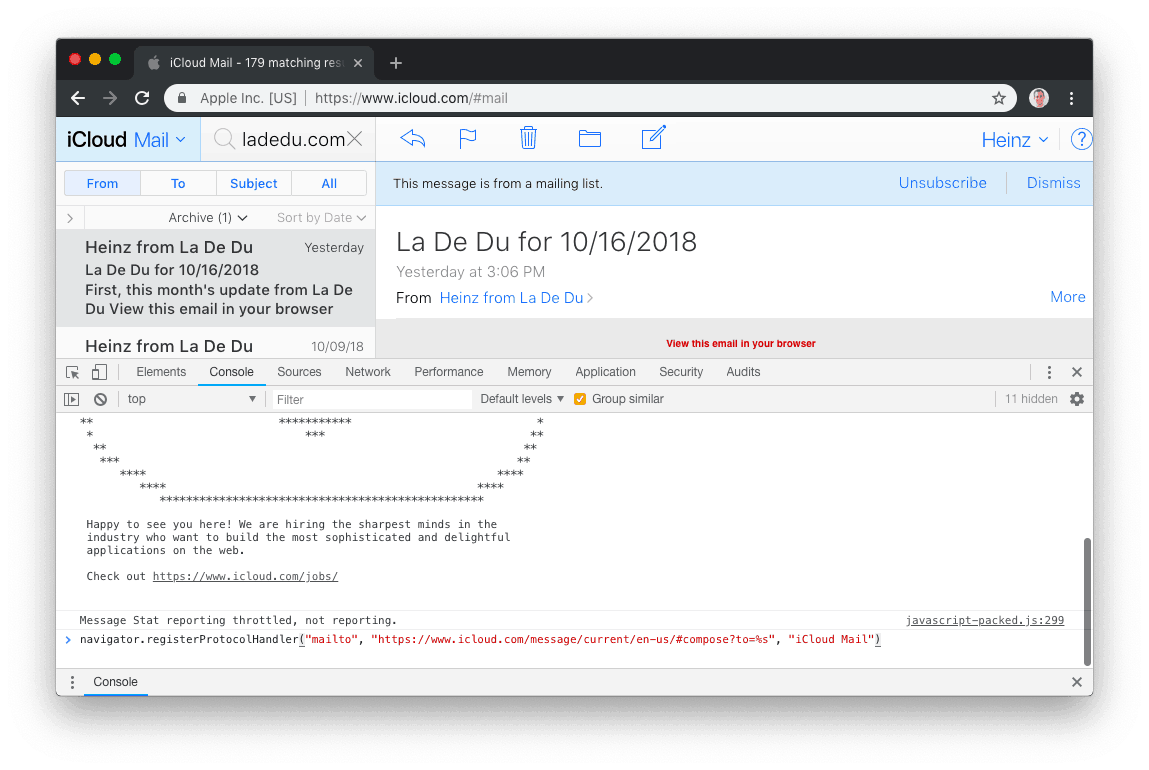
Keyboard shortcut: You can also press Ctrl Alt I (Windows), Ctrl Shift I (Linux) or Command Option I (Mac). - Go to the Console tab.
- In the Console window’s command line (following the > prompt), type the command made up of the following parts:
navigator.registerProtocolHandler(
“mailto”,
“[URI]”,
Important: Replace [URI] with the link to compose a new message in the email service. In the link, %s will be replaced with the email address on which you click to start an email, so the addressee is already entered.
Note: Make sure the domain for the URI corresponds to the domain currently open in Google Chrome, e.g., if you are on https://www.icloud.com, the URI needs to start with https://www.icloud.com.
Example: The address for iCloud Mail to start a new email is “https://www.icloud.com/message/current/en-us/#compose?to=” followed by the email address, so the whole URI for use in the command is “https://www.icloud.com/message/current/en-us/#compose?to=%s”.
“[Name]”)
Tip: Replace [Name] with the email service’s name.
Example: Use “iCloud Mail” for iCloud Mail.
Full Example: The full command for setting up Gmail as an email service in Google Chrome is:navigator.registerProtocolHandler("mailto", "https://www.icloud.com/message/current/en-us/#compose?to=%s", "iCloud Mail")
- Press Enter.
- Under __ wants to Open email links instead of ___ (which appears below the address bar in Google Chrome), select Allow.

(Tested with Google Chrome 119–134; first published October 2018, last updated September 2025)