

Mail has you guessing about where a sender’s emails will land — or is sorting them into the wrong inbox category altogether every time? You are not at the mercy of its algorithmic whims. Find out here how to categorize emails from a sender with your chosen category in Apple Mail for Mac ⤓ priority inbox.
On This Page
How to Categorize a Sender in Apple Mail for Mac
Time needed: 3 minutes
To pick an inbox category for all incoming emails from a sender in Apple Mail for Mac:
- Open a message from the sender in the Inbox folder.
Here’s why: You can classify senders only in the inbox.
- Select Message | Categorize Sender from the menu.
Grayed out: If Categorize Sender is grayed out in the menu and not available, do make sure inbox categories are visible by selecting View | Show Mail Categories from the menu.
Context menu: You can also use the context menu, of course, clicking on a message in the inbox with the right mouse button and selecting Categorize Sender. - Choose the desired inbox category for the sender.
Which to use: Choose from the available inbox categories that which best suits the sender — or is most useful to you.
Their word: Apple include information on inbox categories in the Mac User Guide.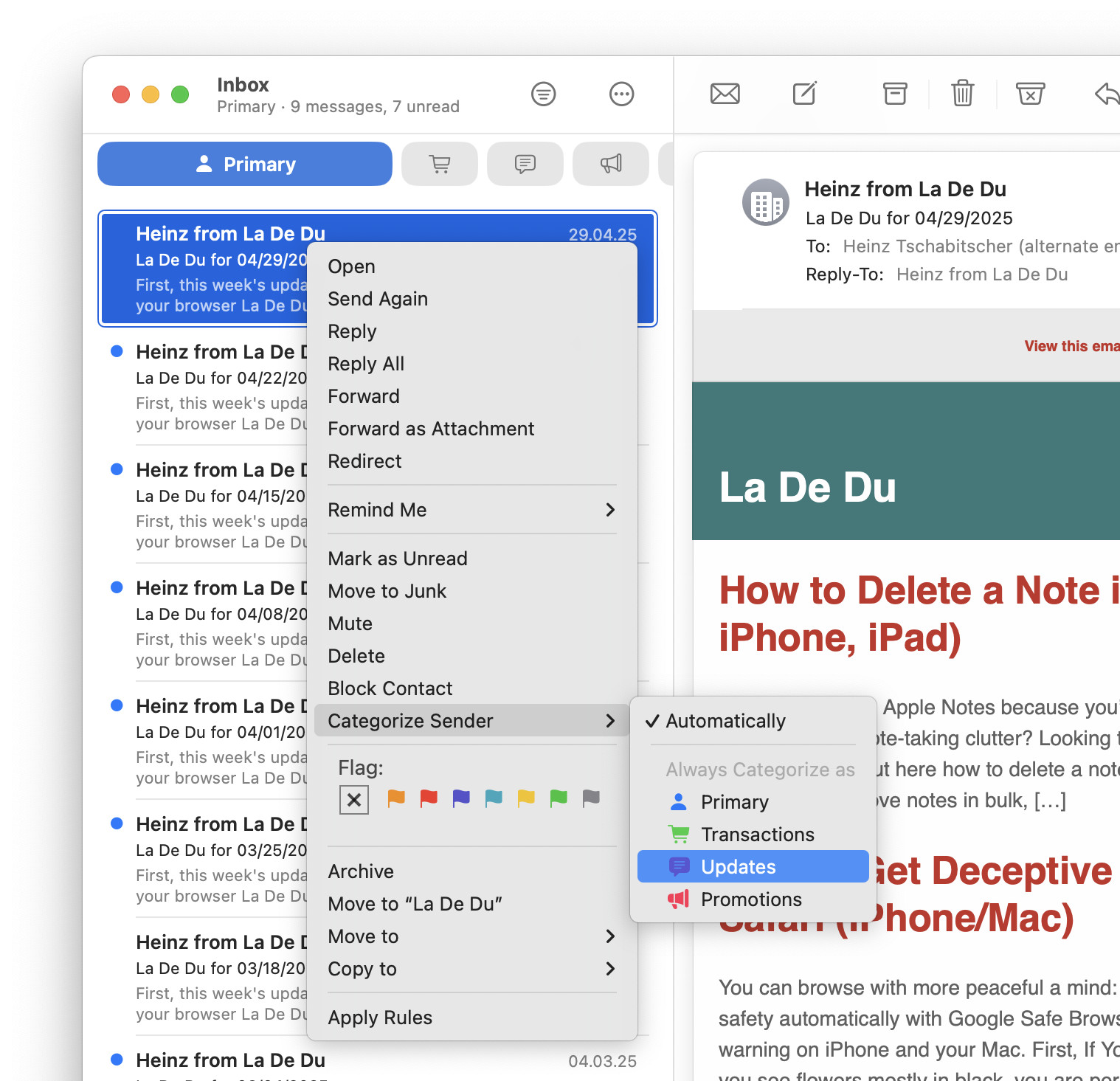
Safely “promoted” a sender to Promotions?
Tips help fuel these email and tech how-tos.
How to Categorize a Sender’s Emails in Apple Mail for Mac: FAQ
Can I use the toolbar to categorize a sender?
Yes.
To add a toolbar button for classifying a sender’s emails in Apple Mail for Mac:
- Select View | Customize Toolbar… from the menu in Mail.
- Drag and drop the Categorize Sender button to the desired place in the toolbar.
Now you can use the newly added button to pick the category for the current email’s sender.
Looking to get an overview? How to Quickly See All Inbox Emails in Mac Mail
“Categorize Sender” is grayed out — why?
Sender classification has a few prerequisites. For the option to categorize a sender to be enabled, make sure
- you are in the Inbox folder,
- inbox categories are enabled and visible in Mail and
- a message from desired sender is currently open.
When I pick a category, will existing emails move to it?
Yes.
Existing emails in the inbox will all appear in the newly picked category. Messages in other folders will not be moved, though.
Do sender categories synchronize across iCloud Mail?
Yes.
If you use an iCloud Mail account, sender categorizations synchronize with Apple Mail on iPhone and iPad as well as iCloud Mail at iCloud.com.
(Tested with macOS Tahoe 26 and Sequoia 14, first published May 2025, last updated May 2026)