
Wondering what you finished — and when? Accidentally checked off a task in Apple Reminders? Find out here how to view completed tasks in Apple Reminders on Mac, iPhone and iPad ⤓.
On This Page
How to View Completed Tasks in Apple Reminders
Apple Reminders for Mac
Time needed: 1 minute
To see completed tasks for a list in Apple Reminders for Mac on macOS:
- Open the to-do list for which you want to see completed tasks.
Here‘s which: You can see completed tasks for individual to-do lists, entire folders, smart lists and search results, for example.
- Click Show under Completed.
Here’s where: You can find the number of completed tasks and the Show button at the very bottom.
Context menu: You can also select View | Show Completed from the menu to see completed reminders for the list.
Reminders keyboard shortcut: Press Command Shift H to toggle display of done tasks. - Find completed reminders listed with their completion circle filled.
Here’s where: Completed reminders appear in the list where they would also show up uncompleted.
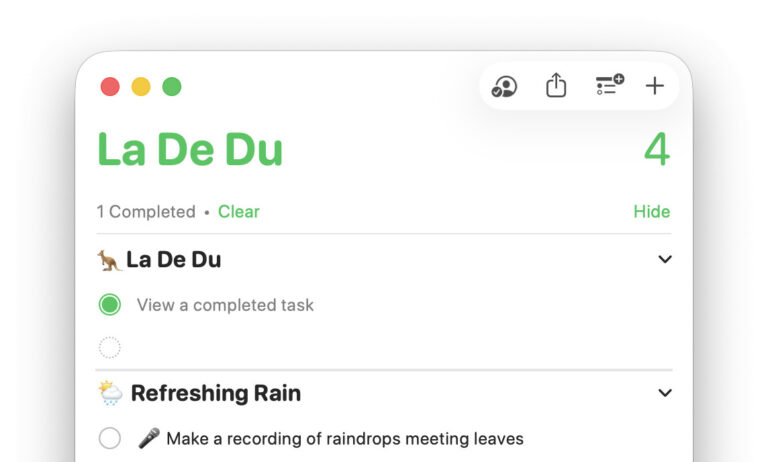
See what you have done there?
Tips help fuel these email and tech how-tos.
See All Completed Tasks in Reminders for Mac
Apple Reminders also includes a built-in smart list that collects all completed tasks from all lists.
To see a long list of all completed tasks in Apple Reminders for Mac:
- Select View | Show Smart List | Completed from the menu so the item is checked.
- Now go to the Completed list in the Reminders sidebar.
Seeing all: How to View All Tasks in Apple Reminders
Apple Reminders for iPhone and iPad
To see tasks already completed for a list in Apple Reminders on iPhone and iPad:
- Go to the list in which you want to see completed tasks.
- Tap the three dots menu button.
- Select Show Completed from the menu.
In hiding: Select Hide Completed from the same menu to make completed tasks disappear from display again.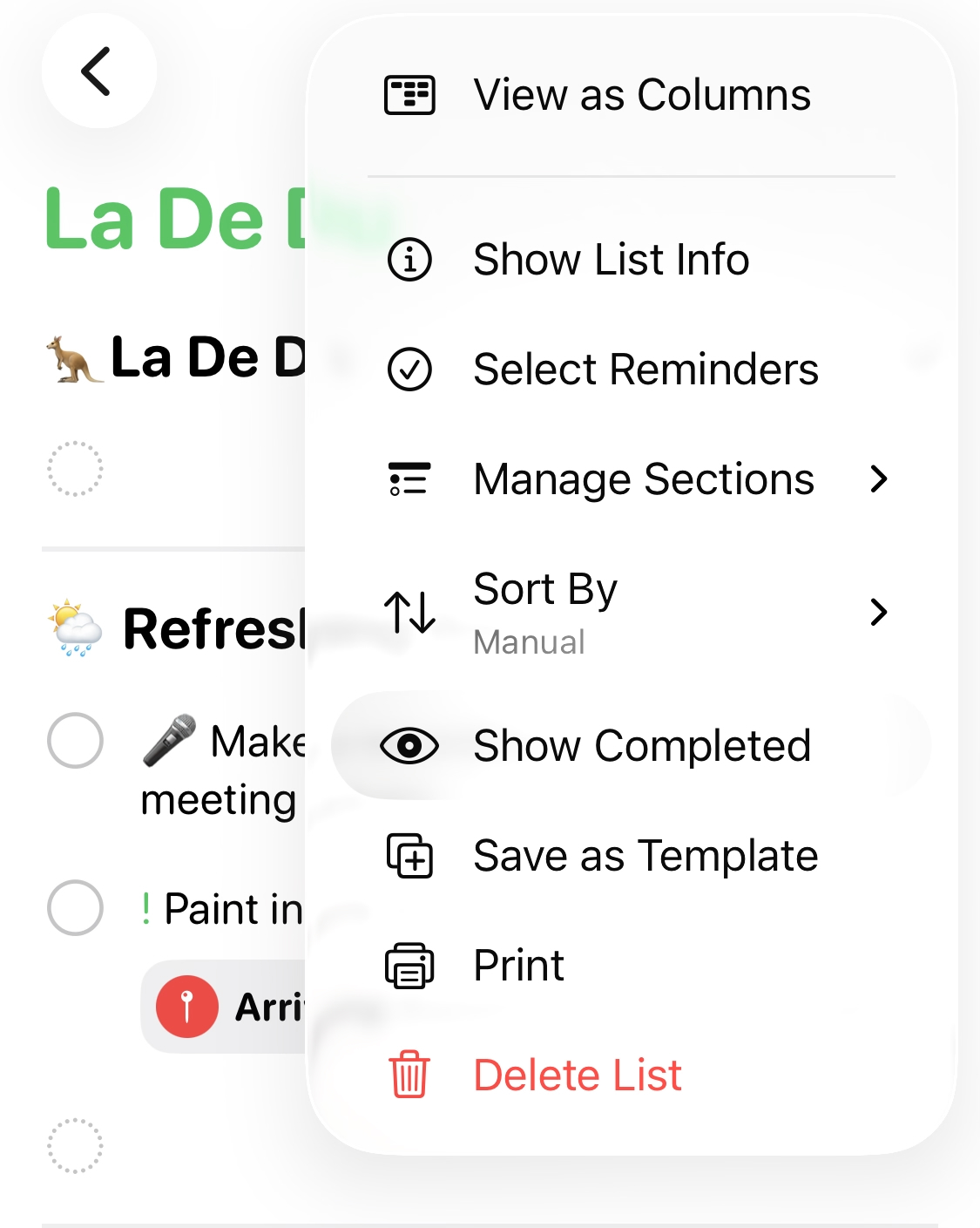
View All Completed Tasks in Apple Reminders for iPhone and iPad
To see the complete list of tasks you’ve completed in Apple Reminders on an iPhone or iPad:
- Make the Completed list visible in Apple Reminders as a favorite list.
Here’s how: Tap the three dots menu button on the list overview screen, select Edit Lists and check Completed. - Open the Completed smart list to see all completed tasks.
How to View Completed Tasks in Apple Reminders: FAQ
Can I set up a smart list to show only completed tasks, e.g., those completed today?
No.
Apple Reminders does not include completion information as a criterion for smart lists.
To see your most recently completed tasks:
- Go to the Completed smart list; see above.
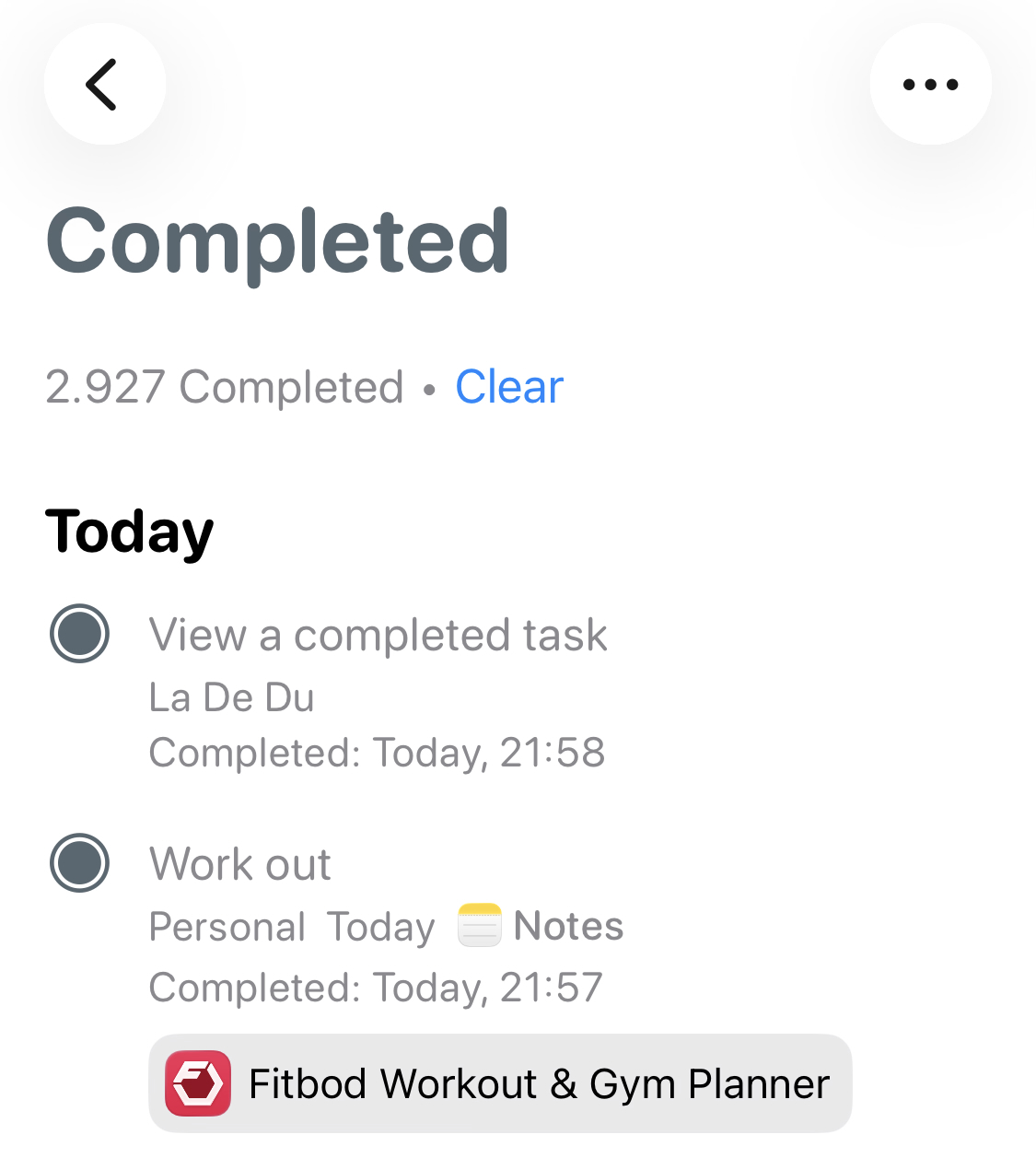
- Find tasks sorted by completion.
Time: Here, Reminders also lists the completion date and time for each task.
(Tested with Reminders 7 on macOS Tahoe 26 and Reminders on iOS 26; first published June 2026)